Deploy 20 x Docker Swarm nodes using Terraform and Ansible

If you wonder how to automatically deploy 20 nodes of Docker Swarm and run 100 Docker containers in it, then continue reading. I will show how to achieve this by using Terraform, Ansible and Portainer.

Course of action

  • Terraform 20 x Ubuntu virtual machines
  • Install Docker Swarm using Ansible
  • Install Portainer
  • Deploy 100 containers across Swarm cluster

What is Docker Swarm and why I need to have 20 of these?

Docker is containers toolkit utilizing cgroups, namespaces which allows to control and share resources of the CPU and operating system. Docker Swarm its a special kind of runtime mode, which allows to run multiple clustered nodes which can be separate physical computers or virtual machines. It gives us scalability and resource separation yet keeping it all within same management utitlities. You can make work much easier by installing Portainer CE, which is management UI for containers orchestration (de facto operations management).

So back to the question, why 20 of these? You can have single Docker Swarm node being both manager and worker and put loads of resources that you have, like CPU and RAM. But for sake of better maintanane, equal resources utilization and securing resources, you use clustered mode such as Docker Swarm with more than one node.

What is Terraform and Ansible and the whole automation thing?

Terraform is automation tool for automating construction of systems, for instance provisioning virtual machines. You can do it also with Ansible, but its role here is more like to manage already provisioned systems instead of provisioning themself. So both tool could be used possible for all the tasks, however Terraform which Telmate Proxmox plugin do it the easiest way. I use Ansible to automate tasks across resources created with Terraform. This is my way, your might be different.

Why to deploy 100 containers of the same application?

If your application perfectly handles errors and tools outages and it’s capable of running multiple processes with multiple threads and you know that will never be redeployed, then stick with 1 container. But in any of these cases, having muliple containers, instances, of the same application will be beneficial. You increate your fault-tolerance, make software releases easier. You need not bother that much about application server configuration, etc, because all of these is mitigated by deploying in N > 1 instances.

You can have 2 containers for frontend application, 2 containers for backend application, 1 application for background processing and many other composites of your single or multiple repositories. You could have 50 frontends and 50 backends, it depends on a case. You could introduce auto-scaling, which by the way is present in OKD, OpenShift, Kubernetes, but Docker Swarm and Portainer lack of such feature. It is unfortunate, but still you can do it yourself or plan and monitor your resources usage. In case of dedicated hardware it is not so important to have autoscaling, just overallocate for future peaks. In case of public cloud providers, when you pay for what you use it will be important to develop auto-scaling feature.

Terraform 20 Ubuntu VM

So in order to deploy more than one VM using Terraform and Telmate Proxmox provider plugin you need to either copy resource section multiple times or use count notation. I defined terraform and provider sections as well as two resource sections each for different target Proxmox server. By using count, you get ability to interpolate ${count.index} for each consecutive execution of resource. I used it for name and network IP address. Target server is differentiated using target_node. Be sure to use appropriate clone name and disk storage name at which your VMs will be placed.

terraform {
    required_providers {
        proxmox = {
            source  = "telmate/proxmox"
            version = "2.9.0"
        }
    }
}

provider "proxmox" {
    pm_api_url      = "https://192.168.2.11:8006/api2/json"
    pm_user         = "root@pam"
    pm_password     = "xxx"
    pm_tls_insecure = true
    pm_timeout       = 300
    pm_parallel      = 2
}

resource "proxmox_vm_qemu" "ubuntu_vm_xx" {
    count       = 10
    name        = "z10-ubuntu-22-from-terraform-2-${count.index}"
    target_node = "lab2" 
    clone       = "new-template"
    full_clone  = true
    memory      = 4000
    cores       = 2 
    bootdisk = "virtio0"
    network {
        bridge = "vmbr0"
        model = "virtio"
    }
    disk {
        storage = "single-dir-ssd-256GB"
        size = "10G"
        type = "virtio"
    }
    os_type = "cloud-init"
    ipconfig0 = "ip=192.168.2.${count.index}/22,gw=192.168.1.1"
    ciuser = "xxx"
    cipassword = "xxx"
}

resource "proxmox_vm_qemu" "ubuntu_vm_lab" {
    count       = 10
    name        = "z10-ubuntu-22-from-terraform-3-${count.index}"
    target_node = "lab" 
    clone       = "z10-ubuntu-22-template-RAW"
    full_clone  = true
    memory      = 4000
    cores       = 2 
    bootdisk = "virtio0"
    network {
        bridge = "vmbr0"
        model = "virtio"
    }
    disk {
        storage = "vms1"
        size = "10G"
        type = "virtio"
    }
    os_type = "cloud-init"
    ipconfig0 = "ip=192.168.3.${count.index}/22,gw=192.168.1.1"
    ciuser = "xxx"
    cipassword = "xxx"
}

With above notation you will create 10+10 Ubuntu VM. You can run it with:

terraform apply -parallelism=1

After VM are created you need to wait until cloud-init finshes its job. If you are not sure if its running or then, then reboot this VM so you will not get any stuck processes which could collide with the next step which is installing Docker with Ansible.

Install Docker service with Ansible

First we define the inventory:

[lab]
192.168.2.0
192.168.2.1
192.168.2.2
192.168.2.3
192.168.2.4
192.168.2.5
192.168.2.6
192.168.2.7
192.168.2.8
192.168.2.9
192.168.3.0
192.168.3.1
192.168.3.2
192.168.3.3
192.168.3.4
192.168.3.5
192.168.3.6
192.168.3.7
192.168.3.8
192.168.3.9

[lab:vars]
ansible_user=xxx
ansible_password=xxx

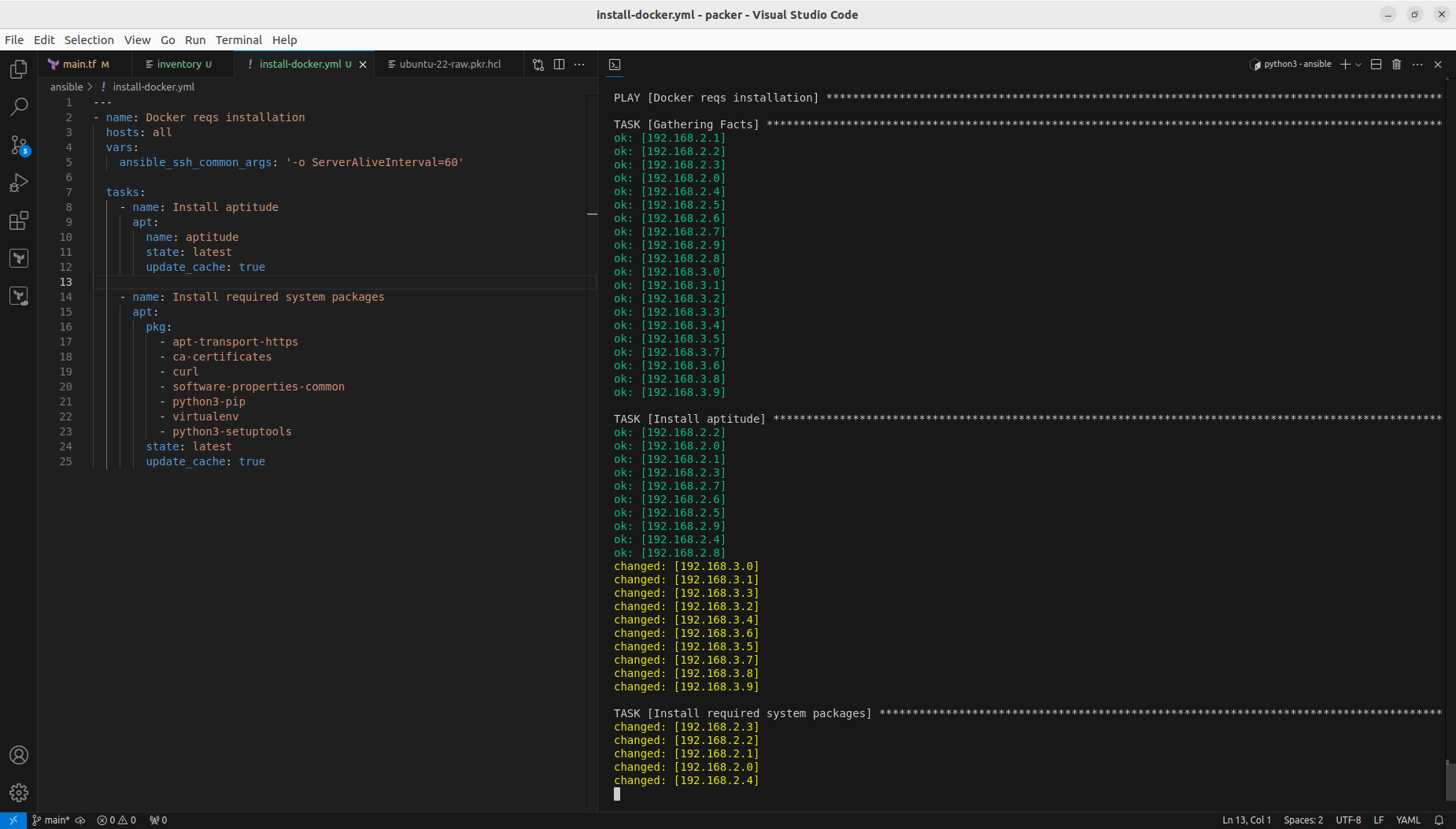
Second of all, we define and run installation of required packages:

---
- name: Docker reqs installation
  hosts: all
  vars:
    ansible_ssh_common_args: '-o ServerAliveInterval=60'

  tasks:
    - name: Install aptitude
      apt:
        name: aptitude
        state: latest
        update_cache: true

    - name: Install required system packages
      apt:
        pkg:
          - apt-transport-https
          - ca-certificates
          - curl
          - software-properties-common
          - python3-pip
          - virtualenv
          - python3-setuptools
        state: latest
        update_cache: true
And finally insallation of Docker itself:

---
- name: Docker installation
  hosts: all
  vars:
    ansible_ssh_common_args: '-o ServerAliveInterval=60'

  tasks:
    - name: Add Docker GPG apt Key
      apt_key:
        url: https://download.docker.com/linux/ubuntu/gpg
        state: present

    - name: Add Docker Repository
      apt_repository:
        repo: deb https://download.docker.com/linux/ubuntu jammy stable
        state: present

    - name: Update apt and install docker-ce
      apt:
        name: docker-ce
        state: latest
        update_cache: true

    - name: Install Docker Module for Python
      pip:
        name: docker

We could include those steps into Packer configuration and that way Docker with its requirements would be included by default. However it is good to know not only Packer and Terraform, but also how to run it from Ansible.

Configure Docker Swarm and join cluster

I decided to configure single manager with Portainer, so I picked 192.168.2.0 for this job:

sudo docker swarm init
curl -L https://downloads.portainer.io/ce2-21/portainer-agent-stack.yml -o portainer-agent-stack.yml
sudo docker stack deploy -c portainer-agent-stack.yml portainer
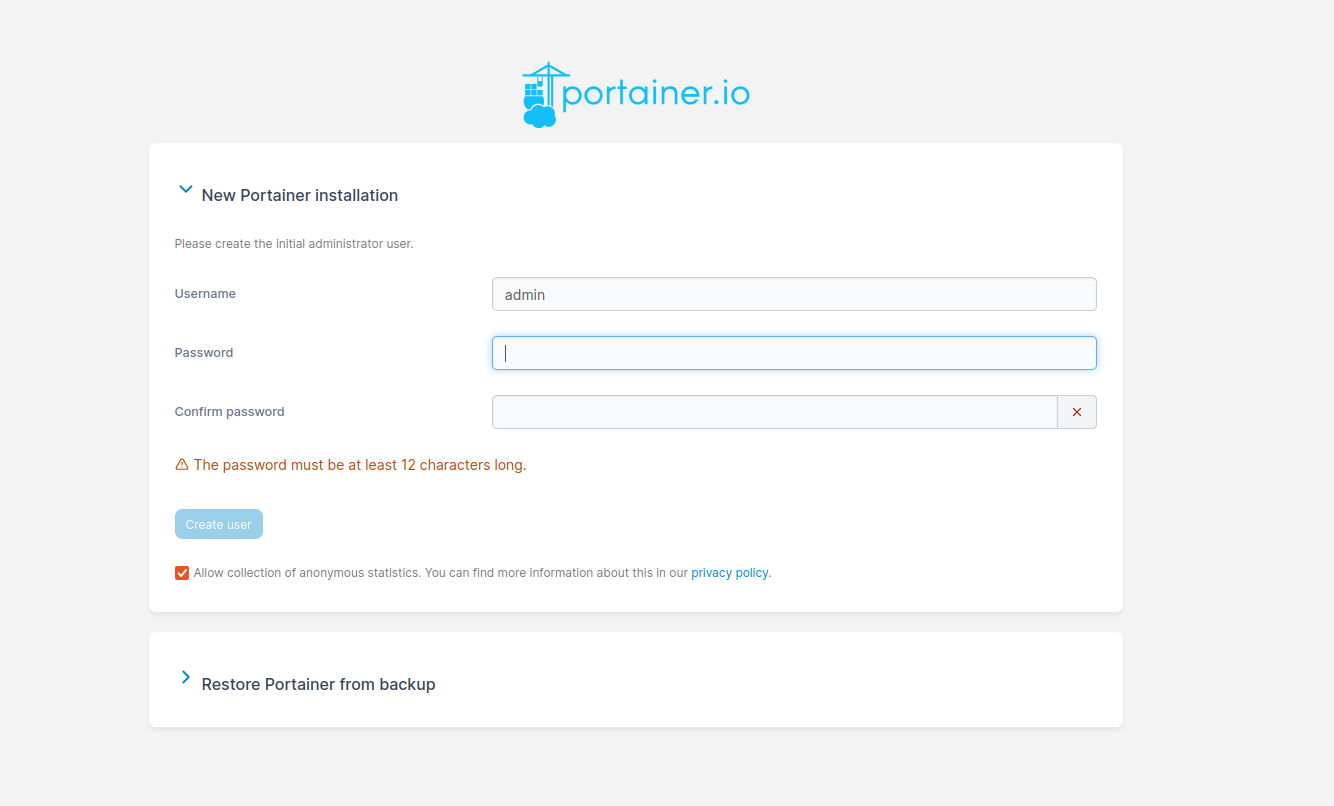
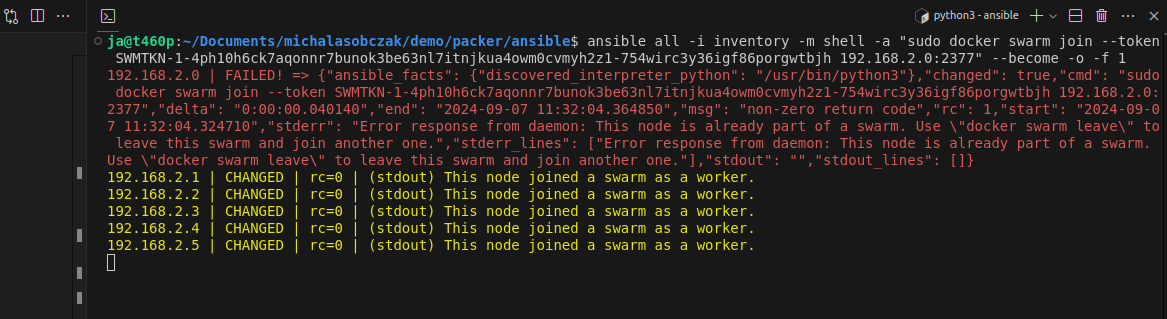
Now we have Docker Swarm initialized, installed Portainer stack. After initializing Swarm mode you get a token for nodes inclusion. You can join more manager nodes, but for simple installation demo you can stick with single one and join additional 19 worker nodes, by using Ansible command:

ansible all -i inventory -m shell -a "sudo docker swarm join --token SWMTKN-1-4ph10h6ck7aqonnr7bunok3be63nl7itnjkua4owm0cvmyh2z1-754wirc3y36igf86porgwtbjh 192.168.2.0:2377" --become -o -f 1

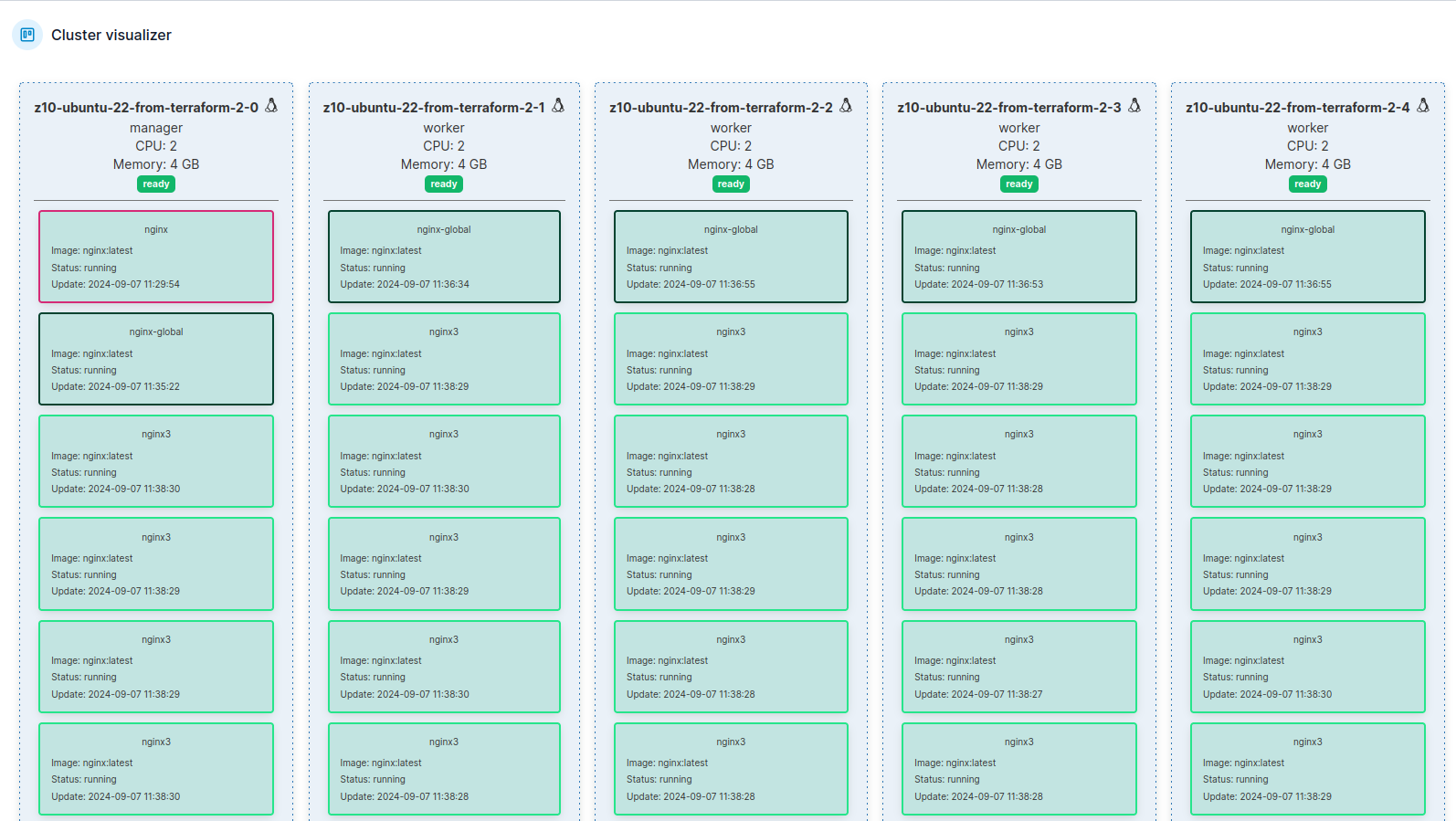
In portainer there is cluster visualizer, where you see all nodes and what is inside of them:
Running containers workloads

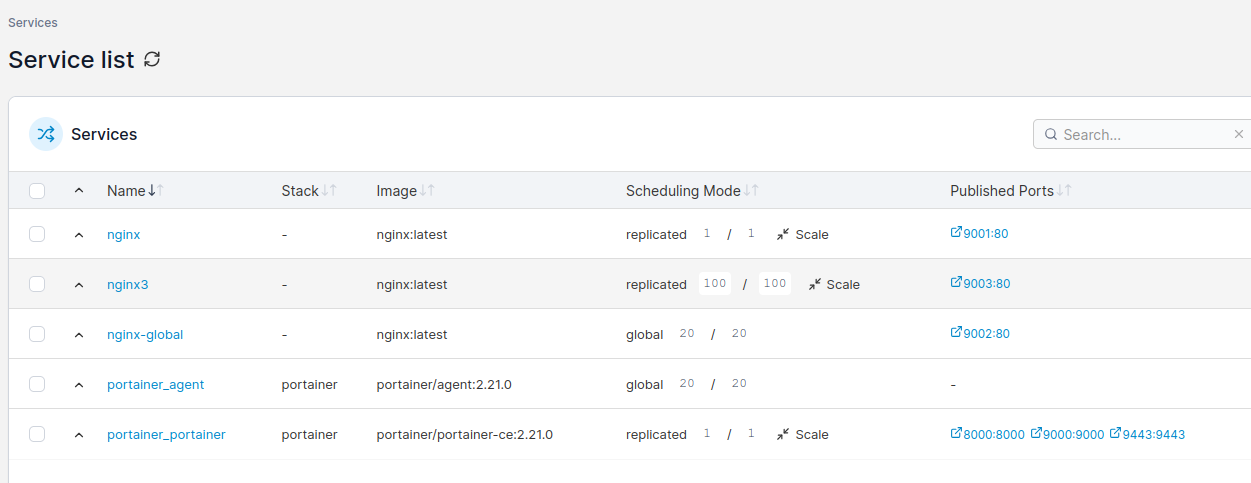
Using Portainer CE you can scale service instances, ie containers by just entering number of Docker container ro run. You can either run replicated mode, where you explicitly define how many container you would like to start, or you can use global mode, where number of containers will automatically equal number of nodes in your Docker Swarm cluster.
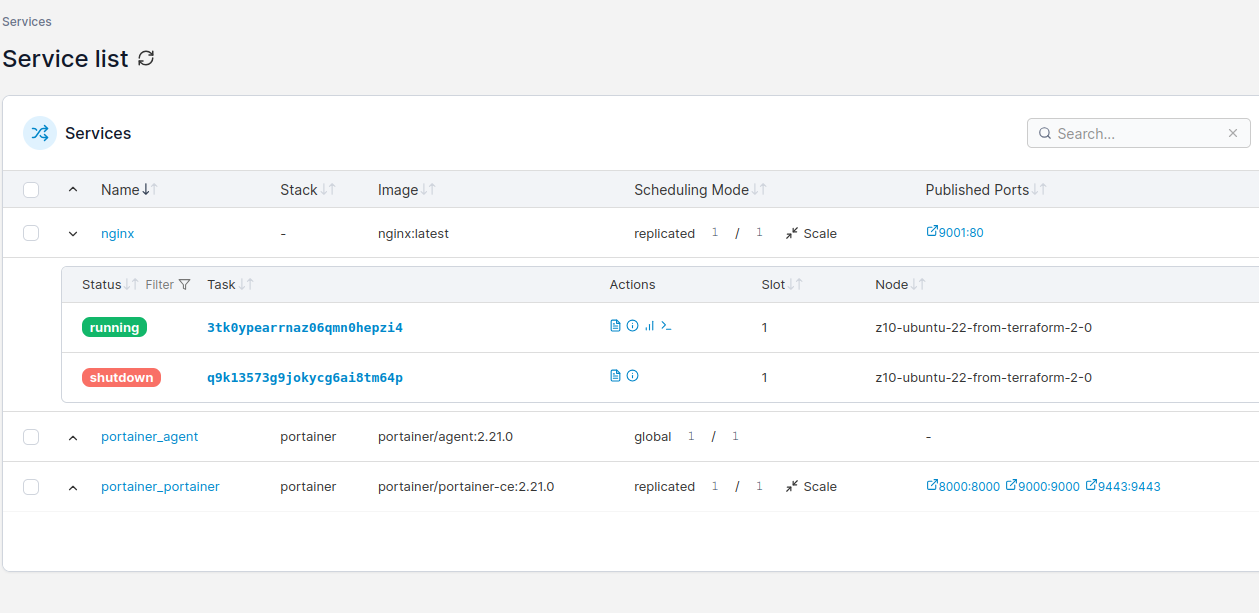
Docker Swarm scheduler will try to place containers equally according to service definiotion and hardware capabilities. You can try gradually increase number of instances and monitor hardware resources usage. There is whole separate topic regarding deployment webhooks, deployment strategies etc.
Performance comparison scenario

Installation is initialized by terraform init -parallel=1 command. On older hardware I suggest go for one-by-one strategy, instead of high parallel leve which could lead to some unexpected behavior like disk clone timeout or other issues.
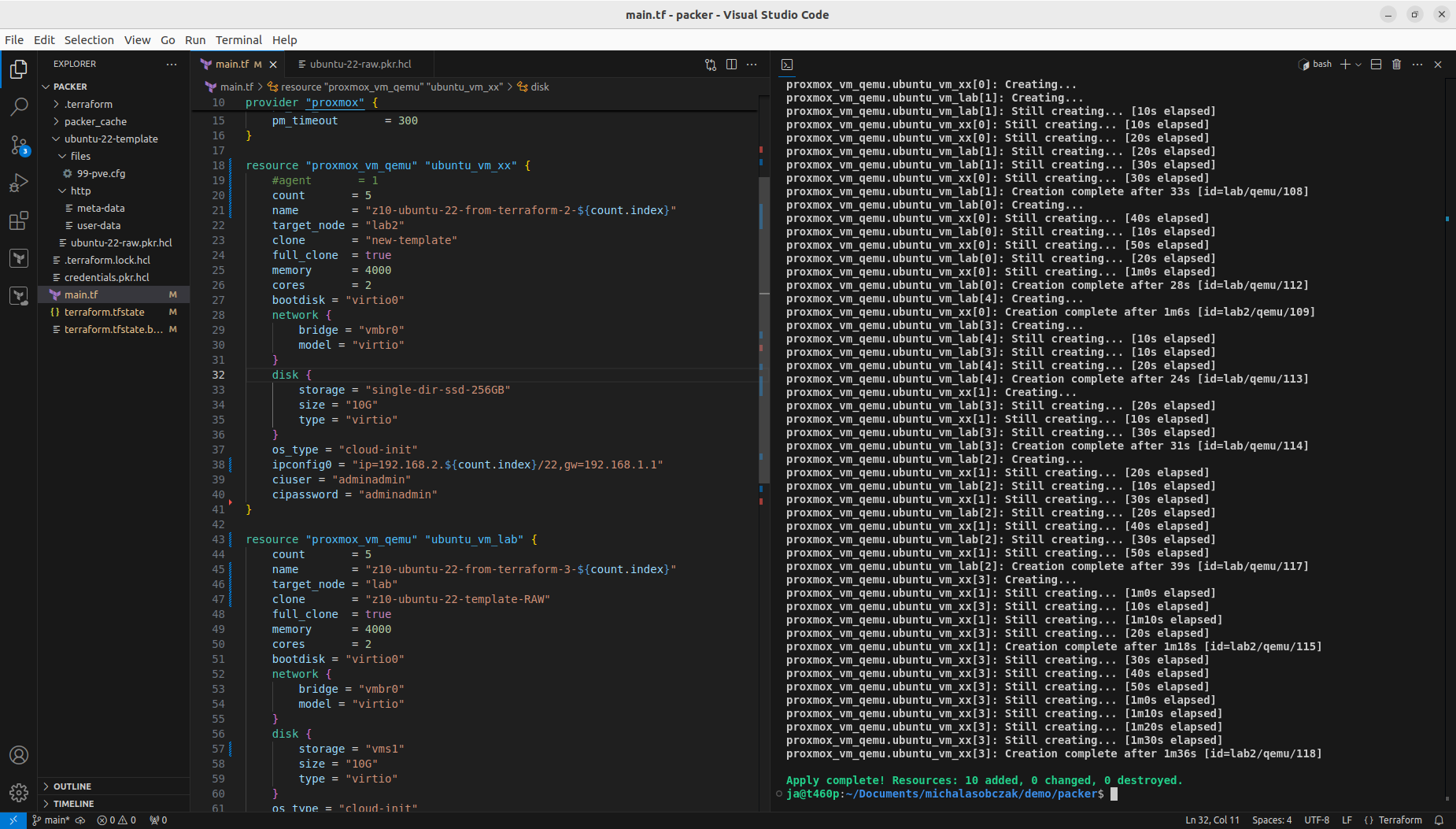
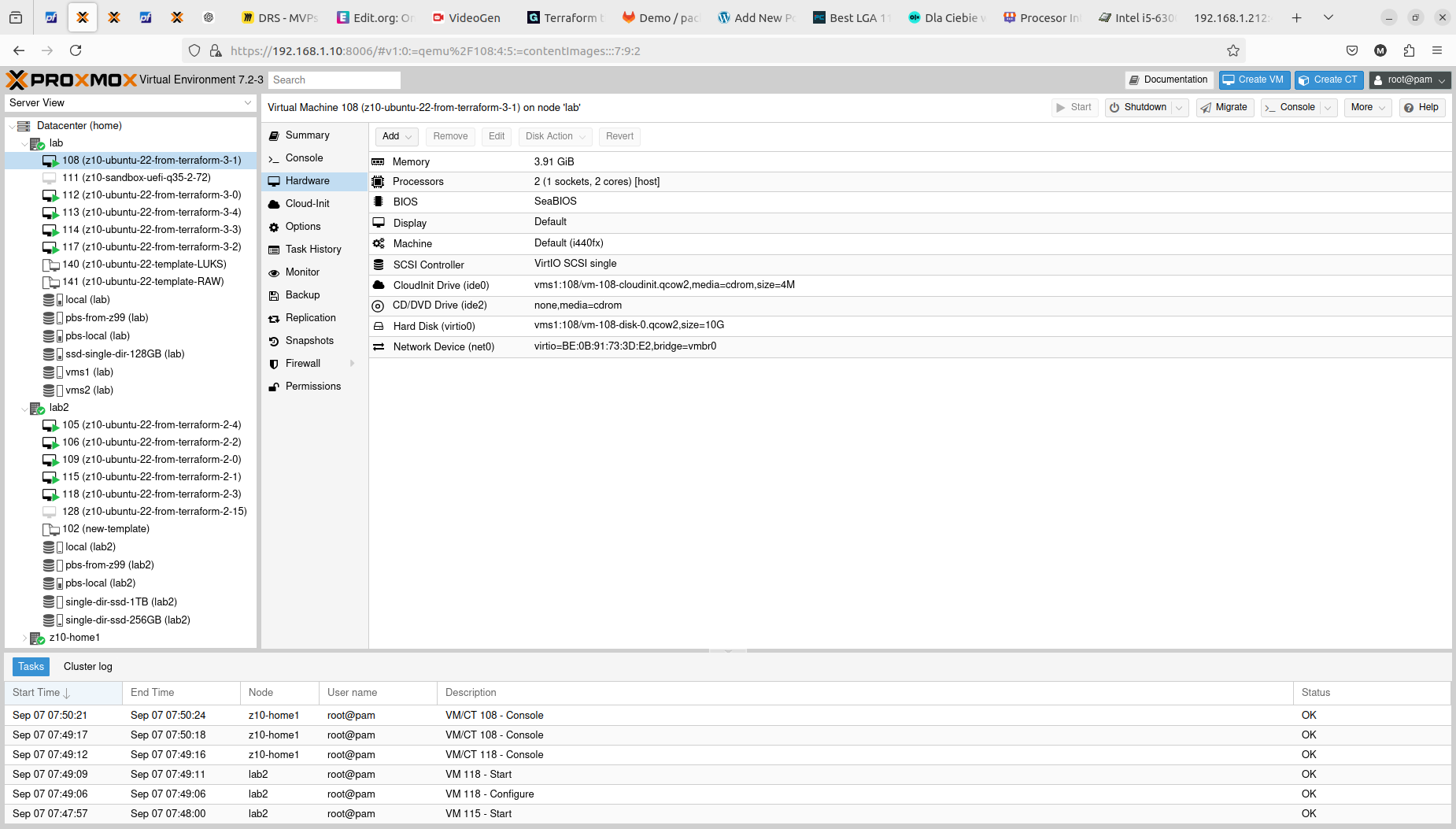
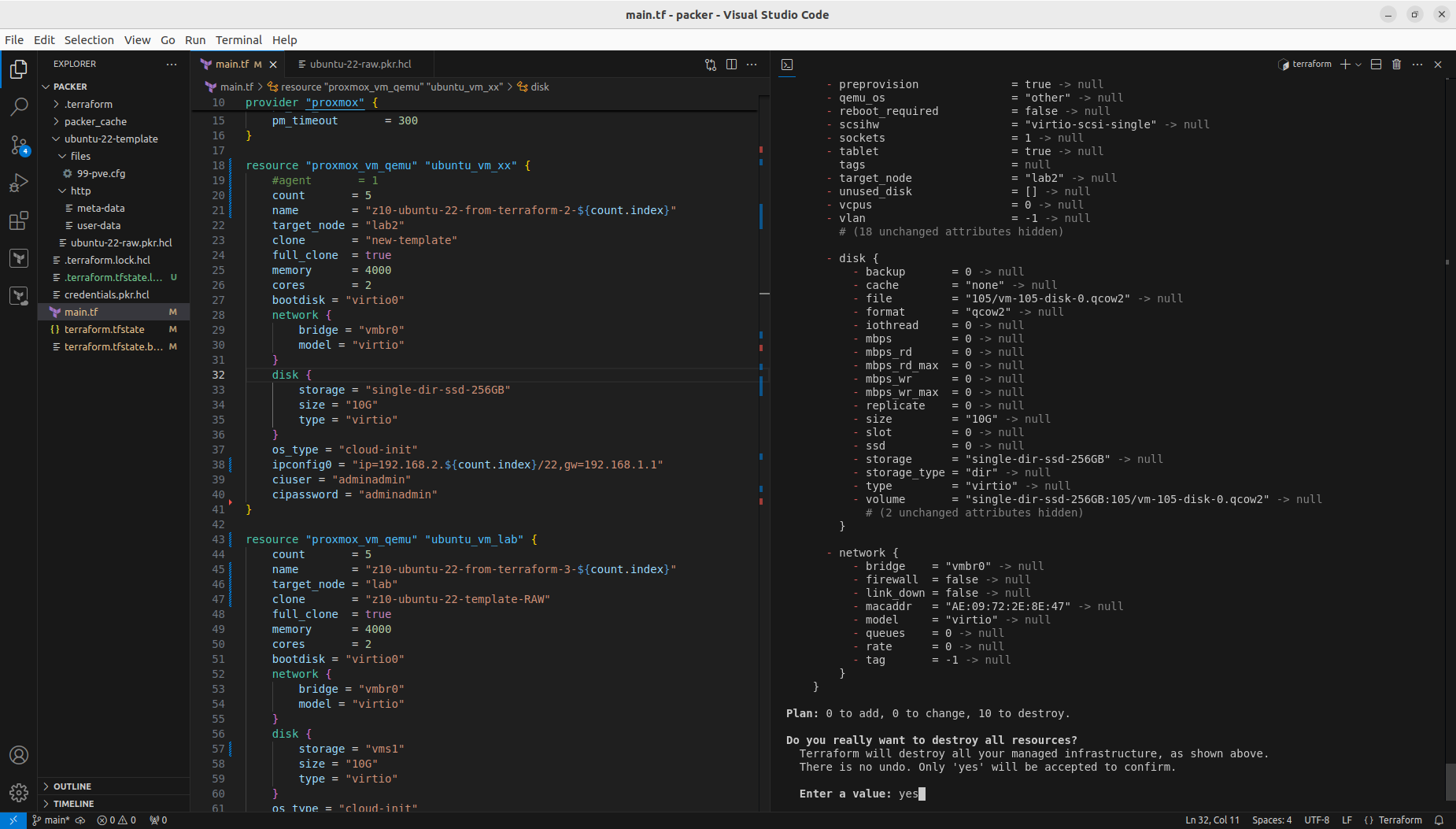
With that step done we can see how those two Terraform resource sections transformed into 5+5 virtual machines on two Proxmox nodes. Terraform keeps track of the baseline/state of your deloyment, however, it is not 100% safe to rely on it only. It is good to double check the results. In my tests I experienced situation when Terraform said that it destroyed all the content, but it did not actually. Same with resources creation, even if you are told here that everything is done be sure check it out. The problem may lay within at least 4 places, which are Terraform itself, Telmate Proxmox provider, Proxmox golang APIa and finally Proxmox itself with its hardware and software.
Both with apply and destroy you will be shown the proposed changes based on your configuration, you can then review what is going to happen and if this fits your needs:
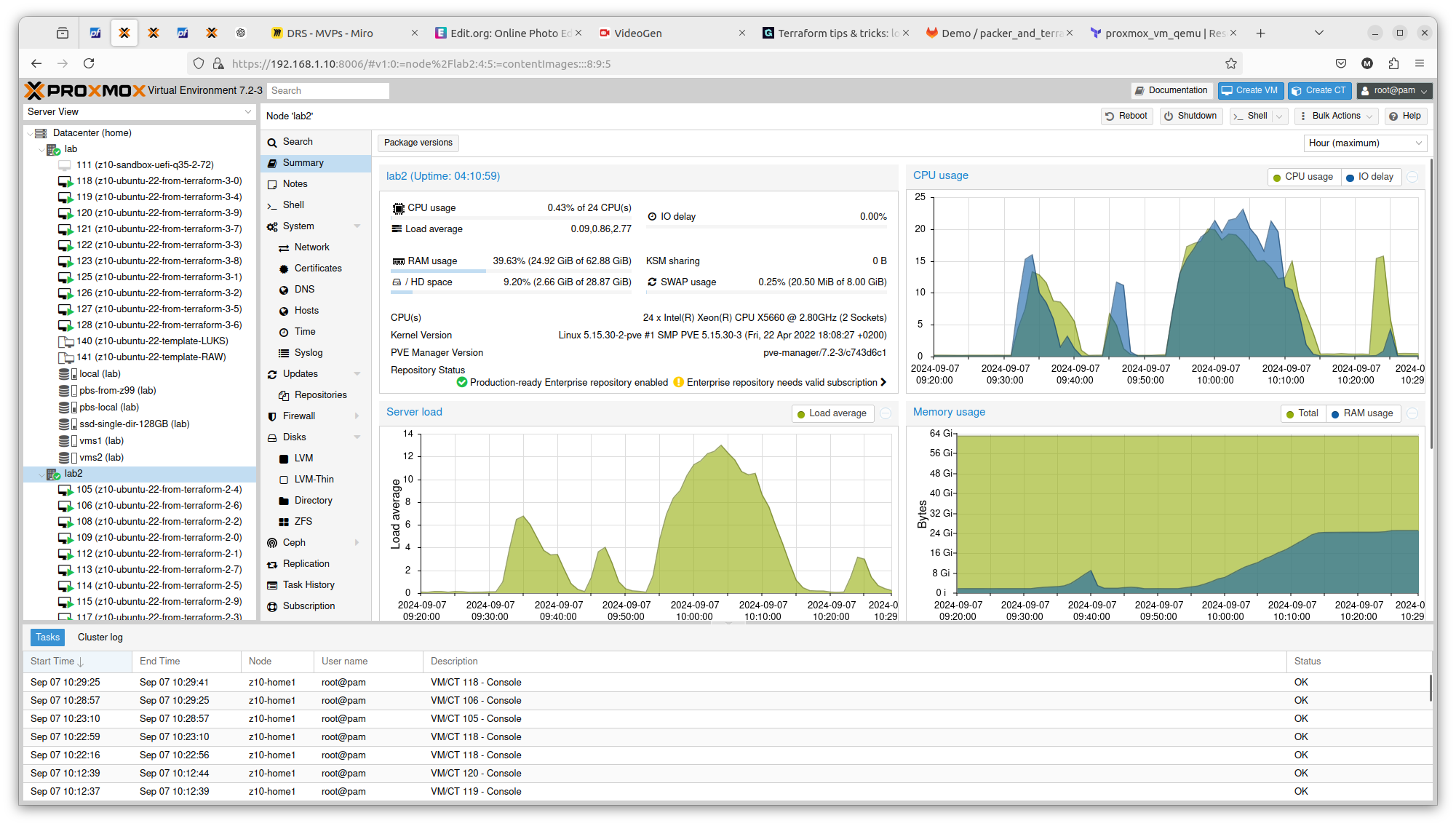
It is crucial to know on what hardware you are working on. At least from performance perspective. In case of Proxmox VE and bare-metal hardware what you see is what you get. But this strategy can be also applied on many other platform providers, yo can what brings the specific AWS or Azure virtual machines. So to illustrate it, I compared Server load between 2 Proxmox nodes within the same cluster. Here is one with 2 x Intel Xeon X5560:
And here you have 2 x Intel Xeon E5645:
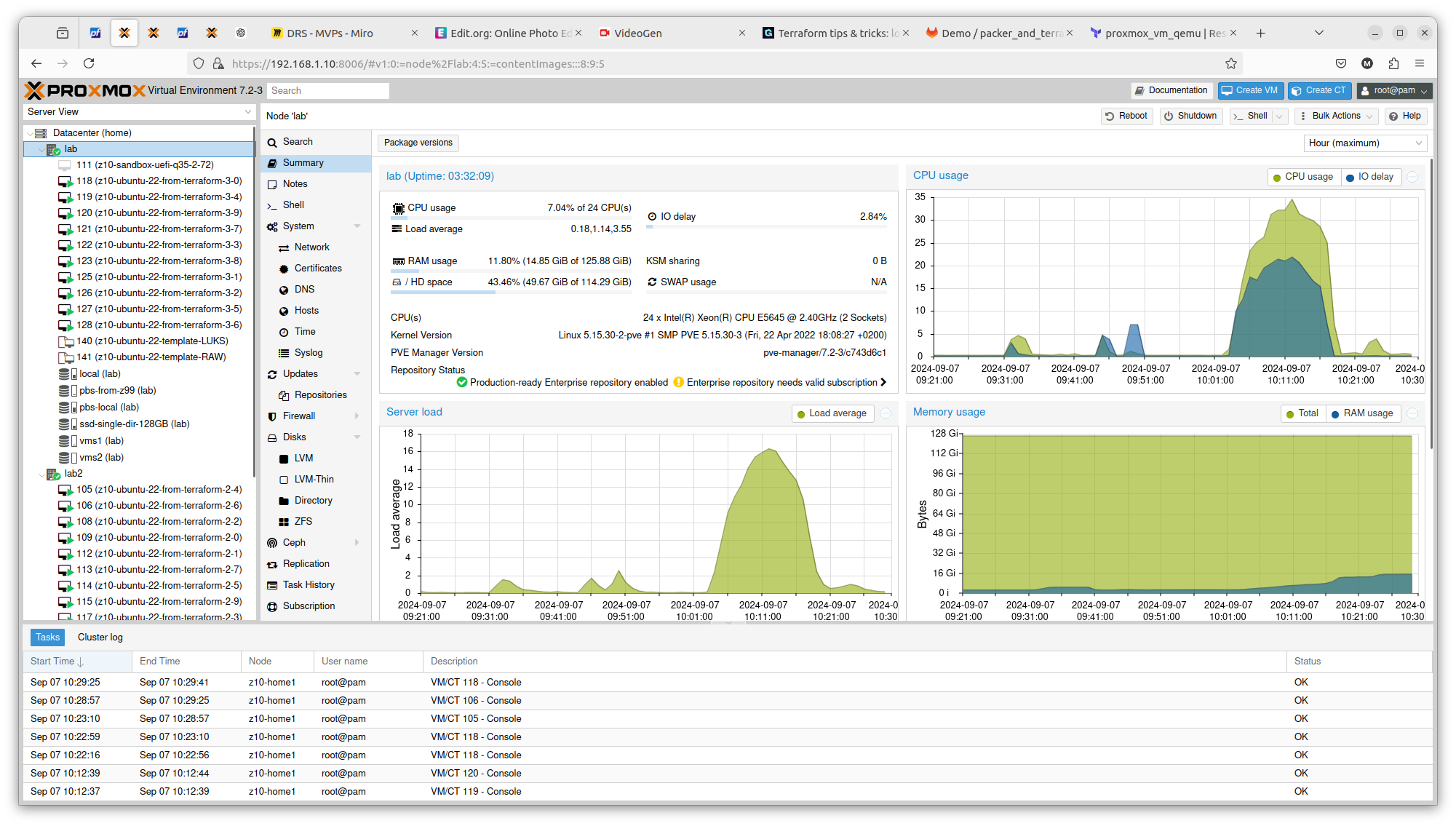
You can see exactly that difference in terms on CPU theoretical performance is confirmed in real scenario. The first server gets load up to 14 and the second one up to 16. There is also difference in terms of RAM usage. Same goes with drives performance. All those factors can be important if running plenty of Ansible or Terraform tasks concurrently.

Conclusion

With Terraform, Ansible and even Packer, you easily deploy multiple virtual resources and scale your applications deployment.
Use Packer & Terraform to generate Ubuntu 22.04-4 server image and deploy it automatically to Proxmox

If you wonder how to automate Ubuntu virtual machine creation and then deploy it to Proxmox in multple copies, then you are looking for Packer and Terraform.

Side note: going for virtual machines in Proxmox is the proper way. I tried for several days to have LXC containers working, however finally I will say that it is not the best option with lot of things going bad like cgroups, AppArmor, nesting, FUSE, ingress networking etc. There is literally too much to handle with LXC and with VM there is no such problem, so discussion end here in favour of Proxmox Qemu. Keep LXC contrainers for simple things.

Why to automate?

Because we can.

Because it is a better way of using our time.

Because it scales better.

Because it provides some form of self-documentation.

Why to use Proxmox and Ubuntu VM?

Ubuntu is a leading Linux distribution without licensing issues with 34% of Linux market share. It has strong user base. It is my personal preference also. It gives us ability to subscribe to Ubuntu Pro which comes with several compliance utilities.

And Proxmox/Qemu started being an enterprise class virtualization software package few years back and it is also a open source leading solutions in its field. In contains clustering features (including failover) as well as support for various storage types. Depending on a source it has around 1% of virtualization software market share.

Installation of Packer and Terraform

It is important to have both Packer and Terraform at its proper versions coming from official repositories. Moreover it is important that the exact way of building specific version of operating system differs from vesion to version, that is way the title of this article says 22.04-4 and not 22.04-3, because there might be some differences.

Install valid version of Packer. The version which come from Ubuntu packages it invalid and it does not contain ability to manage plugins, so be sure to install Packer with official repository.

curl -fsSL https://apt.releases.hashicorp.com/gpg | sudo apt-key add -
sudo apt-add-repository "deb [arch=amd64] https://apt.releases.hashicorp.com $(lsb_release -cs) main"
sudo apt-get update && sudo apt-get install packer

Install valid version of Terraform. Having issues with bundled version of Packer I decided to go for official way of installing at first try:

sudo apt-get update && sudo apt-get install -y gnupg software-properties-common

wget -O- https://apt.releases.hashicorp.com/gpg | \
gpg --dearmor | \
sudo tee /usr/share/keyrings/hashicorp-archive-keyring.gpg > /dev/null

gpg --no-default-keyring \
--keyring /usr/share/keyrings/hashicorp-archive-keyring.gpg \
--fingerprint

echo "deb [signed-by=/usr/share/keyrings/hashicorp-archive-keyring.gpg] \
https://apt.releases.hashicorp.com $(lsb_release -cs) main" | \
sudo tee /etc/apt/sources.list.d/hashicorp.list

sudo apt update

sudo apt-get install terraform

Terraform Telmate/Proxmox

Important note regarding Terraform and its plugin for Proxmox. This plugin as well as Proxmox golang API is provided by a single company which Telmate LLC. This plugin has some compability issues and at the moment for Proxmox 7 I recommend using Telmate/proxmox version 2.9.0. The latest version which is 2.9.14 has some difficulties with handling cloud-init which leads to 50% chance of VM that requires manual drives reconfiguration. As for 2024/09/06 there is no stable 3.0.1 release.

If you happen to have the latest one and would like downgrade, then remove .terraform and .terraform.lock.hcl and then initialize once again with the following command:

terraform init

Generate Ubuntu 22.04-4 template for Proxmox with Packer

Starting from few versions back the Ubuntu project changed its way of automating installations. Instead of seeding you now have a autoinstall feature. Packer project structure contains few files, and I will start with ubuntu-22-template/http/user-data containing cloud-config:

#cloud-config
autoinstall:
  version: 1
  locale: en_US
  ssh:
    install-server: true
    allow-pw: true
    disable_root: true
    ssh_quiet_keygen: true
    allow_public_ssh_keys: true
  packages:
    - qemu-guest-agent
    - sudo
  storage:
    layout:
      name: lvm
      sizing-policy: all
      # password: xxx
  user-data:
    package_upgrade: false
    timezone: Europe/Warsaw
    users:
      - name: temporary
        groups: [sudo]
        lock-passwd: false
        sudo: ALL=(ALL) NOPASSWD:ALL
        shell: /bin/bash
        passwd: "here you place SHA512 generated hash of a password"

In order to turn LUKS on, uncomment storage.layout.password field and set desired password. users.passwd can be generated with mkpasswd using SHA-512. Next is ubuntu-22-template/files/99-pve.cfg:

datasource_list: [ConfigDrive, NoCloud]

Credentials get its own file (./credentials.pkr.hcl). You can of course place it directly into your file, however if you SCM those files it will be permament and shared with others, that is why you should separate this file and even do not include it into your commits:

proxmox_api_url = "https://192.168.2.10:8006/api2/json"
proxmox_api_token_id = "root@pam!root-token"
proxmox_api_token_secret = "your Proxmox token"
my_ssh_password = "your new VM SSH password"

Finally, there is ubuntu-22-template/ubuntu-22-raw.pkr.hcl file, where you define variables, source and build. We source ISO image and define Proxmox VE Qemu VM parameters. The most crucial and cryptic things is to provide valid boot_command. http* sections refers to your machine serving files over HTTP, ssh* section on the other hand refers to configuration relate to the remote machine (newly created VM on Proxmox). Our local machine acts as shell commands provider over HTTP which then being passed to remote machine are executed during system installation.

variable "proxmox_api_url" {
    type = string
}
variable "proxmox_api_token_id" {
    type = string
}
variable "proxmox_api_token_secret" {
    type = string
    sensitive = true
}
variable "my_ssh_password" {
    type = string
    sensitive = true
}

source "proxmox-iso" "ubuntu-server-jammy" {
    proxmox_url = "${var.proxmox_api_url}"
    username =    "${var.proxmox_api_token_id}"
    token =       "${var.proxmox_api_token_secret}"
    insecure_skip_tls_verify = true
    node = "lab"
    vm_id = "141"
    vm_name = "z10-ubuntu-22-template-RAW"
    template_description = "Ubuntu Server Raw Encrypted"
    iso_file = "local:iso/ubuntu-22.04.4-live-server-amd64.iso"
    iso_storage_pool = "local"
    unmount_iso = true
    qemu_agent = true
    scsi_controller = "virtio-scsi-single"
    disks {
        disk_size = "10G"
        format = "raw"
        storage_pool = "vms1"
        storage_pool_type = "directory"
        type = "virtio"
    }
    cores = "2"    
    memory = "4096" 
    network_adapters {
        model = "virtio"
        bridge = "vmbr0"
        firewall = "false"
    } 
    cloud_init = true
    cloud_init_storage_pool = "local"
    boot_command = [
        "<esc><wait>",
        "e<wait>",
        "<down><down><down><end>",
        "<bs><bs><bs><bs><wait>",
        "ip=${cidrhost("192.168.2.0/24", 100)}::${cidrhost("192.168.1.0/24", 1)}:${cidrnetmask("192.168.0.0/22")}::::${cidrhost("1.1.1.0/24", 1)}:${cidrhost("9.9.9.0/24", 9)} ",
        "autoinstall ds=nocloud-net\\;s=http://{{ .HTTPIP }}:{{ .HTTPPort }}/ ---<wait>",
        "<f10><wait>"
    ]
    boot = "c"
    boot_wait = "5s"
    http_directory = "ubuntu-22-template/http" 
    http_bind_address = "IP of machine from which you will run Packer"
    http_port_min = 8802
    http_port_max = 8802
    ssh_host = "192.168.2.100" # new VM proposed IP address
    ssh_username = "temporary"
    ssh_password = "${var.my_ssh_password}"
    ssh_timeout = "20m"
}


build {
    name = "ubuntu-server-jammy"
    sources = ["proxmox-iso.ubuntu-server-jammy"]
    provisioner "shell" {
        inline = [
            "while [ ! -f /var/lib/cloud/instance/boot-finished ]; do echo 'Waiting for cloud-init...'; sleep 1; done",
            "sudo rm /etc/ssh/ssh_host_*",
            "sudo truncate -s 0 /etc/machine-id",
            "sudo apt -y autoremove --purge",
            "sudo apt -y clean",
            "sudo apt -y autoclean",
            "sudo cloud-init clean",
            "sudo rm -f /etc/cloud/cloud.cfg.d/subiquity-disable-cloudinit-networking.cfg",
            "sudo rm -f /etc/netplan/00-installer-config.yaml",
            "sudo sync"
        ]
    }
    provisioner "file" {
        source = "ubuntu-22-template/files/99-pve.cfg"
        destination = "/tmp/99-pve.cfg"
    }
    provisioner "shell" {
        inline = [ "sudo cp /tmp/99-pve.cfg /etc/cloud/cloud.cfg.d/99-pve.cfg" ]
    }
}

To run it:

packer build -var-file=credentials.pkr.hcl ubuntu-22-template/ubuntu-22-raw.pkr.hcl

The installation process is automated and you do not see usual configuration screens. Instead we provide autoinstall configuration and leave few options to be setup later during cloud-init, which is user details and network configuration details. This way we can achieve automation of deployments of such system, which will be show in a moment in Terraform section of this article.

A full overview of project structure is as follows:

├── credentials.pkr.hcl
├── main.tf
├── packer_cache
│   └── port
├── terraform.tfstate
├── terraform.tfstate.backup
└── ubuntu-22-template
    ├── files
    │   └── 99-pve.cfg
    ├── http
    │   ├── meta-data
    │   └── user-data
    └── ubuntu-22-raw.pkr.hcl

5 directories, 8 files

After successful Ubuntu installation system will reboot and convert itself into template so it can be later used as a base for further systems, either as linked clone or full clone. If you prefer having great elasticity then opt for full clone, because you will not have any constraints and limitations concerning VM usage and migration.

Deploy multiple Ubuntu VMs with Terraform

To use Proxmox VM template and create new VM upon it you can do it manually from Proxmox UI. However in case of creating 100 VMs it could take a while. So there is this Terraform utility, which with help of some plugins is able to connect to Proxmox and automate this process for you.

Define Terraform file (.tf) with terraform, provider and resource sections. Terraform section tell Terraform which plugins you are going to use. Provider section tells how to access Proxmox virtualization environment. Finally, resource section where you put all the configuration related to your Ubuntu 22.04-4 backed up with cloud-init. So we start with terraform and required provider plugins. It depends on Proxmox version whever it is 7 or 8 you will be need to give different resource configuration:

terraform {
    required_providers {
        proxmox = {
            source  = "telmate/proxmox"
            version = "2.9.0" # this version has the greatest compatibility
        }
    }
}

Next you place Proxmox provider. It is also possible to define all sensitive data as variables:

provider "proxmox" {
    pm_api_url      = "https://192.168.2.10:8006/api2/json"
    pm_user         = "root@pam"
    pm_password     = "xxx"
    pm_tls_insecure = true
}

First you need to initialize Terraform “backend” and install plugins. You can do this with terraform and provider sections only if you would want. You can also do it after you complete your full spec of tf file.

terraform init

Finally, the resource itself:

resource "proxmox_vm_qemu" "ubuntu_vm" {
    name        = "z10-ubuntu-22-from-terraform-1-20"
    target_node = "lab" 
    clone       = "z10-ubuntu-22-template-RAW"
    memory      = 4000
    cores       = 2 

    network {
        bridge = "vmbr0"
        model = "virtio"
    }

    disk {
        slot = 0
        storage = "vms1"
        size = "10G"
        type = "virtio"
    }
  
    os_type = "cloud-init"
    ipconfig0 = "ip=192.168.2.20/22,gw=192.168.1.1"
    ciuser = "xxx"
    cipassword = "xxx"
}

To run this terraform script you first check it with plan command and execute with apply command:

terraform plan
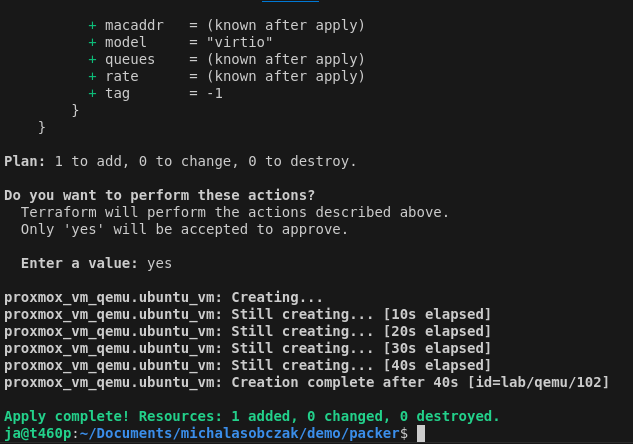
terraform apply

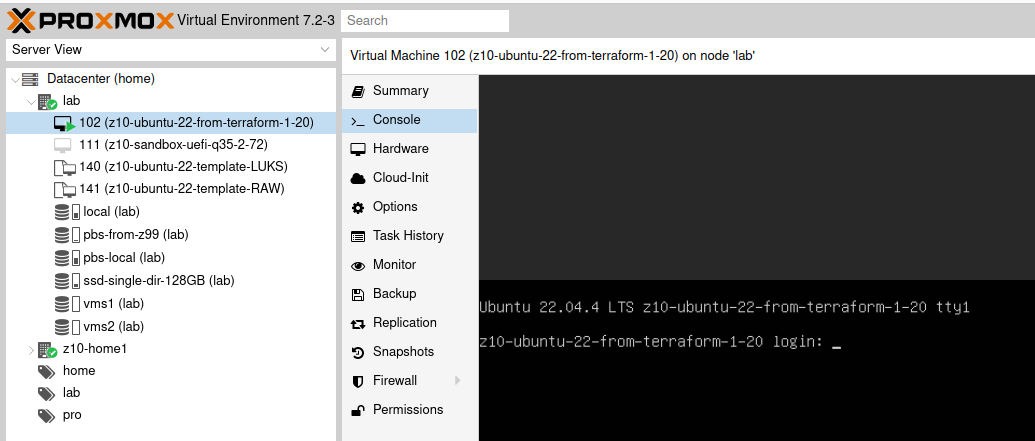
With that, this mechanism is going to fully clone template as new virtual machine with given cloud-init definitions concering user and network configuration.

I prepared two sample templates, one with LUKS disk encryption and the other one without LUKS encryption. For demo purposes it is enough to use unencrypted drive however for production use it should be your default way of installating operating systems.

Checkpoint: we have created Ubuntu template with Packer and use this template to create new VM using Terraform.

Further reading

  • https://github.com/Telmate/terraform-provider-proxmox/tree/v2.9.0
  • https://registry.terraform.io/providers/Telmate/proxmox/2.9.0/docs/resources/vm_qemu