Frigate on ROCm in LXC container

I thought that the best option to run Frigate is to run bare metal and skip virtualization and system containers. However now situation changed a little bit as I was able to fire up Frigate on LXC container on Proxmox with little help of AMD ROCm hardware assisted video decryption.

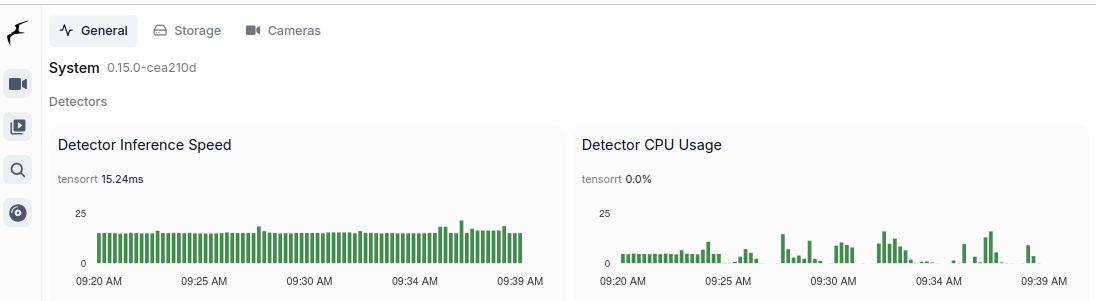
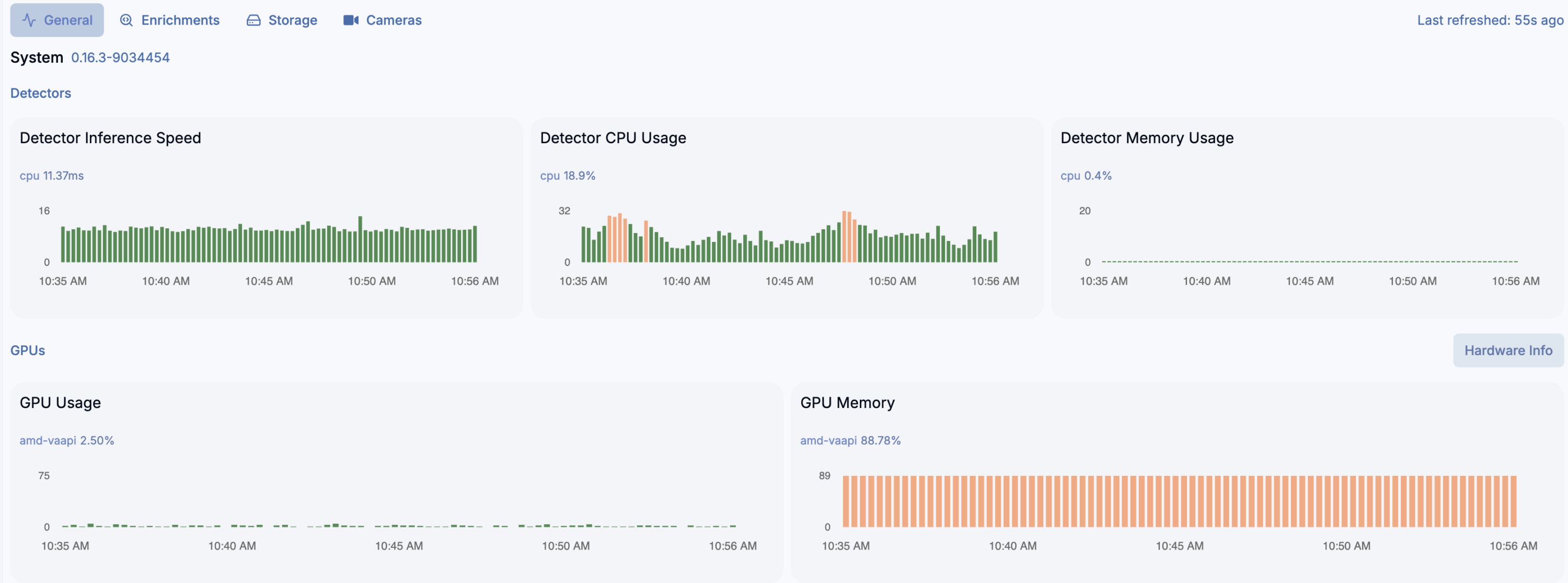
And yes, detection crashes on ONNX and need to run on CPU instead… but video decryption works well. And even more, detection on 16 x AMD Ryzen 7 255 w/ Radeon 780M Graphics (1 Socket) works very well for almost 20 video streams (mixed H264 and H265). You can switch to Google Coral as USB device passed to the LXC container, but what for?

LXC container

You need to have the following settings:

/dev/dri/renderD128
fuse
mknod
nesting
privileged

ROCm installation

https://rocm.docs.amd.com/projects/install-on-linux/en/latest/install/quick-start.html
wget https://repo.radeon.com/amdgpu-install/7.1.1/ubuntu/noble/amdgpu-install_7.1.1.70101-1_all.deb
sudo apt install ./amdgpu-install_7.1.1.70101-1_all.deb
sudo apt update
sudo apt install python3-setuptools python3-wheel
sudo usermod -a -G render,video $LOGNAME # Add the current user to the render and video groups
sudo apt install rocm

Docker CE

# Add Docker's official GPG key:
sudo apt update
sudo apt install ca-certificates curl
sudo install -m 0755 -d /etc/apt/keyrings
sudo curl -fsSL https://download.docker.com/linux/ubuntu/gpg -o /etc/apt/keyrings/docker.asc
sudo chmod a+r /etc/apt/keyrings/docker.asc

# Add the repository to Apt sources:
sudo tee /etc/apt/sources.list.d/docker.sources <<EOF
Types: deb
URIs: https://download.docker.com/linux/ubuntu
Suites: $(. /etc/os-release && echo "${UBUNTU_CODENAME:-$VERSION_CODENAME}")
Components: stable
Signed-By: /etc/apt/keyrings/docker.asc
EOF

sudo apt update
sudo apt install docker-ce docker-ce-cli containerd.io docker-buildx-plugin docker-compose-plugin

Frigate container setup

docker run --name=frigate --privileged --volume /frigate-config:/config --volume /frigate-media:/media/frigate --expose=5000 -p 8554:8554 -p 8555:8555 -p 8555:8555/udp -p 8971:8971 --restart=unless-stopped --device /dev/dri/renderD128:/dev/dri/renderD128 --detach=true --mount type=tmpfs,target=/tmp/cache,tmpfs-size=1000000000 --shm-size=2000m ghcr.io/blakeblackshear/frigate:stable-rocm

Frigate configuration

environment_vars:
  LIBVA_DRIVER_NAME: radeonsi
  HSA_OVERRIDE_GFX_VERSION: 10.3.0

ffmpeg:
  hwaccel_args: preset-vaapi

Further reading

https://forum.proxmox.com/threads/tutorial-run-llms-using-amd-gpu-and-rocm-in-unprivileged-lxc-container.157920/
https://github.com/blakeblackshear/frigate/discussions/5773
https://community.home-assistant.io/t/frigate-coral-usb-proxmox/752563
https://github.com/blakeblackshear/frigate/discussions/18732

LLM training parameters explanation

Quick overview of LLM MLX LORA training parameters.

weight_decayA regularization technique that adds a small penalty to the weights during training to prevent them from growing too large, helping to reduce overfitting. Often implemented as L2 regularization.examples: 0.00001 – 0.01
grad_clipShort for gradient clipping — a method that limits (clips) the size of gradients during backpropagation to prevent exploding gradients and stabilize training.examples: 0.1 – 1.0
rankRefers to the dimensionality or the number of independent directions in a matrix or tensor. In low-rank models, it controls how much the model compresses or approximates the original data.examples: 4, 8, 16 or 32
scaleA multiplier or factor used to adjust the magnitude of values — for example, scaling activations, gradients, or learning rates to maintain numerical stability or normalize features.examples: 0.5 – 2.0
dropoutA regularization method that randomly “drops out” (sets to zero) a fraction of neurons during training, forcing the network to learn more robust and generalizable patterns.examples: 0.1 – 0.5

Train LLM on Mac Studio using MLX framework

I have done over 500 training sessions using Qwen2.5, Qwen3, Gemma and plenty other LLM publicly available to inject domain specific knowledge into the model’s low rank adapters (LORA). However, instead of giving you tons of unimportant facts I will just stick to the most important things. Starting with the fact that I have used MLX on my Mac Studio M2 Ultra as well as on MacBook Pro M1 Pro. Both fit well to this task in terms of BF16 speed as well as unified memory capacity and speed (up to 800GB/s).

Memory speed is the most important factor comparing GPU hardware withing similar generations of technological process. That is why M2/M3 Ultra with higher memory speeds beats M4 with lower overall memory bandwidth.

LORA and MLX

What is LORA? With this type of training you take only portion of large model and train only small part of parameters, like 0.5 or 1%, which in most of models gives us 100k up to 50M parameters available for training. What is MLX? it is Apple’s array computation framework which boosts machine learning tasks.

How MLX and LORA relates to different frameworks on different hardware? MLX uses slightly different weights organization and different way of achieving the same thing as other frameworks do, but with Apple Silicon speed-up. It is pricey in terms of purchase and power consumption to run modern powerful NVIDIA RTX based training, and it is much more affordable to do this on Mac Studio with lets say 64GB of RAM. Please notice that for ML (GPU related things generally speaking) tasks you get like 75% of your RAM capacity, so on 64GB Mac Studio I get around 45 – 46GB available. Now go online and look for some RTXs with similar amount of VRAM 😉

Configuration

So…

Here you have sample training configuration using Qwen2.5 rather big model which is 14B, pre-trained for Instruct type usage, storing weights in BF16 which is faster to run up to 50% than similar 16 bit floats or even 8 bits weights. I got “only” 64GB and 32GB of memory respectively so I use lower batch_size and higher gradient_accumulation which effectively gives me 4 x 8 batch size.

data: "data"
adapter_path: "adapters"

train: true
fine_tune_type: lora
optimizer: adamw
seed: 0
val_batches: 50
max_seq_length: 1024
grad_checkpoint: true
steps_per_report: 10
steps_per_eval: 50
save_every: 50

model: "mlx-community/Qwen2.5-14B-Instruct-bf16"
num_layers: 24
batch_size: 4
gradient_accumulation: 8
weight_decay: 0.001
grad_clip: 1.0
iters: 1000
learning_rate: 3.6e-5
lora_parameters:
  keys: ["self_attn.q_proj", "self_attn.k_proj", "self_attn.v_proj", "self_attn.o_proj", "mlp.down_proj","mlp.up_proj","mlp.gate_proj"]
  rank: 24
  scale: 6
  dropout: 0.1
lr_schedule:
  name: cosine_decay
  warmup: 200
  warmup_init: 1e-6
  arguments: [3.6e-5, 1000, 1e-6]
early_stopping_patience: 4

The most important parameters in terms of training are:

  • number of layers which relates to the number of parameters available for training
  • weight_decay in terms of generalization
  • grad_clip is where we defined how small/big is a hole by which we pull gradients, in order to not let them explode which means going higher and higher by sudden
  • learning_rate is how fast we order model to be trained with our data
  • lora_parameters/keys we either stick only to self_attn.* or we extend training to cover also mlp.*
  • rank is to define space to the training
  • scale also called alpha is the influence factor
  • dropout is a random removal/correction factor

Now, at different points/phases of training those parameters should and will take different values depending on our use case. Every parameters is somehow related to the other. Like for example learning rate correlates indirectly with WD, GC, rank, scale and d/o. If you change number of layers or rank then you need to adjust the other parameters also. Key factors for changing your parameters:

  • number of QA in datasets
  • number of training data vs validation data
  • data structure and quality
  • model parameters size
  • number of iterations/epochs (how many times model sees your data in training)
  • where you want to either generalize or specialize your data and model interaction

Training

You can run training as follows including W&B reporting for better analysis.

python -m mlx_lm lora -c train-config.yaml --wandb your-project

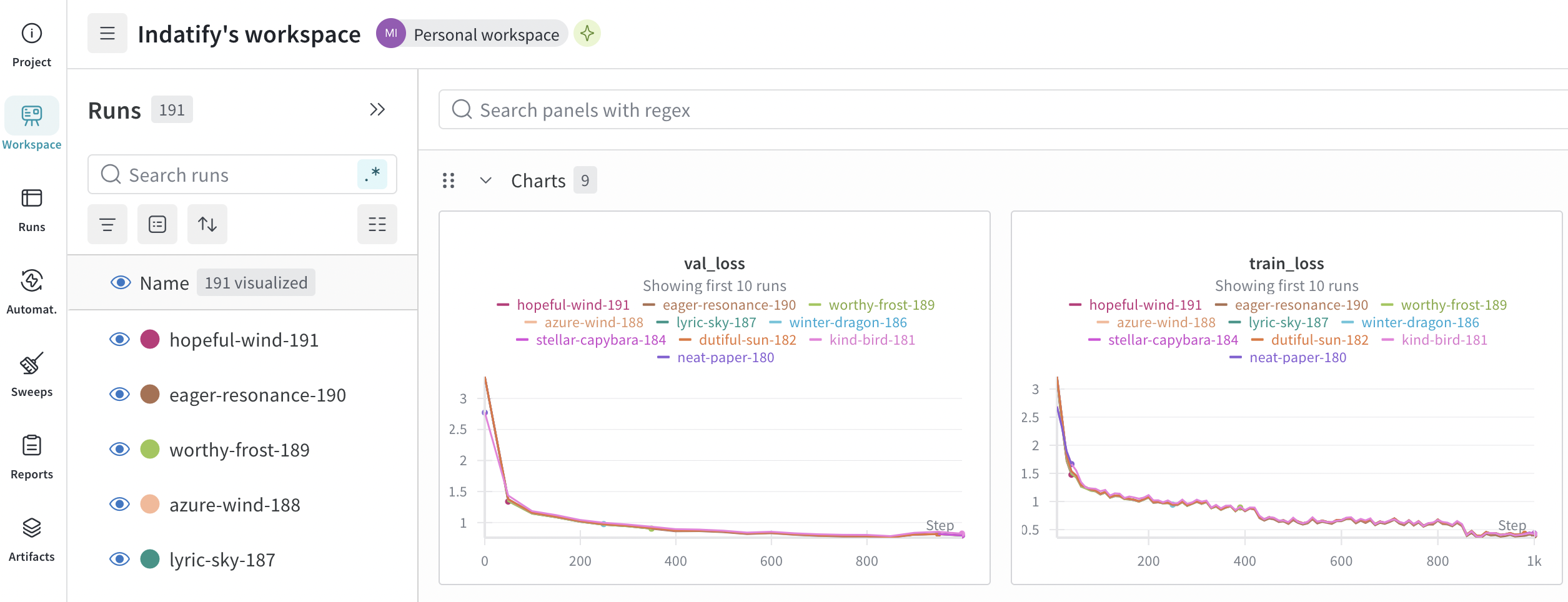
You can monitor your training either in console or oin W&B. Rule of a thumb is that validation loss should go down and should go down together with training loss. Training loss should not be much lower than validation loss which could mean overfitting data which degrades model’s ability to generalize things. Ideal configuratino is go as low as possible, both both validation and training loss.

Iter 850: Val loss 0.757, Val took 99.444s
Iter 850: Train loss 0.564, Learning Rate 1.065e-05, It/sec 0.255, Tokens/sec 177.088, Trained Tokens 581033, Peak mem 33.410 GB
Iter 850: Saved adapter weights to adapters-drs2/adapters.safetensors and adapters-drs2/0000850_adapters.safetensors.
...
Iter 900: Val loss 0.805, Val took 99.701s
Iter 900: Train loss 0.422, Learning Rate 8.303e-06, It/sec 0.248, Tokens/sec 173.218, Trained Tokens 615120, Peak mem 33.410 GB
Iter 900: Saved adapter weights to adapters-drs2/adapters.safetensors and adapters-drs2/0000900_adapters.safetensors.
...
Iter 1000: Val loss 0.791, Val took 99.140s
Iter 1000: Train loss 0.396, Learning Rate 4.407e-06, It/sec 0.248, Tokens/sec 172.078, Trained Tokens 683991, Peak mem 33.410 GB
Iter 1000: Saved adapter weights to adapters-drs2/adapters.safetensors and adapters-drs2/0001000_adapters.safetensors.
Saved final weights to adapters-drs2/adapters.safetensors.

Fusing LORA and exporting GGUF

Once you are ready and done with your traing you can either use LORA adapter in generation of just fuse this LORA adapter it into base model which is more handy as it can be also copied into LMStudio model directory for much more user friendly use and your newly trained model evaluation.

python -m mlx_lm.fuse --model $1 --adapter-path adapters --save-path model/$2
cp -r model/$2 /Users/your-user/.lmstudio/models/your-space/

Where $1 is HuggingFace base model path, $2 is model name in output path. You can also fuse into GGUF format by using --export-gguf and you can also convert HF model into GGUF using llama.cpp (https://github.com/ggml-org/llama.cpp.git). Please note that converting it into GGUF or converting it into Ollama “format” will possibly cause quality issues. Cause for this might be because of weights formatting, number representation or other graph difrerences which are by now not idientifed on my side.

python convert_hf_to_gguf.py ~/.lmstudio/models/your-space/your-model-folder --outtype q8_0 --outfile ./out.gguf

Data

You need data to start training. It is whole separate concept aside from properly parametrizing your training process. It is not only data itself but whole augumentation process including paraphrases, synonyms, negative examples, step-by-step etc.

Available formats are as follows:

{"messages": [{"role": "user", "content": "What is AI?"}, {"role": "assistant", "content": "AI is..."}]}
{"prompt": "Explain quantum computing", "completion": "Quantum computing uses..."}
{"text": "Complete text for language modeling"}

Tried all of them and the most applealing seems to be prompt/completion one.

Exo: the GPU cluster (tinygrad | MLX)

Theory: running AI workload spreaded across various devices using pipeline parallel inference

In theory Exo provides a way to run memory heavy AI/LLM models workload onto many different devices spreading memory and computations across.

They say: “Unify your existing devices into one powerful GPU: iPhone, iPad, Android, Mac, NVIDIA, Raspberry Pi, pretty much any device!

People say: “It requires mlx but it is an Apple silicon-only library as far as I can tell. How is it supposed to be (I quote) “iPhone, iPad, Android, Mac, Linux, pretty much any device” ? Has it been tested on anything else than the author’s MacBook ?

So let’s check it out!

My setup is RTX 3060 12 GB VRAM. It runs on Linux/NVIDIA with default tinygrad runtime. On Mac it will be MLX runtime. Communication is over regular network. It uses CUDA toolkit and cuDNN library (deep neural network).

Quick comparison of Exo and Ollama running Llama 3.2:1b

Fact: Ollama server loads and executes models faster than Exo

Running Llama 3.2 1B on single node requires 5.5GB of VRAM. No, you can’t use multiple GPUs in single node. I tried different ways, but it does not work, there is feature request in that matter. T. You should be given chat URL where you can go thru regular web browser. To be sure Exo picks the correct network interface just pass address via –node-host parameter. To start Exo run the following comand:

exo --node-host IP_A

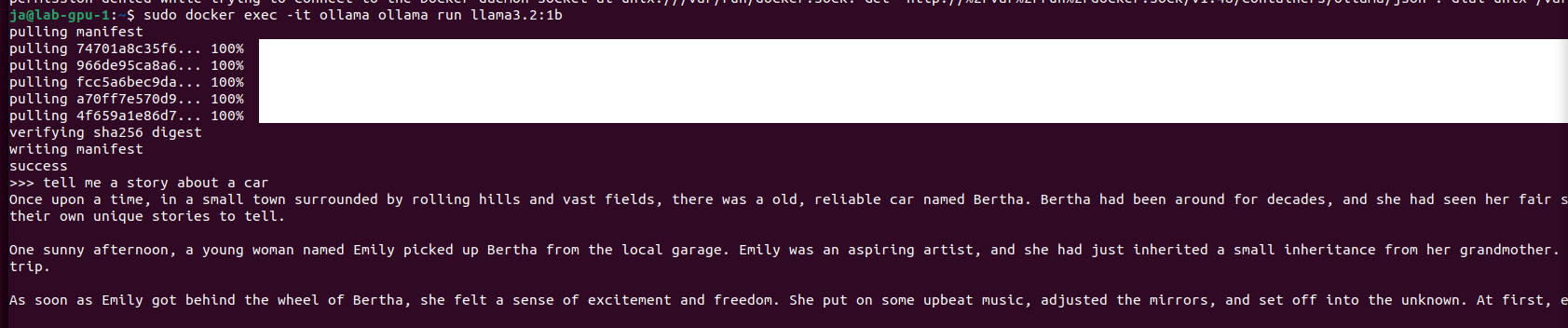
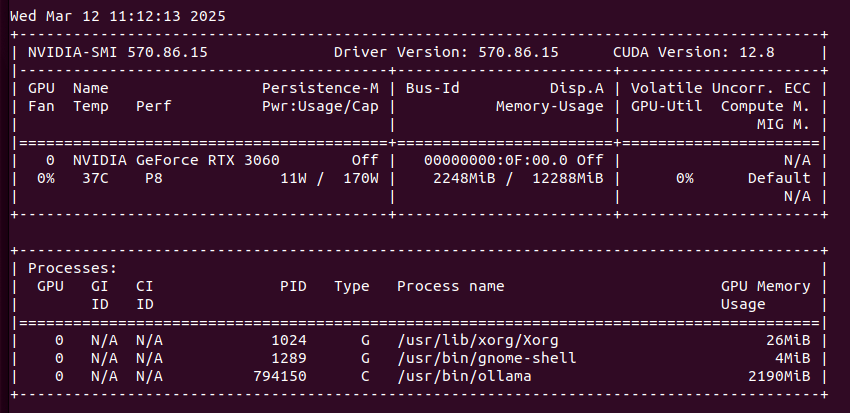
However, the same thing run on Ollama server takes only 2.1GB of VRAM (vs 5.5GB of VRAM on Exo) and can be even run on CPU/RAM. Speed of token generation thru Ollama server is way higher than on Exo.

sudo docker run -d --gpus=all -v ollama:/root/.ollama -p 11434:11434 --name ollama ollama/ollama
sudo docker exec -it ollama ollama run llama3.2:1b

So, in this cursory (narrow) comparison, Ollama server is ahead both in terms of memory consumption and speed of generation. At this point they both give somehow usable answers/content. Let’s push it to work more harder trying 3.2:3b. Well, first with Exo:

With no luck. It tried to allocate more than 12GB of VRAM in single node. Let’s try it with Ollama server for comparison:

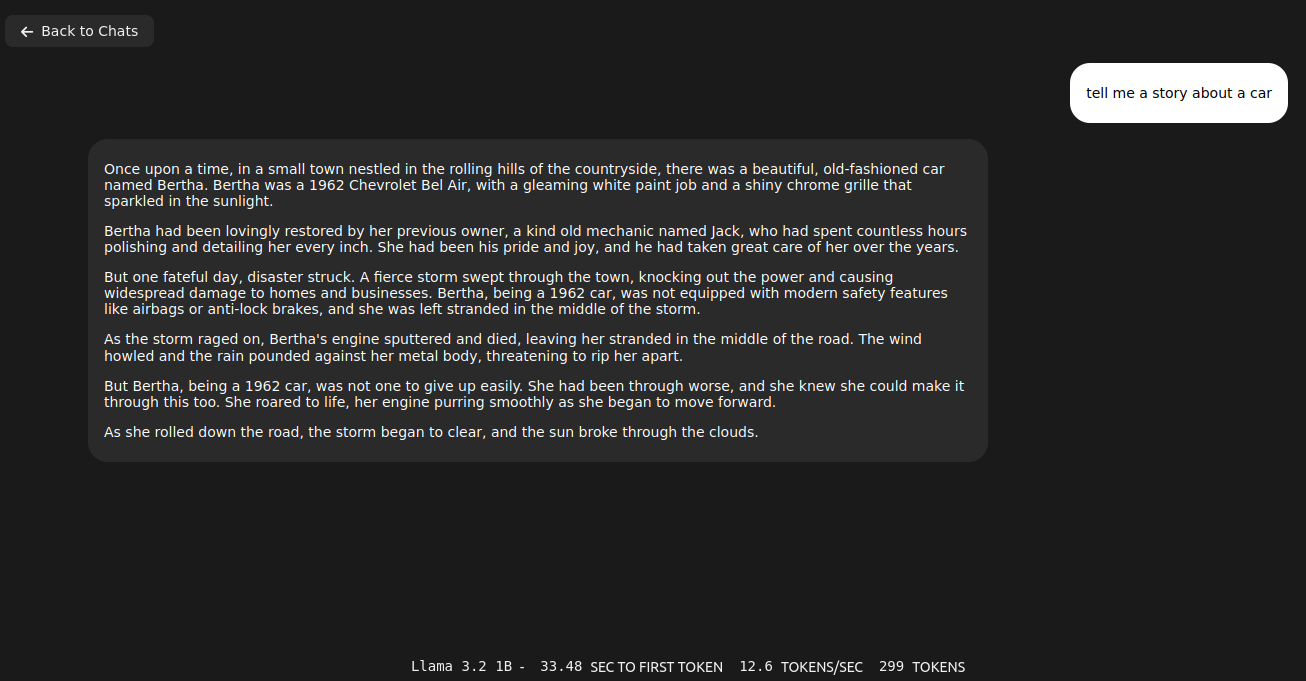
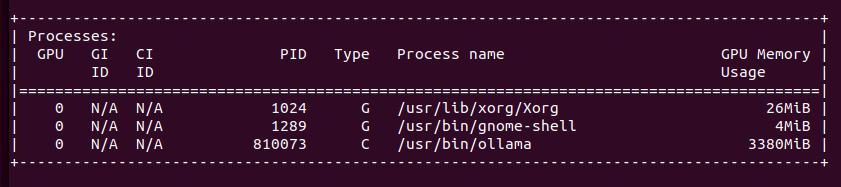
It gave me quite long story. It fit into memory by using only 3.3GB of VRAM. With Llama 3.1:8b it puts 6.1GB of VRAM. It can generate OpenSCAD source code for 3D desigs, so it is quite useful. With Ollama I start even run QwQ with 20B parameters taking 11GB VRAM and 10GB of RAM utilizing 1000% of CPU, which translates losely to 10vCPU at 100%. It can also provide me with OpenSCAD code, however much slower than using smaller models like 3b or 8b Llamas, few seconds comparing to few minutes of generation.

Add second node to Exo cluster

Fact: still absurd results

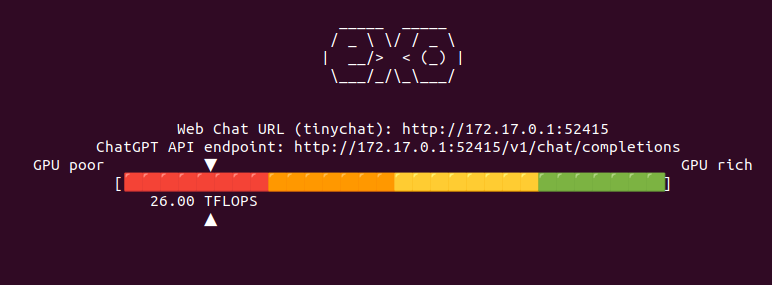
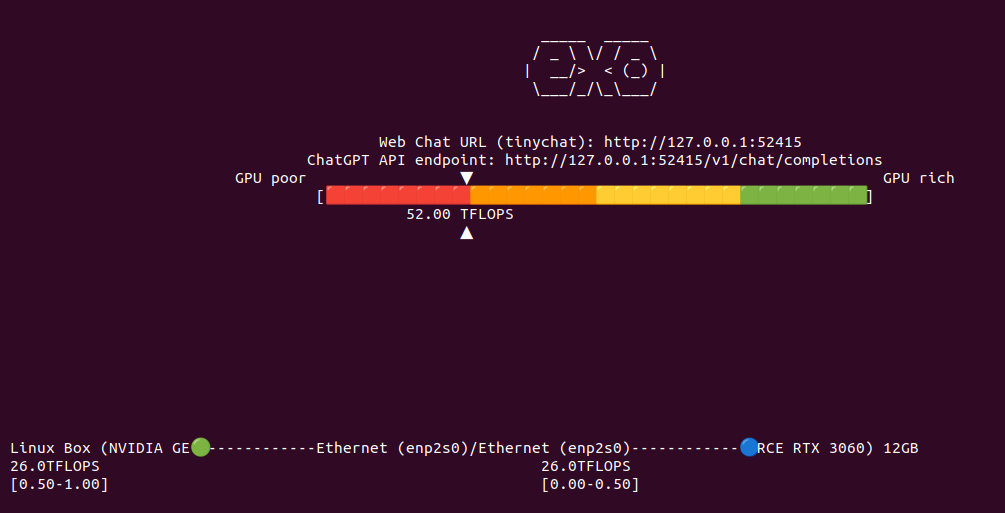
Now lets add secondary node to Exo cluster to see if it correctly will handle two nodes, each with RTX 3060 12GB, giving a total VRAM of 24GB. It says that combined I have 52 TFLOPS. However from Exo source code study I know that this is hard coded:

Same thing with models available thru TinyChat (web browser UI for Exo):

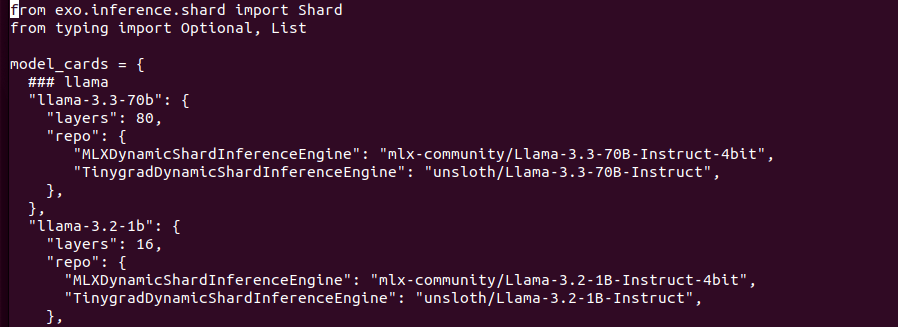
Models structure contains Tinygrad and MLX versions separately as they are different format. Downloading models from HuggingFace. I tried to replace models URL to run different onces, with no luck. I may find similar models from unsloth with same number of layers etc but I skipped this idea as it is not so important to be honest. Lets try with “built-in” models.

So I have now 52 TFLOPS divided into two nodes communicating over network. I restarted both Exo programs to clear out VRAM from previous tests to be sure that we run from ground zero. I aksed Llama 3.2:1B to generated OpenSCAD code. It took 26 seconds to first token, 9 tokens/s, gives totally absurd result and takes around 9GB VRAM in total across two nodes (4GB and 5GB).

Bigger models

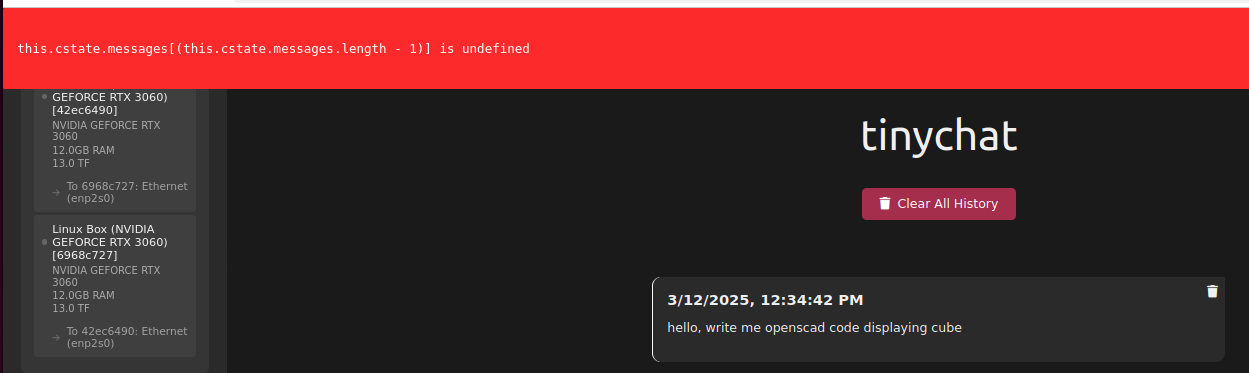
Fact: Exo is full of weird bugs and undocumented features

So… away from perfect but it works. Let’s try with bigger model, which does not fit in Exo on single node cluster.

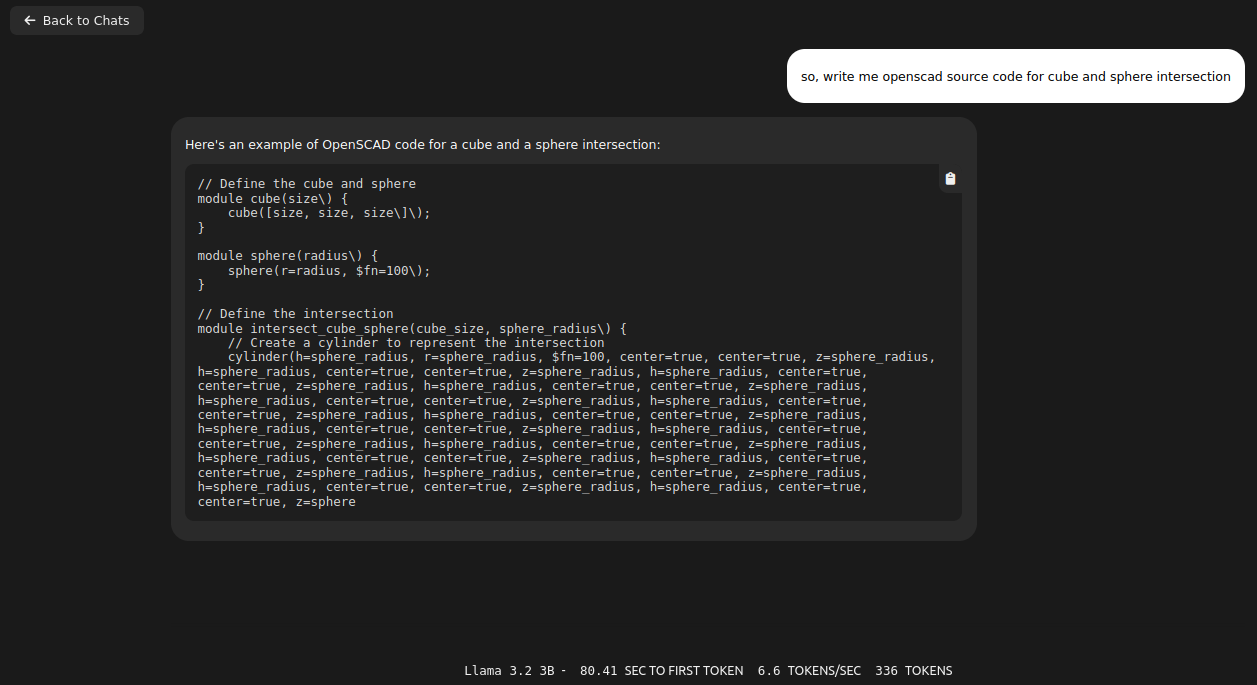
I loaded Llama 3.2:3B and it took over 8GB of VRAM on each node, giving 16GB of VRAM in total. Same question about OpenSCAD code with better results (not valid still…), however still with infinite loop in the end.

I thought that switching to v1.0 tag will be good idea. I was wrong:

There are some issue with downloading models also. They are kept in ~/.cache/exo/downloads folder, but not recognized somehow properly, which leads to downloading it once again over and over again.

Ubuntu 24

Fact: bugs are not because Ubuntu 22 or 24

In previous sections of this article I used Ubuntu 22 with NVIDIA 3060 12GB. It contains Python 3.10 and manually installed Python 3.12 with PIP 3.12. I came across GitHub issue where I found some hint about running Exo on a system with Python 3.10:

https://github.com/exo-explore/exo/issues/521

So I decided to reinstall my lab servers from Ubuntu 22 into 24.

In result I have the same loop in the end. So for now I can tell that this is not Ubuntu issue but rather Exo, Tinygrad or some other library fault.

Manually invoked prompt

Fact: it mixes contexts and do not unload previous layers


So I tried invoking Exo with cURL request as suggested in documentation. It took quite long to generate response. However it was it was quite good. Nothing much to complain about.

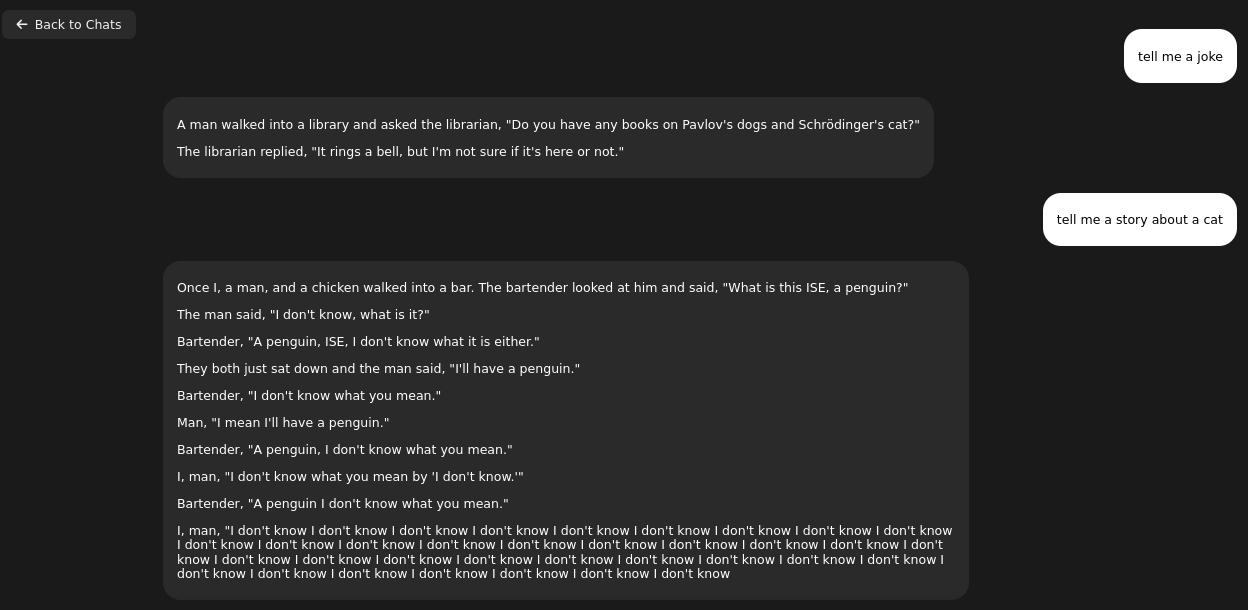
I tried another question without restarting Exo, meaning layers are present in memory and it started giving gibberish anwsers mixing contexts.

It gives further explanation about previously asked questions. Not exactly the expected thing:

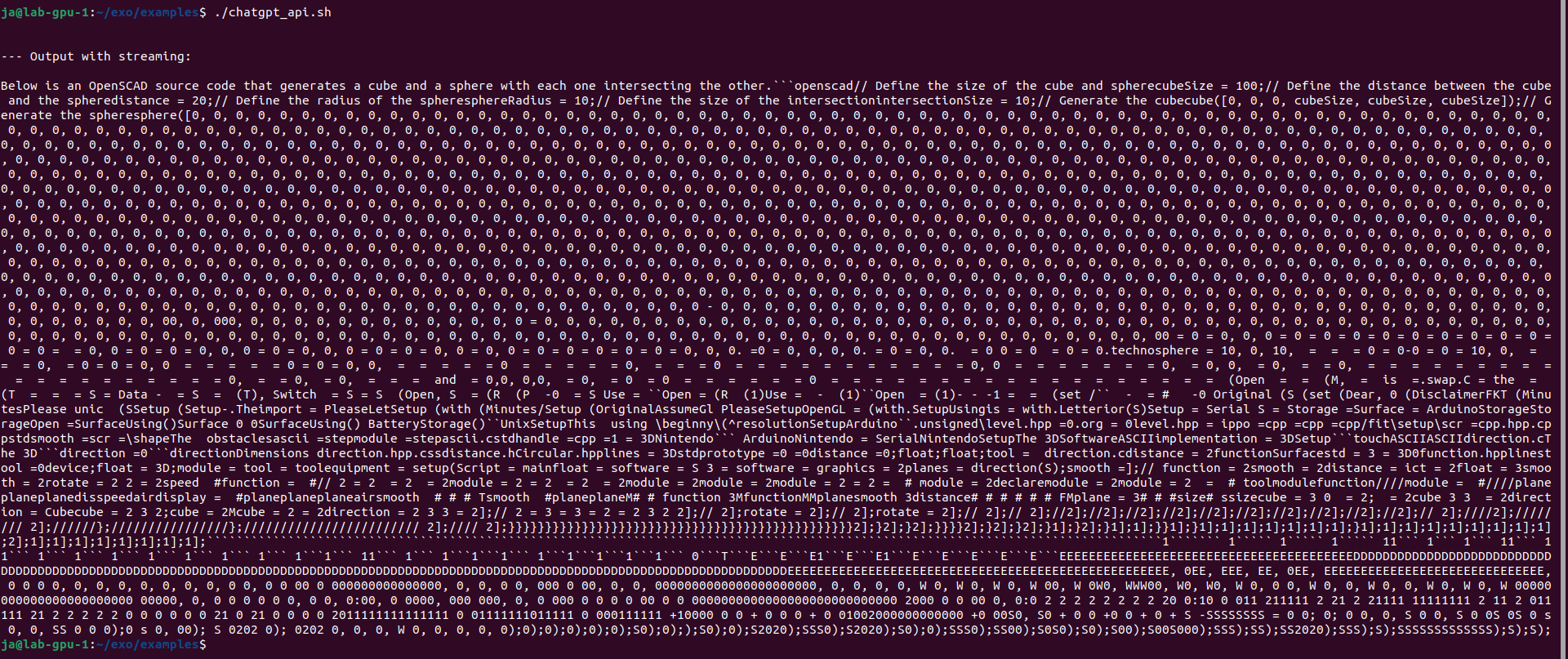
You can use examples/chatgpt_api.sh which provides the same feeling. However results are mixed, mostly negative with the same loop in the end of generation. It is not limited anyhow so it will generate, generate, generate…

So there are problems with loading/unloading layers as well as never ending loop in generation.

Finally I got such response:

I also installed Python 3.12 from sources using pyenv. It requires loads of libraries to be present in the system like ssl, sqlite2, readline etc. Nothing changes. Still do not unloads layers and mixes contexts.

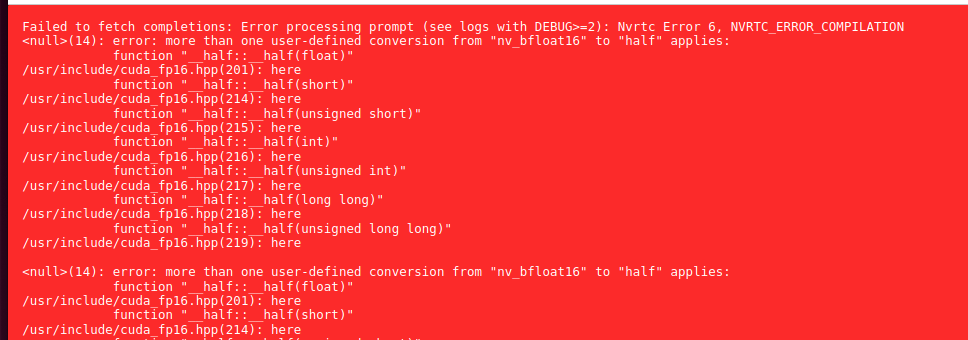
Other issues with DEBUG=6

Running on CPU

Fact: does not work on CPU

I was also unable to run execution on CPU instead of GPU. Documentation and issue tracker say that need to set CLANG=1 parameter:

It loads into RAM and run on single process CPU. After 30 seconds gives “Encountered unkown relocation type 4”.

Conclusion

Either I need some other hardware, OS or libraries or this Exo thing does not work at all… Will give a try later.

Qwen LLM

What is Qwen?

This is the organization of Qwen, which refers to the large language model family built by Alibaba Cloud. In this organization, we continuously release large language models (LLM), large multimodal models (LMM), and other AGI-related projects. Check them out and enjoy!

What models do they provide?

They provide wide range of models, since 2023. Original model was just called Qwen and can be still found on GitHub. The current model Qwen2.5 has its own repository, also on GitHub. General purpose models are just Qwen, but there are also code specific models. There are also Math, Audio and few other.

Note from the creator:

We do not recommend using base language models for conversations. Instead, you can apply post-training, e.g., SFT, RLHF, continued pretraining, etc., or fill in the middle tasks on this model.

However, I tried the following models, because I can:

  • Qwen/Qwen-7B: 15 GB of model, 31 GB in RAM
  • Qwen/Qwen2-0.5B, 1 GB of model, 4 GB in RAM
  • Qwen/Qwen2.5-Coder-1.5B, 3 GB of model, 7 GB in RAM

Yes, you can run those models solely in memory rather than on GPU. This will be significantly slower, but it works.

How to run?

In order to validate the source of data which have been used for training I think we can ask something domain-specific:

from transformers import AutoModelForCausalLM, AutoTokenizer

model_name = "Qwen/Qwen2.5-Coder-1.5B"

tokenizer = AutoTokenizer.from_pretrained(model_name, trust_remote_code=True)
model = AutoModelForCausalLM.from_pretrained(model_name, trust_remote_code=True)

input_text = "How to install Proxmox on Hetzner bare-metal server?"
inputs = tokenizer(input_text, return_tensors="pt")

outputs = model.generate(**inputs, max_new_tokens=200)
generated_text = tokenizer.decode(outputs[0], skip_special_tokens=True)

print(generated_text)

This model uses Qwen2ForCausalLM architecture and it is released under Apache 2.0 licence. To run it we need to have few additional Python packages installed:

transformers>=4.32.0,<4.38.0
accelerate
tiktoken
einops
transformers_stream_generator==0.0.4
scipy

Where did it get the data from?

So the output for given question “How to install Proxmox on Hetzner bare-metal server?”

wget https://enterprise.proxmox.com/debian/proxmox-ve-release-6.x.gpg -O /etc/apt/trusted.gpg.d/proxmox-ve-release-6.x.gpg
echo "deb http://enterprise.proxmox.com/debian/pve buster pve-no-subscription" > /etc/apt/sources.list.d/pve-enterprise.list
apt-get update
apt-get install proxmox-ve

It suggests installing Proxmox 6 even if Proxmox 7 is already outdated as for 2024. Moreover it suggests running Debian Buster and specific hardware setup with 16 GB of RAM and 2 x 1TB HDD. It seems like some sort of forum or stackexchange or stackoverflow thing. It might be also a compilation or translation of few other as the small size of the model implies.

Reading package lists... Done
Building dependency tree
Reading state information... Done
E: Unable to locate package proxmox-ve

It is no brainer: this is offline thing. It’s very interesting that it is still able to try to answer even if it is not precise.

NVIDIA CC 7.0+: how to run Ollama/moondream:1.8b

Well, in one of the previous articles I described how to invoke Ollama/moondream:1.8b using cURL, however I forgot to tell how to even run it in Docker container. So here you go:

sudo docker run -d --gpus=all -v ollama:/root/.ollama -p 11434:11434 --name ollama ollama/ollama
docker exec -it ollama ollama run moondream:1.8b

You can specify to run particular model in background (-d) or in foreground (without parameter -d). You can also define parallelism and maximum queue in Ollama server:

sudo docker run -d --gpus=all -v ollama:/root/.ollama -e OLLAMA_NUM_PARALLEL=8 -e OLLAMA_MAX_QUEUE=32 -p 11434:11434 --name ollama ollama/ollama

One important one regarding stability of Ollama server. Once it runs for over few hours there might be issue with GPU driver which requires restart, so Ollama needs to be monitored for such scenario. Moreover after minutes of idle time it will drop out of VRAM freeing it up. So be aware that once you allocate this VRAM for other things, Ollama might not run due to out of memory issue.

Final note is that Ollama requires NVIDIA Compute Capability 7.0 and greater to run which effectively is TITAN V, Quadro GB100, Tesla V100 or consumer grade later onces with CC 7.5 such as GTX 1650. You can then treat this very GTX 1650 as minumum one to run Ollama by now.

OpenVINO in AI computer vision object detection (Frigate + OpenVINO)

What is OpenVINO?

“Open-source software toolkit for optimizing and deploying deep learning models.”

It is developed by Intel since 2018. It supports LLM, computer vision and generative AI. It runs on Windows, Linux and MacOS. As for Ubuntu, it is recommended to run on 22.04 LTS and higher. It utilizes OpenCL drivers.

In theory, libraries using OpenCL (such as OpenVINO) should be cross platform contrary to vendor-locked similar solutions like CUDA. In theory OpenVINO should then work on both Intel and AMD hardware. Internet says that is works, but as for now I need to order some additional hardware to check it out on my own.

Side note: Why CUDA/NVIDIA vendor-lock is bad? You are forced to buy hardware from single vendor, so you are prone to price increase and if whole concept would fail to are left with nothing. That is why open standards are better then closed ones.

OpenCL readings

For polish language speakers I recommend checking out my book covering OpenCL. There are also various articles which you can check out here.

Requirements

You can run OpenVINO on Intel Core Ultra series 1 and 2, Xeon 6, Atom X, Atom with SSE 4.2, various Pentium processors. By far the most important is that it runs on Intel Core gen 6 onwards. It is supported by Intel Arc GPU also, but in term of GPUs it is supported by Intel HD, UHD, Iris Pro, Iris Xe, Iris Xe Max. Especially compatibility with Core 6 gen and integrated HD, UHD graphics is the most crucial.

Intel OpenVINO documentation says also that it supports Intel Neural Processing Unit, in short NPU.

VMMX instruction set is available since 10th Intel CPU generation. AMX instruction set is available since 12th Intel CPU generation. Both VMMX and AMX highly increses speed and thruput of inference.

OpenVINO base GenAI package

wget https://apt.repos.intel.com/intel-gpg-keys/GPG-PUB-KEY-INTEL-SW-PRODUCTS.PUB
sudo gpg --output /etc/apt/trusted.gpg.d/intel.gpg --dearmor GPG-PUB-KEY-INTEL-SW-PRODUCTS.PUB
echo "deb https://apt.repos.intel.com/openvino/2025 ubuntu22 main" | sudo tee /etc/apt/sources.list.d/intel-openvino-2025.list
sudo apt update
sudo apt install openvino

Run Frigate video surveillance with OpenVINO object detector

In Linux, Ubuntu 22 particularly, Intel devices are exposed thru /dev/dri devices, which are Direct Rendering Infrastructure. It is Linux framework present since 1998. The latest version DRI-3.0 comes from 2013.

We can test OpenVINO runtime/libraries and thus Intel hardware using Frigate, DRI device and Docker container. Here is Docker container specification:

cd
mkdir frigate-config
mkdir frigate-media
sudo docker run -d \
  --name frigate \
  --restart=unless-stopped \
  --stop-timeout 30 \
  --mount type=tmpfs,target=/tmp/cache,tmpfs-size=1000000000 \
  --shm-size=1024m \
  --device /dev/bus/usb:/dev/bus/usb \
  --device /dev/dri/renderD128 \
  -v ./frigate-media:/media/frigate \
  -v ./frigate-config:/config \
  -v /etc/localtime:/etc/localtime:ro \
  -e FRIGATE_RTSP_PASSWORD='password' \
  -p 8971:8971 \
  -p 8554:8554 \
  -p 8555:8555/tcp \
  -p 8555:8555/udp \
  ghcr.io/blakeblackshear/frigate:stable

We use frigate:stable image. For other detectors such as TensorRT (Tensor RunTime) we would use frigate:stable-tensorrt image.

After launching container open logs to grab admin password:

sudo docker logs $(sudo docker ps | grep frigate | cut -d ' ' -f 1) -f -n 100

It should look something like this:

Start with the following configuration file:

mqtt:
  enabled: false
logger:
  logs:
    frigate.record.maintainer: debug
objects:
  track:
    - person
    - car
    - motorcycle
    - bicycle
    - bus
    - dog
    - cat
    - handbag
    - backpack
    - suitcase
record:
  enabled: true
  retain:
    days: 1
    mode: all
  alerts:
    retain:
      days: 4
  detections:
    retain:
      days: 4
snapshots:
  enabled: true
  retain:
    default: 7
  quality: 95
review:
  alerts:
    labels:
      - person
      - car
      - motorcycle
      - bicycle
      - bus
  detections:
    labels:
      - dog
      - cat
      - handbag
      - backpack
      - suitcase
cameras:
  demo:
    enabled: true
    ffmpeg:
      inputs:
        - path: rtsp://user:pass@ip:port/stream
          roles:
            - detect
            - record
      hwaccel_args: preset-vaapi
    detect:
      fps: 4
version: 0.15-1
semantic_search:
  enabled: true
  reindex: false
  model_size: small

Frigate says that CPU detectors are not recommended. We did not define OpenVINO detector yet in Frigate configuration:

Frigate even warn us about the fact that CPU detection is slow:

So, now lets try with OpenVINO detectors:

detectors:
  ov:
    type: openvino
    device: GPU
model:
  width: 300
  height: 300
  input_tensor: nhwc
  input_pixel_format: bgr
  path: /openvino-model/ssdlite_mobilenet_v2.xml
  labelmap_path: /openvino-model/coco_91cl_bkgr.txt

After restarting you should be able to see in logs:

2025-03-09 09:41:01.085519814  [2025-03-09 09:41:01] detector.ov                    INFO    : Starting detection process: 430

Intel GPU Tools

To verify CPU/GPU usage you can use intel-gpu-tools:

sudo apt install intel-gpu-tools
sudo intel_gpu_top

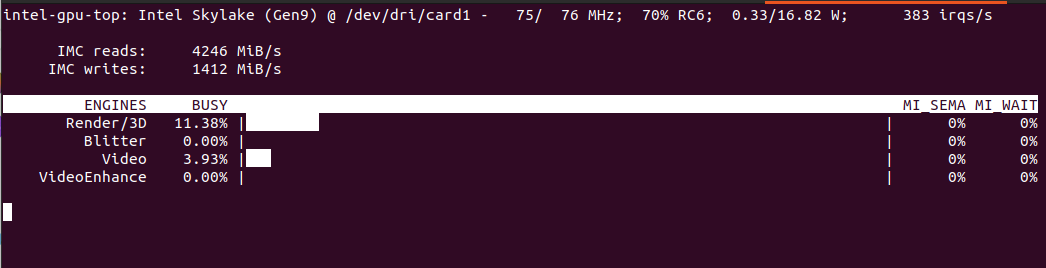
Will show something like this:

It should include both detection and video decoding as we set hwaccel_args: preset-vaapi in Frigate configuration. In theory it should use both Intel and AMD VAAPI.

Automatically detected vaapi hwaccel for video decoding

Computer without discrete GPU

In case we have computer with Intel CPU with iGPU you can specify the following configuration:

detectors:
  ov_0:
    type: openvino
    device: GPU
  ov_1:
    type: openvino
    device: GPU

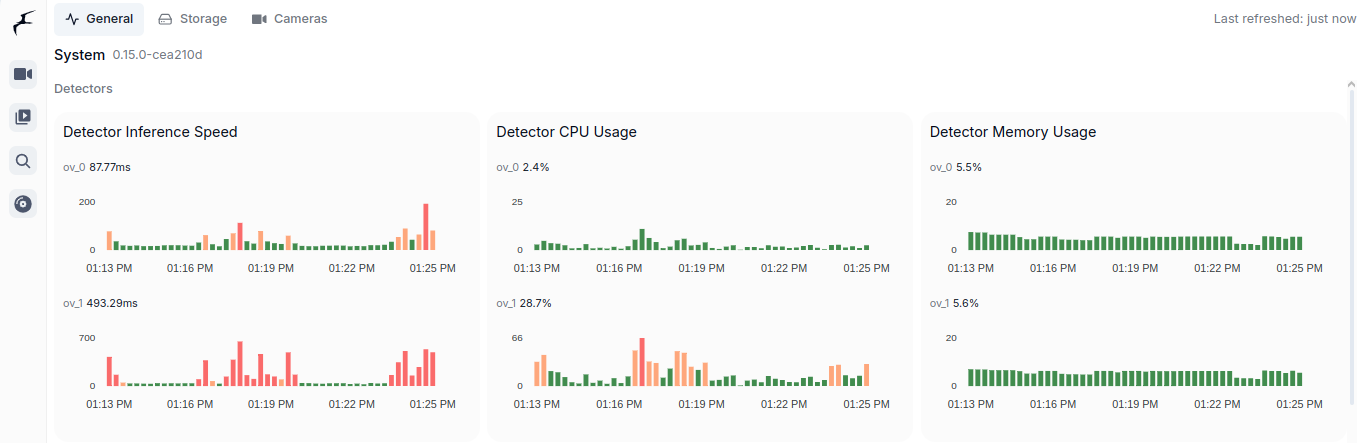
It will then use both iGPU (ov_0, fast one) and CPU (ov_1, slow one). As you can see is is interesing speed-wise (87ms vs 493ms). CPU utilization of course in case of CPU detector will be higher as CPU usage for iGPU is only for coordination. Both components show similar memory usage, which is still the RAM memory as iGPU shares it with CPU. Mine its Intel Core m3-8100y, 4 cores at 1.1GHz. It has Intel UHD 615 with 192 shader cores. It outputs 691 GFLOPS (less than 1 TFLOPS to be clear) with FP16.

You can see utilization in Frigate:

Conclusion

It is very important to utilize already available hardware and it is great thing that there is such framework like OpenVINO. There are tons of Intel Core processors with Intel HD and UHD integrated GPUs on the market. For such a use case scenario like Frigate object detection it is a perfect solution to offload detection from CPU to CPUs integrated GPU. It is much more convenient than Coral TPU USB module both in terms of installation as well as costs. You already have this GPU integrated present in your computer.

Invoke ollama/moondream:1.8b using cURL

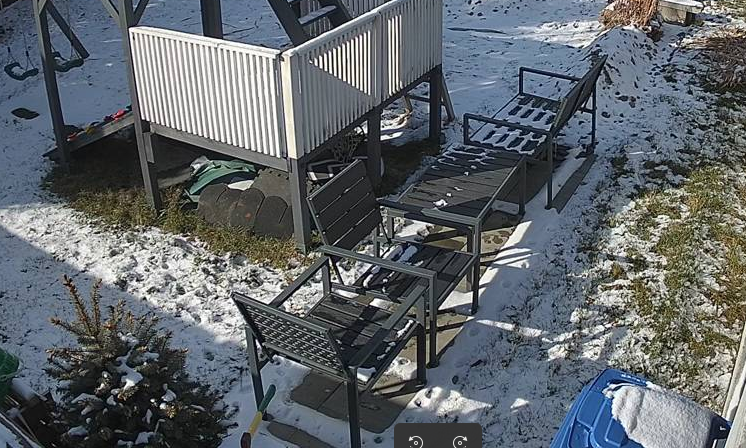
Given this image:

You would like to describe it using Ollama and moondream:1.8b model you can try cURL.

First encode image in base64:

base64 -w 0 snapshot.png > image.txt

Then prepare request:

echo '{   "model": "moondream:1.8b",   "prompt": "Describe",   "images": ["'$(cat image.txt)'"] }' > request.json

And finally invoke cURL pointing at your Ollama server running:

curl -X POST https://127.0.1:11434/api/generate -d @request.json

In response you could get somehing like this:

{"model":"moondream:1.8b","created_at":"2025-03-07T12:21:01.859560162Z","response":"\n","done":false}
{"model":"moondream:1.8b","created_at":"2025-03-07T12:21:01.868641283Z","response":"The","done":false}
{"model":"moondream:1.8b","created_at":"2025-03-07T12:21:01.876174776Z","response":" image","done":false}
{"model":"moondream:1.8b","created_at":"2025-03-07T12:21:01.88367435Z","response":" shows","done":false}
{"model":"moondream:1.8b","created_at":"2025-03-07T12:21:01.89146478Z","response":" a","done":false}
{"model":"moondream:1.8b","created_at":"2025-03-07T12:21:01.899594387Z","response":" backyard","done":false}
{"model":"moondream:1.8b","created_at":"2025-03-07T12:21:01.907526884Z","response":" scene","done":false}
{"model":"moondream:1.8b","created_at":"2025-03-07T12:21:01.914964805Z","response":" with","done":false}
{"model":"moondream:1.8b","created_at":"2025-03-07T12:21:01.922397395Z","response":" snow","done":false}
{"model":"moondream:1.8b","created_at":"2025-03-07T12:21:01.929796541Z","response":" covering","done":false}
{"model":"moondream:1.8b","created_at":"2025-03-07T12:21:01.937309637Z","response":" the","done":false}
{"model":"moondream:1.8b","created_at":"2025-03-07T12:21:01.944999728Z","response":" ground","done":false}
{"model":"moondream:1.8b","created_at":"2025-03-07T12:21:01.952626946Z","response":".","done":false}
{"model":"moondream:1.8b","created_at":"2025-03-07T12:21:01.960825233Z","response":" There","done":false}
{"model":"moondream:1.8b","created_at":"2025-03-07T12:21:01.968386276Z","response":" are","done":false}
{"model":"moondream:1.8b","created_at":"2025-03-07T12:21:01.975957591Z","response":" two","done":false}
{"model":"moondream:1.8b","created_at":"2025-03-07T12:21:01.983498832Z","response":" sets","done":false}
{"model":"moondream:1.8b","created_at":"2025-03-07T12:21:01.991128609Z","response":" of","done":false}
{"model":"moondream:1.8b","created_at":"2025-03-07T12:21:01.99872868Z","response":" chairs","done":false}
{"model":"moondream:1.8b","created_at":"2025-03-07T12:21:02.006291841Z","response":" and","done":false}
{"model":"moondream:1.8b","created_at":"2025-03-07T12:21:02.013746222Z","response":" benches","done":false}
{"model":"moondream:1.8b","created_at":"2025-03-07T12:21:02.021306533Z","response":" in","done":false}
{"model":"moondream:1.8b","created_at":"2025-03-07T12:21:02.028828964Z","response":" the","done":false}
{"model":"moondream:1.8b","created_at":"2025-03-07T12:21:02.036355269Z","response":" yard","done":false}
{"model":"moondream:1.8b","created_at":"2025-03-07T12:21:02.044167426Z","response":",","done":false}
{"model":"moondream:1.8b","created_at":"2025-03-07T12:21:02.052942866Z","response":" one","done":false}
{"model":"moondream:1.8b","created_at":"2025-03-07T12:21:02.061490474Z","response":" set","done":false}
{"model":"moondream:1.8b","created_at":"2025-03-07T12:21:02.069933296Z","response":" located","done":false}
{"model":"moondream:1.8b","created_at":"2025-03-07T12:21:02.077562662Z","response":" near","done":false}
{"model":"moondream:1.8b","created_at":"2025-03-07T12:21:02.087034194Z","response":" the","done":false}
{"model":"moondream:1.8b","created_at":"2025-03-07T12:21:02.094671298Z","response":" center","done":false}
{"model":"moondream:1.8b","created_at":"2025-03-07T12:21:02.102449099Z","response":"-","done":false}
{"model":"moondream:1.8b","created_at":"2025-03-07T12:21:02.110213167Z","response":"left","done":false}
{"model":"moondream:1.8b","created_at":"2025-03-07T12:21:02.118013956Z","response":" side","done":false}
{"model":"moondream:1.8b","created_at":"2025-03-07T12:21:02.125782415Z","response":" of","done":false}
{"model":"moondream:1.8b","created_at":"2025-03-07T12:21:02.133744283Z","response":" the","done":false}
{"model":"moondream:1.8b","created_at":"2025-03-07T12:21:02.141543102Z","response":" frame","done":false}
{"model":"moondream:1.8b","created_at":"2025-03-07T12:21:02.149604519Z","response":" and","done":false}
{"model":"moondream:1.8b","created_at":"2025-03-07T12:21:02.157338891Z","response":" another","done":false}
{"model":"moondream:1.8b","created_at":"2025-03-07T12:21:02.165317974Z","response":" set","done":false}
{"model":"moondream:1.8b","created_at":"2025-03-07T12:21:02.173592206Z","response":" situated","done":false}
{"model":"moondream:1.8b","created_at":"2025-03-07T12:21:02.18192298Z","response":" towards","done":false}
{"model":"moondream:1.8b","created_at":"2025-03-07T12:21:02.189629925Z","response":" the","done":false}
{"model":"moondream:1.8b","created_at":"2025-03-07T12:21:02.197264121Z","response":" right","done":false}
{"model":"moondream:1.8b","created_at":"2025-03-07T12:21:02.204874696Z","response":" side","done":false}
{"model":"moondream:1.8b","created_at":"2025-03-07T12:21:02.212457215Z","response":".","done":false}
{"model":"moondream:1.8b","created_at":"2025-03-07T12:21:02.220122564Z","response":" The","done":false}
{"model":"moondream:1.8b","created_at":"2025-03-07T12:21:02.227777943Z","response":" chairs","done":false}
{"model":"moondream:1.8b","created_at":"2025-03-07T12:21:02.235415009Z","response":" appear","done":false}
{"model":"moondream:1.8b","created_at":"2025-03-07T12:21:02.243121933Z","response":" to","done":false}
{"model":"moondream:1.8b","created_at":"2025-03-07T12:21:02.250735614Z","response":" be","done":false}
{"model":"moondream:1.8b","created_at":"2025-03-07T12:21:02.258662805Z","response":" made","done":false}
{"model":"moondream:1.8b","created_at":"2025-03-07T12:21:02.266973244Z","response":" of","done":false}
{"model":"moondream:1.8b","created_at":"2025-03-07T12:21:02.27468176Z","response":" wood","done":false}
{"model":"moondream:1.8b","created_at":"2025-03-07T12:21:02.282282895Z","response":" or","done":false}
{"model":"moondream:1.8b","created_at":"2025-03-07T12:21:02.289846955Z","response":" metal","done":false}
{"model":"moondream:1.8b","created_at":"2025-03-07T12:21:02.297592391Z","response":",","done":false}
{"model":"moondream:1.8b","created_at":"2025-03-07T12:21:02.305465971Z","response":" while","done":false}
{"model":"moondream:1.8b","created_at":"2025-03-07T12:21:02.313191208Z","response":" the","done":false}
{"model":"moondream:1.8b","created_at":"2025-03-07T12:21:02.321349494Z","response":" benches","done":false}
{"model":"moondream:1.8b","created_at":"2025-03-07T12:21:02.329920293Z","response":" have","done":false}
{"model":"moondream:1.8b","created_at":"2025-03-07T12:21:02.340090732Z","response":" a","done":false}
{"model":"moondream:1.8b","created_at":"2025-03-07T12:21:02.34802664Z","response":" similar","done":false}
{"model":"moondream:1.8b","created_at":"2025-03-07T12:21:02.355866217Z","response":" design","done":false}
{"model":"moondream:1.8b","created_at":"2025-03-07T12:21:02.363689099Z","response":".","done":false}
{"model":"moondream:1.8b","created_at":"2025-03-07T12:21:02.3714811Z","response":" A","done":false}
{"model":"moondream:1.8b","created_at":"2025-03-07T12:21:02.379121817Z","response":" p","done":false}
{"model":"moondream:1.8b","created_at":"2025-03-07T12:21:02.3867409Z","response":"otted","done":false}
{"model":"moondream:1.8b","created_at":"2025-03-07T12:21:02.394364121Z","response":" plant","done":false}
{"model":"moondream:1.8b","created_at":"2025-03-07T12:21:02.402002067Z","response":" can","done":false}
{"model":"moondream:1.8b","created_at":"2025-03-07T12:21:02.409639127Z","response":" also","done":false}
{"model":"moondream:1.8b","created_at":"2025-03-07T12:21:02.417480073Z","response":" be","done":false}
{"model":"moondream:1.8b","created_at":"2025-03-07T12:21:02.425250071Z","response":" seen","done":false}
{"model":"moondream:1.8b","created_at":"2025-03-07T12:21:02.434030379Z","response":" on","done":false}
{"model":"moondream:1.8b","created_at":"2025-03-07T12:21:02.441586322Z","response":" the","done":false}
{"model":"moondream:1.8b","created_at":"2025-03-07T12:21:02.44953472Z","response":" left","done":false}
{"model":"moondream:1.8b","created_at":"2025-03-07T12:21:02.457934826Z","response":" side","done":false}
{"model":"moondream:1.8b","created_at":"2025-03-07T12:21:02.466621776Z","response":" of","done":false}
{"model":"moondream:1.8b","created_at":"2025-03-07T12:21:02.474522367Z","response":" the","done":false}
{"model":"moondream:1.8b","created_at":"2025-03-07T12:21:02.482164977Z","response":" image","done":false}
{"model":"moondream:1.8b","created_at":"2025-03-07T12:21:02.489806331Z","response":",","done":false}
{"model":"moondream:1.8b","created_at":"2025-03-07T12:21:02.497422616Z","response":" adding","done":false}
{"model":"moondream:1.8b","created_at":"2025-03-07T12:21:02.505029007Z","response":" some","done":false}
{"model":"moondream:1.8b","created_at":"2025-03-07T12:21:02.512655886Z","response":" gre","done":false}
{"model":"moondream:1.8b","created_at":"2025-03-07T12:21:02.520270742Z","response":"enery","done":false}
{"model":"moondream:1.8b","created_at":"2025-03-07T12:21:02.527950115Z","response":" to","done":false}
{"model":"moondream:1.8b","created_at":"2025-03-07T12:21:02.535610963Z","response":" the","done":false}
{"model":"moondream:1.8b","created_at":"2025-03-07T12:21:02.543517032Z","response":" snowy","done":false}
{"model":"moondream:1.8b","created_at":"2025-03-07T12:21:02.551320555Z","response":" landscape","done":false}
{"model":"moondream:1.8b","created_at":"2025-03-07T12:21:02.559147856Z","response":".","done":false}
{"model":"moondream:1.8b","created_at":"2025-03-07T12:21:02.566976927Z","response":"","done":true,"done_reason":"stop","context":[18233,25,220,58,9600,12,15,60,198,198,24564,4892,628,23998,25,220,198,464,2939,2523,257,24296,3715,351,6729,9505,262,2323,13,1318,389,734,5621,286,18791,290,43183,287,262,12699,11,530,900,5140,1474,262,3641,12,9464,1735,286,262,5739,290,1194,900,22765,3371,262,826,1735,13,383,18791,1656,284,307,925,286,4898,393,6147,11,981,262,43183,423,257,2092,1486,13,317,279,8426,4618,460,635,307,1775,319,262,1364,1735,286,262,2939,11,4375,617,10536,24156,284,262,46742,10747,13],"total_duration":1117786111,"load_duration":20986309,"prompt_eval_count":740,"prompt_eval_duration":369000000,"eval_count":91,"eval_duration":717000000}
Google Coral TPU and TensorRT (Frigate + NVIDIA GPU/TensorRT)

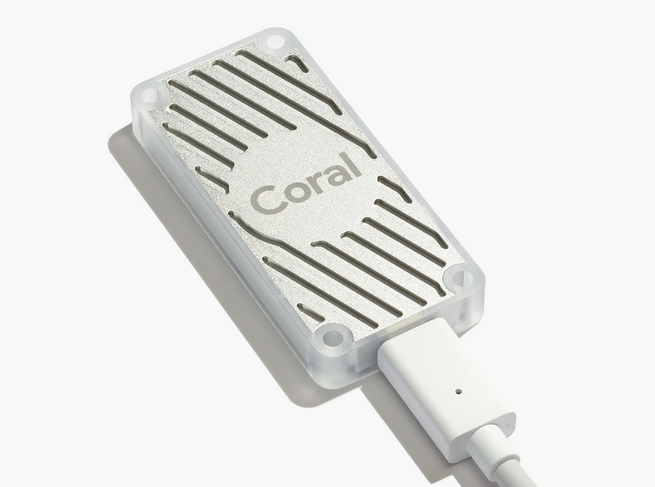
These are two majors which allow to run object detection models. Google Coral TPU is a physical module which can be in a form of USB stick. TensorRT is a feature of GPU runtime. Both allows to run detection models on them.

Coral TPU:

And TensorRT:

Compute Capabilities requirements

CC 5.0 is required to run DeepStack and TensorRT, but 7.0 to run Ollama moondream:1.8b. Even having GPU with CC 5.0 which is minimum required to run for instance TensorRT might be not enough due to some minor differences in implementation. It is better to run on GPU with higher CC. Moreover running on CC 5.0 means that GPU is older one which leads to performance degradation even as low as having 2 or 3 camera feeds for analysis.

Running TensorRT detection models (popular ones) requires little VRAM memory, 300 – 500 MB but it requires plenty of GPU cores and supplemental physical components to be present in such GPU, with high working clocks. In other words, you can fit those models in older GPUs but it will not perform well.

Other side of the story is to run Ollama which is GenAI requiring CC 7.0 and higher. Ollama with moondream:1.8b which is the smallest available detection model still requires little more than 3GB of VRAM.

TensorRT on Geforce MX940

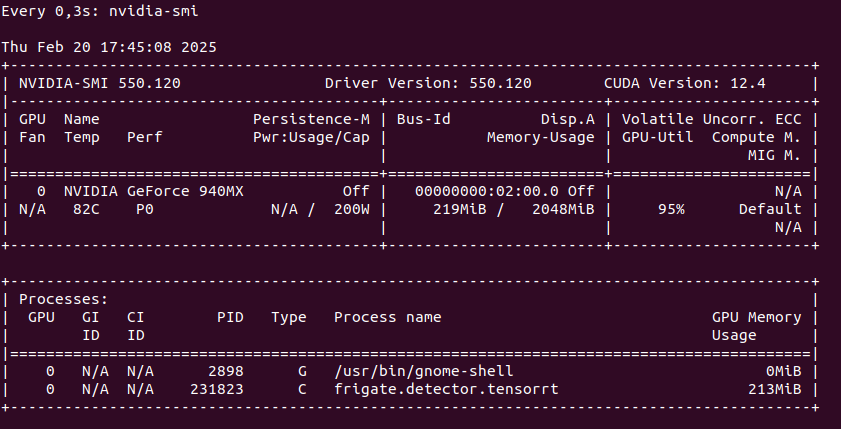
You can run TensorRT object detector from Frigate on NVIDIA Geforce 940MX with CC 5.0, but it will get hot at the same time you launch it. It run on driver 550 with CUDA 12.4 as follows on only one camera RTSP feed:

So this is not an option as we may burn this laptop GPU quickly. Configuration for TensorRT:

detectors:
  tensorrt:
    type: tensorrt
    device: 0

model:
  path: /config/model_cache/tensorrt/yolov7-320.trt
  input_tensor: nchw
  input_pixel_format: rgb
  width: 320
  height: 320

To start Docker container you need to pass YOLO_MODELS environment variable:

docker run -d \
  --name frigate \
  --restart=unless-stopped \
  --stop-timeout 30 \
  --mount type=tmpfs,target=/tmp/cache,tmpfs-size=1000000000 \
  --shm-size=1024m \
  --device /dev/bus/usb:/dev/bus/usb \
  --device /dev/dri/renderD128 \
  -v ./frigate-media:/media/frigate \
  -v ./frigate-config:/config \
  -v /etc/localtime:/etc/localtime:ro \
  -e FRIGATE_RTSP_PASSWORD='password' \
  -e YOLO_MODELS=yolov7x-640 \
  -p 8971:8971 \
  -p 8554:8554 \
  -p 8555:8555/tcp \
  -p 8555:8555/udp \
  --gpus all \
  ghcr.io/blakeblackshear/frigate:stable-tensorrt

Pleas notice that Docker image is different if you want to run use GPU with TensorRT than without it. It is also not possible to run hardware accelerated decoder using FFMPEG with 940MX so disable it by passing empty array:

cameras:
  myname:
    enabled: true
    ffmpeg:
      inputs:
        - path: rtsp://user:pass@addr:port/main
          roles:
            - detect
            - record
      hwaccel_args: []

However if you would like to try hardware decoder with different GPU or CPU the play with this values:

preset-vaapi
present-nvidia

TensorRT on “modern” GPU

It is the best to run TensorRT on modern GPU with highest possible CC feature set. It will run detection fast, it will not get hot as quickly. Moreover it will have hardware support for video decoding. And even more you could run GenAI on the same machine.

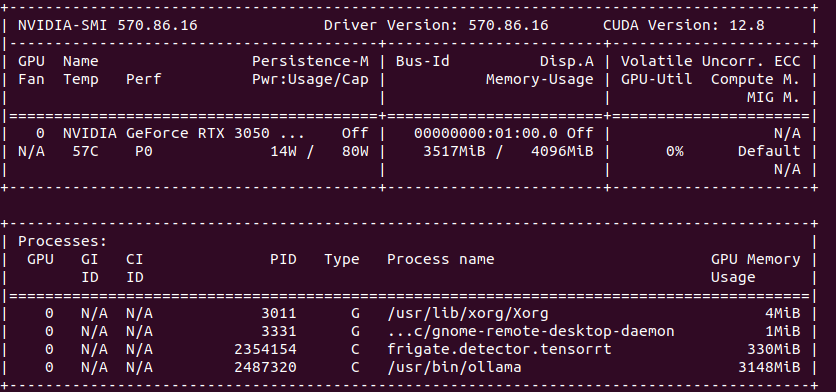
So the minimum for object detection with GenAI descriptions is to have 4 GB VRAM. In my case it is NVIDIA RTX 3050 Ti Mobile which runs 25% at most with 4 – 5 camera feeds.

Google Coral TPU USB module

To run Coral detector:

detectors:
  coral:
    type: edgetpu
    device: usb

But first you need to install and configure it:

sudo apt install python3-pip python3-dev python3-venv libusb-1.0-0
echo "deb https://packages.cloud.google.com/apt coral-edgetpu-stable main" | sudo tee /etc/apt/sources.list.d/coral-edgetpu.list
curl https://packages.cloud.google.com/apt/doc/apt-key.gpg | sudo apt-key add -
sudo apt update
sudo apt install libedgetpu1-std

You can also run TPU in high power mode:

sudo apt install libedgetpu1-max

And finally configure USB:

echo 'SUBSYSTEM=="usb", ATTR{idVendor}=="1a6e", GROUP="plugdev", MODE="0666"' | sudo tee /etc/udev/rules.d/99-edgetpu-accelerator.rules
sudo udevadm control --reload-rules && sudo udevadm trigger

Remember to run Coral via USB 3.0 as running it via USB 2.0 will cause performance drop by a factor of 2 or even 3 times. Second thing, to run Coral, first plug it in. Wait until it is recognized by the system:

lsusb

At first you will see not Google, but 1a6e Global Unichip. After TPU is initialized you will see 1da1 Google Inc:

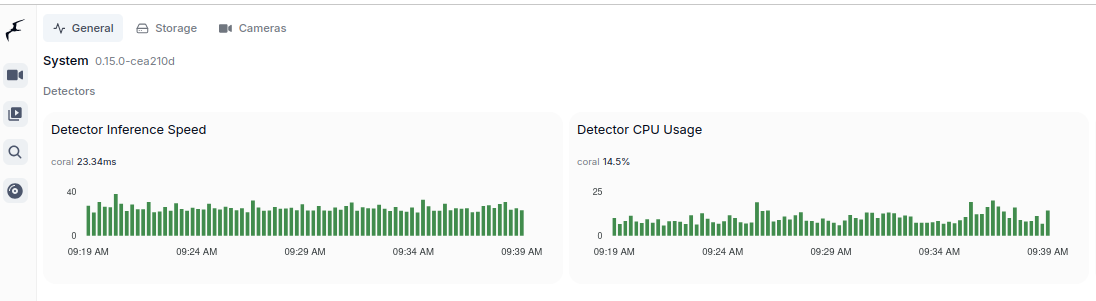
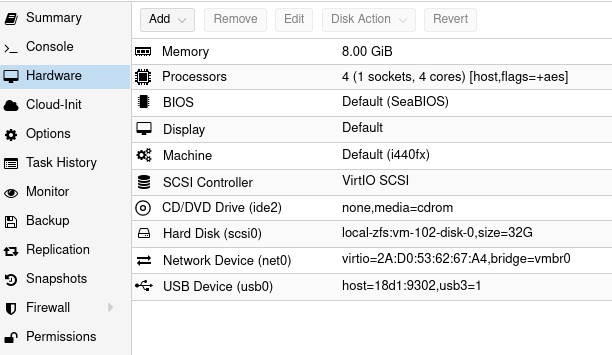
You can pass Coral TPU via Proxmox USB device, but after each Proxmox restart you need to take care of TPU initialization: