BLOOM LLM: how to use?

Asking BLOOM-560M “what is love?” it replies with “The woman who had my first kiss in my life had no idea that I was a man”. wtf?!

Intro

I’ve been into parallel computing since 2021, playing with OpenCL (you can read about it here), looking for maximizing devices capabilities. I’ve got pretty decent in-depth knowledge about how computational process works on GPUs and I’m curious how the most recent AI/ML/LLM technology works. And here you have my little introduction to LLM topic from practical point-of-view.

Course of Action

  • BLOOM overview
  • vLLM
  • Transformers
  • Microsoft Azure NV VM
  • What’s next?

What is BLOOM?

It is a BigScience Large Open-science Open-access Multilingual language model. It based on transformer deep-learning concept, where text is coverted into tokens and then vectors for lookup tables. Deep learning itself is a machine learning method based on neural networks where you train artificial neurons. BLOOM is free and it was created by over 1000 researches. It has been trained on about 1.6 TB of pre-processed multilingual text.
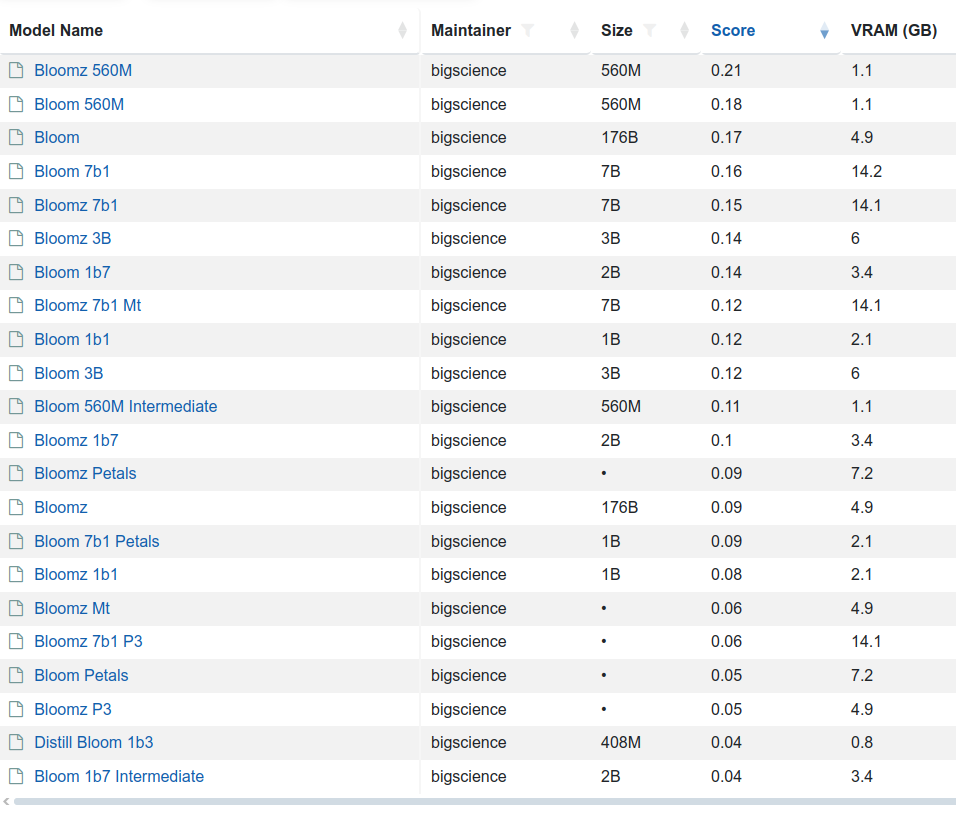
There are few variants of this model 176 billion elements (called just BLOOM) but also BLOOM 1b7 with 1.7 billion elements. There is even BLOOM 560M:

  • to load and run 176B you need to have 350 GB VRAM with FP32 and half with FP16
  • to load and run 1B7 you need somewhere between 10 and 12 GB VRAD and half with FP16

So in order to use my NVIDIA GeForce RTX 3050 Ti with 4GB RAM I would either need to run with BLOOM 560M which requires 2 to 3 GB VRAM and even below 2 GB VRAD in case of using FP16 mixed precision or… use CPU. So 176B requires 700 GB RAM, 1B7 requires 12 – 16 GB RAM and 560M requires 8 – 10 GB RAM.
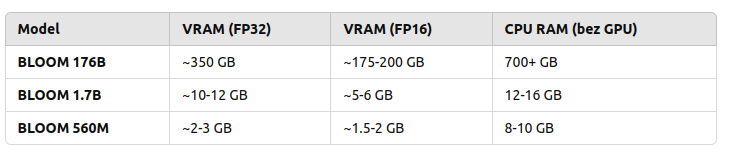
Are those solid numbers? Lets find out!

vLLM

“vLLM is a Python library that also contains pre-compiled C++ and CUDA (12.1) binaries.”

“A high-throughput and memory-efficient inference and serving engine for LLMs”

You can download (from Hugging Face, company created in 2016 in USA) and serve language models with these few steps:

pip install vllm
vllm serve "bigscience/bloom"

And then once it’s started (and to be honest it won’t start just like that…):

curl -X POST "http://localhost:8000/v1/chat/completions" \ 
	-H "Content-Type: application/json" \ 
	--data '{
		"model": "bigscience/bloom"
		"messages": [
			{"role": "user", "content": "Hello!"}
		]
	}'

You can back up your vLLM runtime using GPU or CPU but also ROCm, OpenVINO, Neuron, TPU and XPU. It requires GPU compute capability 7.0 or higher. I’ve got my RTX 3050 Ti which has 8.6, but my Tesla K20Xm with 6GB VRAD has only 3.5 so it will not be able to use it.

Here is the Python program:

from vllm import LLM, SamplingParams
model_name = "bigscience/bloom-560M"
llm = LLM(model=model_name, gpu_memory_utilization=0.6,  cpu_offload_gb=4, swap_space=2)
question = "What is love?"
sampling_params = SamplingParams(
    temperature=0.5,     
    max_tokens=10,
)
output = llm.generate([question], sampling_params)
print(output[0].outputs[0].text)

In return, there is either:

[rank0]: torch.OutOfMemoryError: CUDA out of memory. Tried to allocate 736.00 MiB. GPU 0 has a total capacity of 3.81 GiB of which 73.00 MiB is free. Including non-PyTorch memory, this process has 3.73 GiB memory in use. Of the allocated memory 3.56 GiB is allocated by PyTorch, and 69.88 MiB is reserved by PyTorch but unallocated. If reserved but unallocated memory is large try setting PYTORCH_CUDA_ALLOC_CONF=expandable_segments:True to avoid fragmentation.  See documentation for Memory Management  (https://pytorch.org/docs/stable/notes/cuda.html#environment-variables)

or the following:

No available memory for the cache blocks. Try increasing `gpu_memory_utilization` when initializing the engine.

I may try later to check it out on bigger GPU but as for now, I will try to run it using transformers library which is the next topic.

Transformers

So I picked the same BLOOM 560M model. First, you need to install the following main packages and plenty of dependencies:

pip install transformers
pip install torch
pip install accelerate

Source code of Python program using those libraries is as follows:

from transformers import AutoTokenizer, AutoModelForCausalLM
import torch
tokenizer = AutoTokenizer.from_pretrained("bigscience/bloom-560m")
model = AutoModelForCausalLM.from_pretrained(
    "bigscience/bloom-560m", 
    device_map="auto", 
    torch_dtype="auto"
)
def ask_bloom(question, max_length=100, temperature=0.7):
    inputs = tokenizer(question, return_tensors="pt").to(model.device)
    output = model.generate(
        inputs['input_ids'],
        max_length=max_length,  
        temperature=temperature,   
        pad_token_id=tokenizer.eos_token_id, 
        do_sample=True             
    )
    answer = tokenizer.decode(output[0], skip_special_tokens=True)
    return answer
question = "What is love?"
answer = ask_bloom(question)
print(f"Q: {question}\nAnwser: {answer}")

To run:

python3 transformers-torch.py

It will download the model and execute in Python program.
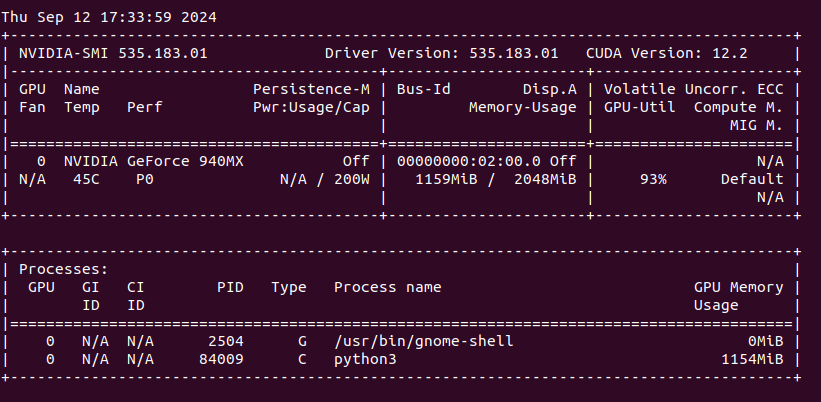
We can see that my NVIDIA GeForce 940MX with 2 GB VRAM is loaded around 60% with over 90% utilization (results from nvidia-smi).

“What is love?”. Anwser is as follows:

What is love? She never asked me the question but I am the one who has to give my answer. She is a beautiful, beautiful, very beautiful woman. The first thing you know about love is that it is the most complicated thing in the world. I was so shocked when I saw the man I thought I was marrying. My life was over. The woman who had my first kiss in my life had no idea that I was a man. She was so shocked. She said something

Next I asked for “The sun is shining and?”

I love this scene and I like when it comes to it. The sun, the sky and all the other stars are bright and I love that! I really enjoy this scene and it sets the scene for the rest of the story. It seems like the characters are just going about their day and the sun is shining. The world seems to be in its perfect place and everything is beautiful. I love the lighting in this scene and the warmth of the sunlight that

Does it make any sense? What is a concept of “sense” at all? Anyway it works, somehow. Lets find out the other possibilities.

Microsoft Azure N-series virtual machines

Instead of buying MSI Vector, ASUS ROG, Lenovo Legion Pro, MSI Raider or any kind of ultimate gaming laptops you go to Azure and pick on their NV virtual machines. Especially that they have 14 and 28 GB of VRAM onboard. It costs around 400 Euro per month, but you will not be using it all the time (I suppose).
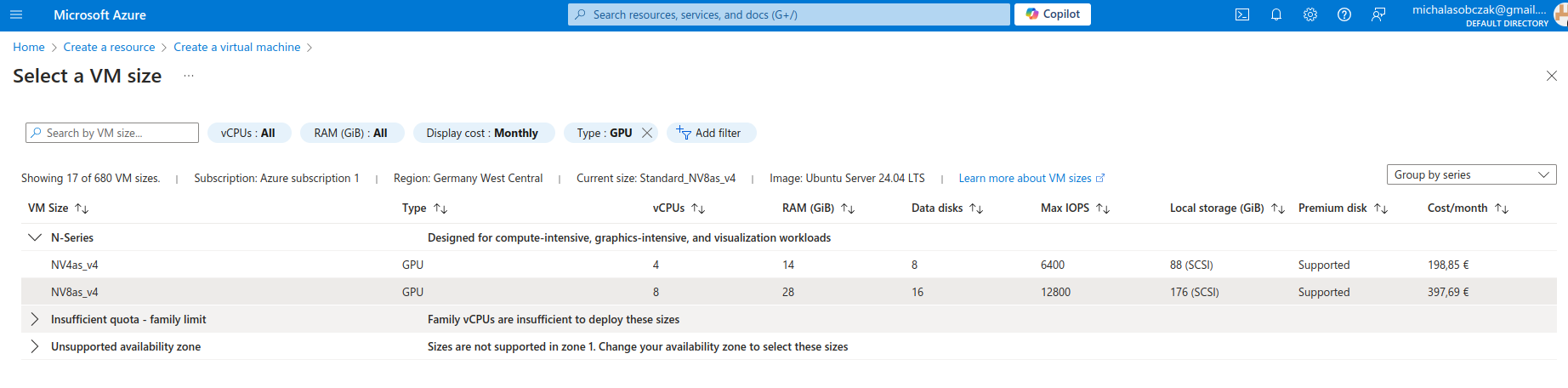
We have:

root@z92-az-bloom:/home/adminadmin# lspci 
0002:00:00.0 VGA compatible controller: Advanced Micro Devices, Inc. [AMD/ATI] Vega 10 [Instinct MI25 MxGPU/MI25x2 MxGPU/V340 MxGPU/V340L MxGPU]

And I was not so sure how to use AMD GPU, so instead I decided to requests for a quote increase:

However I got rejected on my account with that request:
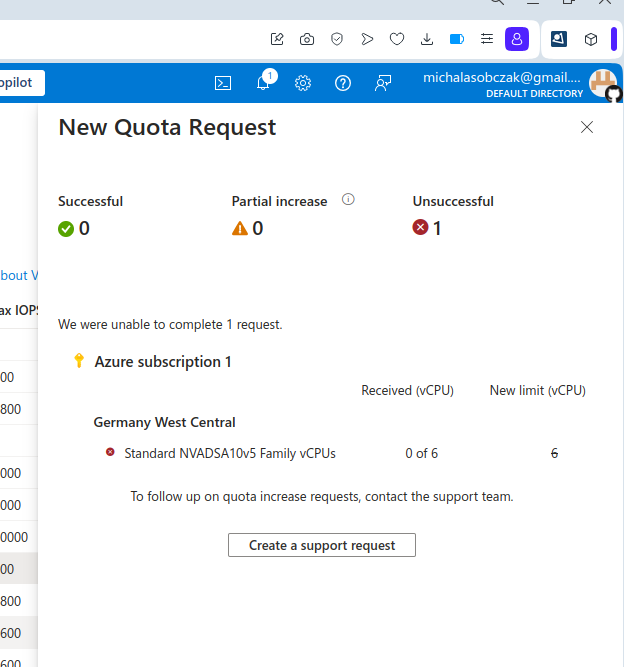
Unfortantely changing parameters and virtual machine types did not change the situation, I got still rejected and neeeded to submit support ticket to Microsoft in order to manually process it. So until next time!

What’s next to check?

AWS g6 and Hetzner GEX44. Keep reading!

Further reading

Thoughts on GPU thermal issues

I’ve been playing around with several devices in a context of running OpenCL code on them. They have one common thing which is excessive heat coming out of GPU and heatsink being unable to dissipate it. I start with MacBookPro3,1. It has NVIDIA 8600M GT, which is known to fail. I assume that it may be linked with overheating. Second example is design failure of Lenovo Thinkpad T420s which has built in NVIDIA NVS 4200M. This laptop has Optimus feature which in theory could detect if workload should be run on discrete or integrated GPU. Unfortunately enabling either Optimus or run-only-on discrete GPU causes extreme overheating up to 100 degress Celcius which makes this setup unusable (it slows down). Last example would be Lenovo Thinkpad T61 with NVS 140M. Contrary to previous examples, this one shows no issues with overheating itself, but is extremely fragile in terms of build quality. CPU has proper heatsink contact by means of 4 screws, but for unknown reason GPU which is 2 cm aside lacks of any screws and is dependent on separate metal clip which puts pressure on heatsink and has its own screw. I find it quite silly, because in case of thermal paste going bad or having loose this one screw it may completely damage GPU. Unscrewing just a little bit this one screw and temperature goes from 50 to 100 degrees risking fire I think….

So, back in a days when manufacturers tried to put dedicated GPU in compact laptops there were several examples of design flaws especially lacking proper heatsink and fans. Nowadays when discrete graphics are way more common on the market it is not uncommon to see several fans and huge blocks of metal giving away all this heat coming out from case because you run game or try to compute something in OpenCL.

Device performance in OpenCL DES

Among various computing devices I have there is one that stands out it is NVIDIA Quadro NVS 140M because it supports only FP32 (float) operations, but not FP64 (double). It is generally too old. In OpenCL we have both pow function which takes double and float parameters. The latter is called pown. I use first one to actually benchmark double precision computation.

ModelYearCoreUnitClkPerf1k10k100k
NVS 4200M20114811480156/12131161163
Tesla K20xm20122688147323935/13122324
Intel i7 2640M2011242800n/a327281
RTX 3050 Ti Mobile202125602016955299/8321090
Intel UHD 10200H2020192121050422/?419192
NVS 140M (FP32)200716280025/-474454453

The fastest in this comparison is Tesla K20xm which I find a little surprising because it is from 2012 and it wins over RTX 3050 Ti Mobile from 2021. However if we take into consideration that FP64 performance of Tesla is 15 times greater (only 4 x in actual time) than RTX then it should be obvious why it wins.

I have no need to use double to be honest (integer should be just fine here), but it is a great chance to see performance differences between various devices. Using FP32 would be quite difficult to get such a broad range of timings. Using pown(float, integer) changes above table a little bit as we start using FP32 computations (at 100k elements):

  • Tesla K20xm: 12ms
  • RTX 3050 Ti Mobile: 3ms
  • NVS 4200m: 352ms
  • NVS140M: 4453ms

Now I look at those timings from theoretical performance measured in GFLOPS. Comparing NVS 4200M and NVS 140M we have relation of approx. 6 times (156 vs 25), but timing relation is only just close to 4. So other factors come to play here also. Comparing RTX 3050 Ti and Tesla K20xm we have 1.34 (5299 vs 3935), but timing relation is 4. So actual performance gain is much higher than I would expect comparing GFLOPS measurements.

Getting Tesla K20xm is a steal in terms of FP64 computations as it is on similar level as RTX 4090.

GPU passthru in Proxmox for OpenCL, ufff

You can put your #GPU in #Proxmox server box and pass thru computational power to virtual machines… just in case you would like to run your AI/ML things alongside your virtualized NAS 😀

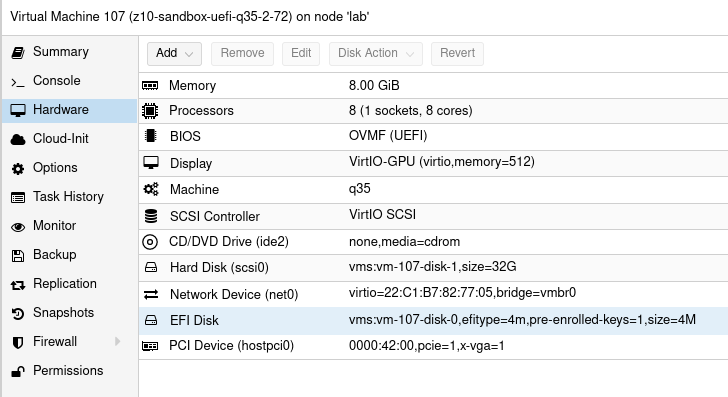
Finally I got it working. I think so. This Proxmox installation is simple one, just single node for experiments which is half part. The other part is VM configuration. You may ask, what exactly for do I need GPU in VM? I may need because the hardware is capable of running several additional GPUs and I can use all of them at once in different configurations and even in different operation systems. Just like people do in cloud environments and this setup mimics such thing running server-like computer with datacenter-like GPUs on board. During this test I used NVIDIA GTX 650 Ti which is consumer grade card, but now I confirm to have it working so I will put there my other cards, like NVIDIA Tesla K20xm or FX 5800 with lot more shaders/cores which can be used in OpenCL applications for AI/ML. And you will see how easy is to cross the temperature maximum of a GPU.

Table of Contents

Proxmox configuration

GRUB

First thing to modify is GRUB options. So:

GRUB_CMDLINE_LINUX_DEFAULT="quiet intel_iommu=on initcall_blacklist=sysfb_init video=efifb:off video=vesa:off video=simplefb:off kvm.ignore_msrs=1 vfio_iommu_type1.allow_unsafe_interrupts=1 modprobe.blacklist=radeon,nouveau,nvidia,nvidiafb,nvidia-gpu vfio-pci.ids=10de:11c6,10de:0e0b"

I have Intel Xeon E5645 so in my options I put intel_iommu. In case you have AMD or something else, then it should be adjusted. Blacklisting modules, I prefer to keep all of these as you may want to put different cards in your setup. Without this, Debian (on which Proxmox is run atop) will try to load modules/drivers and put your black console screen in higher resolution. If you blacklist these modules, then you will get low resolution output. That is want you should see here at this moment. Totally variable part is vfio-pci.ids (which can be obtained using lspci command). First one is for video adapter and the second one is for audio device. I put both however I will for sure use only the first one.

Other configurations

Second thing to modify:

root@lab:~# cat /etc/modprobe.d/blacklist.conf
blacklist nouveau
blacklist nvidia

Third one:

root@lab:~# cat /etc/modprobe.d/iommu_unsafe_interrupts.conf 
options vfio_iommu_type1 allow_unsafe_interrupts=1

It seems that this one is redundant as it also appears in GRUB options.

Fourth change:

root@lab:~# cat /etc/modprobe.d/vfio.conf 
options vfio-pci ids=10de:11c6,10de:0e0b disable_vga=1

Same here, I think that you can have it either here or in GRUB section.

Then, the modules list which should be enabled:

root@lab:~# cat /etc/modules
# /etc/modules: kernel modules to load at boot time.
#
# This file contains the names of kernel modules that should be loaded
# at boot time, one per line. Lines beginning with "#" are ignored.
vfio
vfio_iommu_type1
vfio_pci
vfio_virqfd

Next thing is to apply GRUB options with either of those commands:

update-grub
proxmox-boot-tool refresh

I am little confused as the official documentation (found here) states that you should do the first one, but actually running this command tells us that we should run the second one intead.

To verify it all of above changed anything at all, reboot your system and then:

dmesg | grep -e DMAR -e IOMMU

If you see message saying “IOMMU enabled” then you are good to go further, otherwise some different configuration should be applied. In my case I got some issue saying that my Intel chipset is unstable with IOMMU remapping so the thing is going to be disabled. So there is need to have this “allow_unsafe_interrupts” option I guess. To verify if you have working IOMMU groups:

find /sys/kernel/iommu_groups/ -type l

You should see some entries here.

Virtual Machine

This time I tried 3 VM configurations which is Ubuntu 20 LTS Desktop. There are two main factors you should consider. Different variations may work but it is not fully predictable as you take multiple factors into consideration.

Q35 & UEFI

First one is to use Q35 instead of i440fx. This way you should be able to use PCI-E. I tried it on i440fx and it shows GPU but it is not accessible. Verification process involves the following:

  • clinfo showing positive number of platforms
  • nvidia-smi showing process list using dedicated GPU
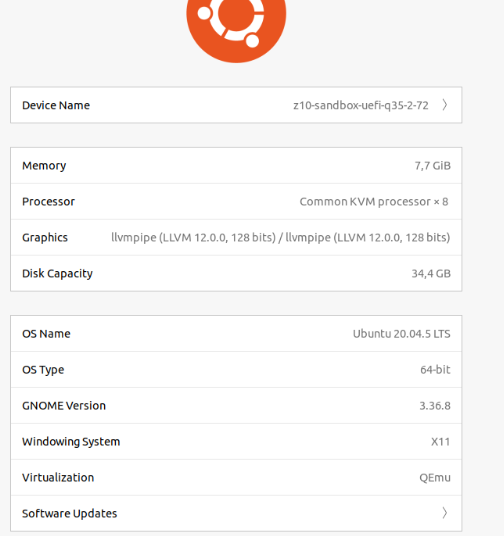
  • Ubuntu about page saying that we use particular NVIDIA driver (however it is debatable…)

Second thing is using UEFI instead of default BIOS setup, but it requires you to check if your GPU actually supports UEFI. So I tried Q35 and UEFI and this combination allows us to have all of these somehow working. Regarding UEFI I disabled secure boot in VM UEFI/BIOS.

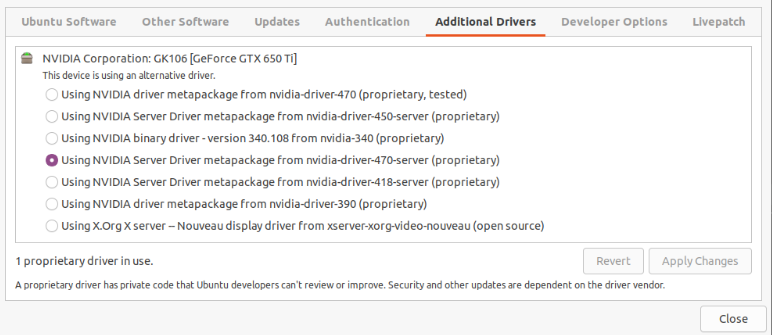
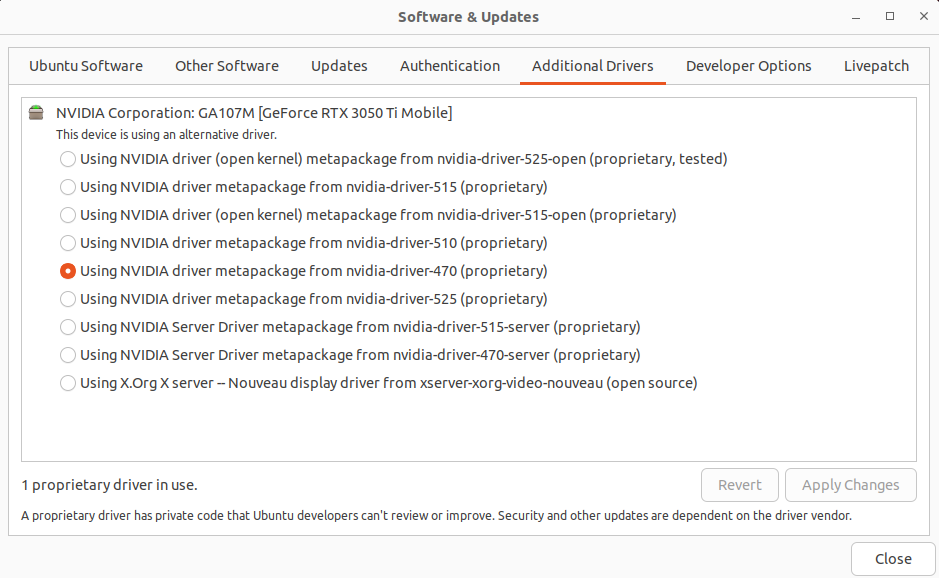
Concerning the driver (NVIDIA in my case) I use nvidia-driver-470-server but other also seems to work. It is weird that Ubuntu about page shows llvmpipe instead of this driver, but the drivers page says that the system uses NVIDIA driver. Not sure who is right here.

The drivers list:

Device resetting

The last thing which prevents this setup from working is to “remove” the devices at boot time (/root/fix_gpu_pass.sh):

 #!/bin/bash
echo 1 > /sys/bus/pci/devices/ID/remove
echo 1 > /sys/bus/pci/rescan

Where ID is PCI-E device ID at VM level which can be checked using lspci -n command. Add it to crontab at reboot time (crontab -e):

@reboot  /root/fix_gpu_pass.sh

OpenCL verification

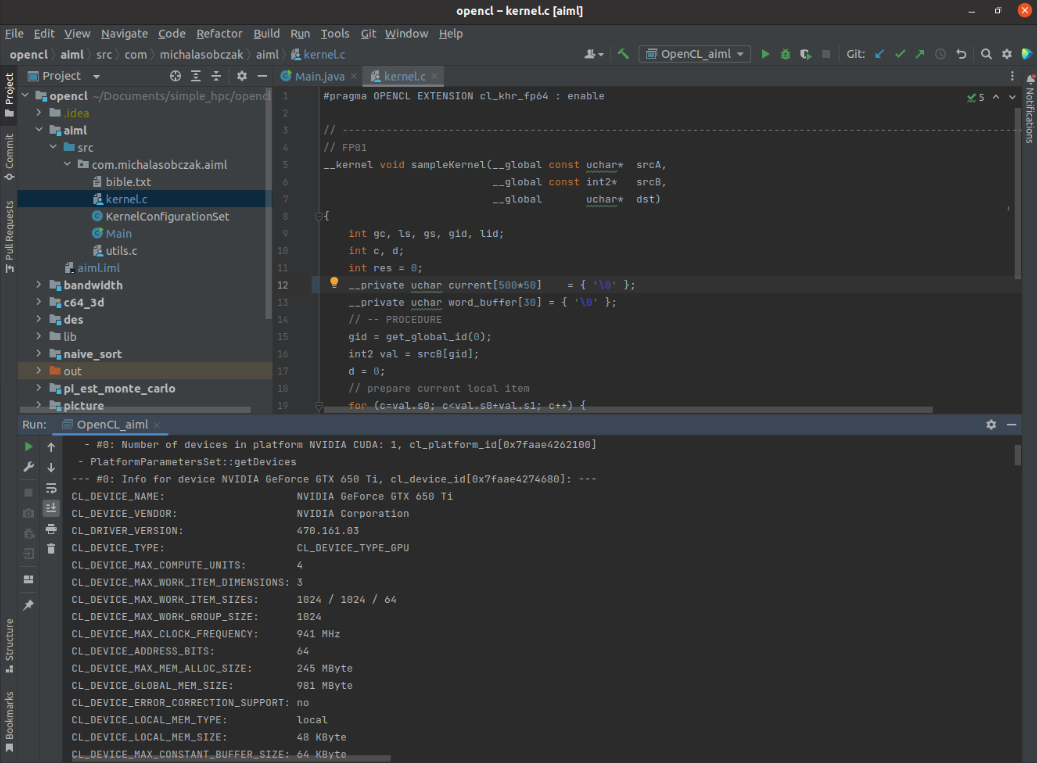
So, if you can see VNC console in Proxmox, your VM is booting and you are able to login, you can install driver, lspci/nvidia-smi/clinfo show proper values then it is now time for a grand last check which is to clone Git repository with my code and try to run it.

cd ~/Documents
git clone https://github.com/michalasobczak/simple_hpc

Then install openjdk-19 and create Application configuration for aiml module having opencl module in your classpath. You may require to rebuild opencl module also. Finally if you are able to see platforms here then you are in the correct place.

I have NVIDIA GeForce GTX 650 Ti placed in my HP z800 as a secondary GPU and the system recognizesit properly and the code runs well. Performance wise I should say that it seems to be fine. I quickly compared NVS 4200M with this card:

  • NVS 4200M (CL2.0 configuration profile): 30 – 40 ms
  • GTX 650 Ti (CL3.0 configuration profile): 4 – 5 ms

There is one culprit regarding diagnostics as nvidia-smi does not show GPU utilization and process list, but it shows memory consumption. Increasing local variables size (arrays) has direct relation on memory utilization increase that is why I assume it still works somehow! Maybe even not that bad.

Burning Tesla K20xm

As mentioned earlier after successful setup with consumer GPU it is now time to try a datacenter one. I have this Tesla K20xm which is quite powerful even in today standard. It has plenty of memory (6GB) and tons of cores (2688), even more than my RTX 3050 Ti (2560). Of cource being a previous generation hardware it will be less efficient and will drain more power. And there it is the problem. This GPU can draw up to 235W. I have over 1000W power supply but there is certain limitation on PCI-E gen 2 power output. So the maximum I’ve seen on this GPU during passtru tests was 135W. After few minutes temperature rises from 70 up to 100 degrees Celcius cauing system to switch it off… running nvidia-smi gives me such a error message, asking me nicely to reboot:

So there it is, I forgot totally that this GPU belongs to proper server case with extremely loud fans which I lack actually in PCI-e area in HP z800. This computer has plenty of various fans, even on memory modules, but this area is not covered at all. After computer reboot GPU comes back to life. Besides the problem with the temperature itself, there is efficiency drop after cross somewhere near 90 degrees, it slows down few times and near 100 degress is switches off completely.

Further reading & troubleshooting

  • https://pve.proxmox.com/wiki/Pci_passthrough
  • https://forum.proxmox.com/threads/gpu-passthrough-to-vm-everything-seems-working-but-it-doesnt.107881/
  • https://theorangeone.net/posts/lxc-nvidia-gpu-passthrough/
  • https://forum.proxmox.com/threads/problem-with-gpu-passthrough.55918/
  • https://forum.proxmox.com/threads/vga-passthrough-error-device-does-not-support-requested-feature-x-vga.35727/

Text processing in OpenCL

OpenCL is excellent in the field of numbers, but not that much into text processing. It lacks even basic functions available in regular C99. So the question is if it is worth trying to process some text in it.

In my OpenCL base project (which can be found here) I’ve added “aiml” module. It loads over 31k lines of text with over 4 mln characters. The text itself is in the first buffer of uchar array. Second buffer holds pointers and lenghts of consecutive lines being work-items, so there are over 31k of such work-items. Third buffer is a result array when I can store a outcome of kernel processing.

Java base code

First read text file and generate pointers and lenghts:

    public void readFile() {
        System.out.println(" - Read file");
        File file = new File("aiml/src/com/michalasobczak/aiml/bible.txt");
        try {
            BufferedReader br = new BufferedReader(new FileReader(file));
            String st = null;
            while ((st = br.readLine()) != null) {
                allstring.append(st);
                vector.add(st);
                line_sizes.add(pointer);
                pointer = pointer + st.length();
                counter++;
            }
        } catch (IOException e) {
            throw new RuntimeException(e);
        }
        System.out.println("Read no of lines: " + counter);
        System.out.println("sample line: " + vector.get(100));
        System.out.println("sample line size in chars: " + line_sizes.get(5));
        n = counter;
    }

And then copy source text, pointers and lenghts to thebuffers:

    public void generateSampleRandomData() {
        System.out.println(" - Started sampling data");
        for (int i=0; i<allstring.length(); i++) {
            srcArrayA[i] = (byte)allstring.charAt(i);
        }
        System.out.println("allstring size: " + allstring.length());
        for (int i=0; i<n; i++) {
            srcArrayB[i*2]  = line_sizes.get(i);
            srcArrayB[(i*2)+1] = vector.get(i).length();
        }
        System.out.println(" - Finished sampling data");
    }

Buffers are as follows:

    public void createBuffers() {
        // Allocate the memory objects for the input- and output data
        this.memObjects[0] = clCreateBuffer(this.context, CL_MEM_READ_ONLY | CL_MEM_COPY_HOST_PTR, (long) Sizeof.cl_uchar * this.allstring.length(), KernelConfigurationSet.srcA, null);
        this.memObjects[1] = clCreateBuffer(this.context, CL_MEM_READ_ONLY | CL_MEM_COPY_HOST_PTR, (long) Sizeof.cl_int * this.n * 2, KernelConfigurationSet.srcB, null);
        this.memObjects[2] = clCreateBuffer(this.context, CL_MEM_READ_WRITE, (long) Sizeof.cl_uchar * this.n, null, null);
    }

Kernel code is divided into two parts:

    public void readKernelFile() {
        this.content = new String("");
        try {
            this.content = Files.readString(Path.of("aiml/src/com/michalasobczak/aiml/utils.c"));
            this.content += "\n";
            this.content += Files.readString(Path.of("aiml/src/com/michalasobczak/aiml/kernel.c"));

        } catch (IOException e) {
            e.printStackTrace();
        }
    }

In terms of Java base code that is all.

C99 kernel code

As I have already mentioned, OpenCL C99 lacks of several basic text processing features. I think that is because it is not meant to be used with texts and secondly because you cannot do recursion and I suspect that some of those functions might use it. So I decided to prepare some basic functions as follows:

#define MAX_STRING_SIZE 256

int get_string_size(uchar string[]) {
    int size;
    int c;
    int counter = 0;
    for (c=0; c<MAX_STRING_SIZE; c++) {
        if (string[c] == NULL) {
            break;
        }
        counter++;
    }
    return counter;
}


void print_string(uchar stringa[]) {
    int size = get_string_size(stringa);
    int c;
    for (c=0; c<size; c++) {
        printf("%c", stringa[c]);
    }
    printf("\n");
}


void set_string(uchar wb[], uchar tmp[]) {
    int c;
    int size = get_string_size(tmp);
    for (c=0; c<size; c++) {
        wb[c] = tmp[c];
    }
}

void set_string_and_print(uchar wb[], uchar tmp[]) {
    set_string(wb, tmp);
    print_string(wb);
}

int find_string_in_string(uchar source[], uchar looking_for[]) {
    int s_size = get_string_size(source);
    int lf_size = get_string_size(looking_for);
    int c, d;
    for (c=0; c<s_size; c++) {
        for (d=0; d<lf_size; d++) {
            if (source[c+d] == looking_for[d]) {
                ;
            }
            else {
                break;
            }
            if (d == lf_size-1) {
                return 1;
            }
        } 
    } 
    return 0;
}

Few words of explanation. String size function relies on NULL terminated characters array. String setter function does not puts that NULL in the end, so you need to do it yourself if needed. Finding string in string returns only first hit.

Now, the kernel:

__kernel void sampleKernel(__global const uchar* srcA,
                           __global const int2*   srcB,
                           __global       uchar*  dst)
{
    int gc, ls, gs, gid, lid;
    int c, d;
    int res = 0;
    __private uchar current[131*1000]    = { '\0' };
    __private uchar word_buffer[30] = { '\0' };
    // -- PROCEDURE
    gid = get_global_id(0);
    int2 val = srcB[gid];
    d = 0;
    // prepare current local item
    for (c=val.s0; c<val.s0+val.s1; c++) {
        current[d] = srcA[c];
        d++;
    } // for
    uchar tmp[10] = "LORD\0";
    set_string(word_buffer, tmp);
    res = find_string_in_string(current, word_buffer);
    dst[gid] = res;
} // kernel

As shown before in Java base code, there are 3 buffers. First one is for plain uchar array of source text. Second one is for int2 vectors holding pointers and lenghts of consecutive, adjacent lines/verses. Third is for output data, for instance in case of successful search it holds 1, otherwise 0.

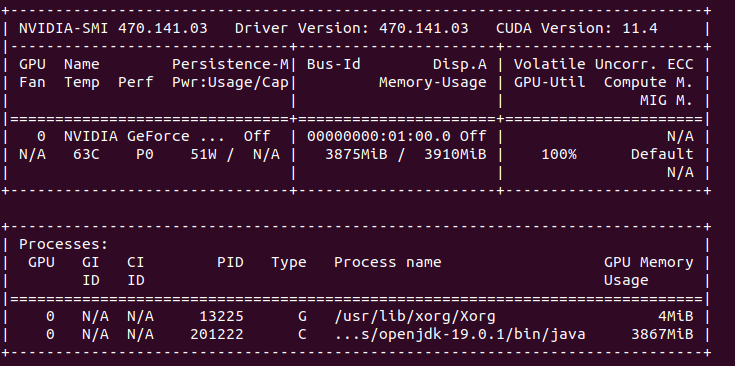
I’ve tested this on my NVIDIA GeForce RTX 3050 Ti Mobile with 4 GB of VRAM. Having around 32k elements (work-items) means that we can allocate as much as 131kB of data per single work-item. This way we can fully load all available VRAM memory. Of source not all of given work-items will be run at the same time because there is only 2560 cores in this GPU. So obiously it is the maximum parallel items working at the “same time”. Estimated 13 rounds is required to process all the data, however we need to keep in mind that local-size is set to 32 and there are some specific constraints put on the GPU itself by CC (compute capabilities) specifications.

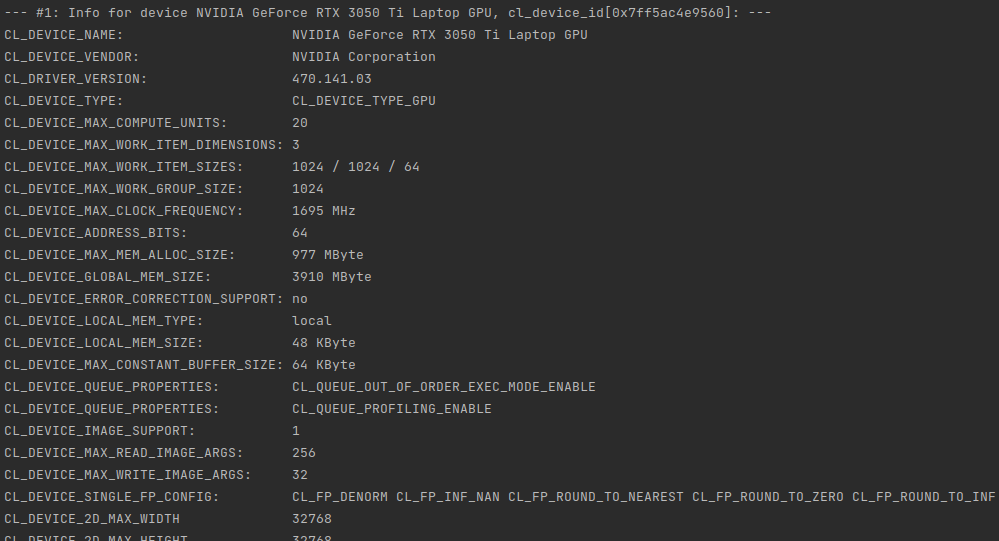
For CC 8.6 we have maximum of 16 thread blocks per SM (streaming multiprocessor) times 32 work-items of local-work-size it gives us 512 max. RTX 3050 Ti has 20 SM, so the maximum simultaneous (in theory) working items would be 10240, but having only 2560 cores I think that of course it will not reach that far having 100% utilization at much lower values. Still for the latest GPUs, they can have up to 16k cores, so that kind of hardware could better utilize CC 8.6 of higher specification on full load.

I would like to point out one more things regarding private/register memory and a global memory. In case of Ampere GPU architecture:

  • The register file size is 64K 32-bit registers per SM.
  • The maximum number of registers per thread is 255.

So, we are limited per work-item to 255 registers and there is also a 64k limit per SM. We can thus estimate or even calculate the maximum data size which will fit locally and beyond that value it will go outside to global memory providing much higher latency. It can be seen on times calculation increasing while we increase uchar current array.

Conclusion

Text processing in OpenCL works just fine with 0 – 1 ms per single search thru over 4 mln characters (31-32k lines). We are constrained by lack of string or memory functions so all string function I’ve made use constant array buffers. I’ve practically tested full VRAM allocation (4GB). Power draw is 51W.

What next? I think that may take step forward and try to do come classification and few other things toward ML or even AI. That can be quite interesting to see…

DES cipher is 40 times faster in OpenCL

OpenCL implementation od DES cipher is way faster than regular single-threaded C program. 1 mln encryptions take less than a second on RTX 3050 Ti, but also as much as almost 40 seconds on Intel i5-10200h single-thread application.

Lack of compact and extremely portable SSL/TLS library in pre C++11 project made me think about going for something easy to implement on my own concerning data encryption. I’ve selected DES, which stands for Data Encryption Standard because of my general understanding of such algorithm. It comes from 1975 and has certain limitations including short key length or known weak keys. But if we put our prejudices aside we may see few interesting things and opportunities as well.

It took me several days to accomplish C99 kernel in OpenCL. Before this I tried few third party examples in c++. One major drawback is that all of them use strings, vectors, stringstreams and few other strictly c++ features. Even use of printf is problematic in OpenCL implementations as you may not get it or it may be working differently from implementation to implementation. You will not be able to use some of c99 features like malloc/free. So to get maximum compatibility I went down to the simplest solutions.

I especially admire example in which you use binary as strings (uchar arrays). This way you can easily see what is going on. Of course (really?) it adds complexity and increases instructions count as well as memory consumption but for the first DES implementation it is acceptable. So you will see in various places arrays of 8 byte elements meaning 64 bits of data. Keys and other values as 56 or 48 bits of data and finally halves as 32 bits values (4 byte digits). Both input and output can be displayed as characters. Input will be plain ASCII, but output come over 128 decimal ASCII code so you can see some weird characters in case of printing them instead of presenting only numbers.

OpenCL vs single threaded C

In order to run kernel code outside OpenCL runtime you need to provide few things:

#include "stdio.h"
#include <math.h>

typedef unsigned char uchar;

You need to add math library in GCC invocation because by default it is not included:

gcc des.c -lm

Then, kernel main function need to be adjusted, for instance as:

void kernel() { 
  // here we have the kernel function body...
}

And finally provide C language main function with iterations already parametrized:

int main() {
    int i;
	for (i=0; i<1024*1024; i++) {
		if (i % 1024 == 0) {
			printf("i: %i ", i);
		}
		kernel();
	}
}

For sake of simplicity I skip uchar8 definition and handling as it do not add than much to overall complexity of the code and the algorithm. Running on different hardware with 1024*1024 iterations. First going to compare CPU execution time:

HardwareDuration
Dell G15: Intel Core i5 10200H 2.4 GHz38s
MacBookPro3,1: Intel Core 2 Duo 2.2 GHz1min 37s
PowerBook G4: PowerPC G4 800 MHz11 min 22s

Now compare it with OpenCL runtime duration:

HardwareCores NoCompute Units (acc. to OpenCL)Duration
NVIDIA GeForce RTX 3050 Ti Mobile256020930ms
Intel UHD 10th gen192122065ms

Java base project

I use OpenCL base project which can be found here. There is one additional module called “des”. Originally I used Java 17, but today I select Java 19. Frankly speaking I cannot point out easily anything that much important between Java 11 and 19. Each version introduces either small language changes or no changes at all. But if you code complex object-oriented applications then those changes might be interesting for you.

So… first I fill source data table with the following function:

    public void generateSampleRandomData() {
        Random rd = new Random();
        for (int i = 0; i <= (n*8) - 1; i++) {
            byte c = (byte)('a' + rd.nextInt(10));
            srcArrayA[i] = c;
        }
    }

This function generates n*8 byte elements within a range of ASCII ‘a’ letter decimal representation and 10 numbers ahead. In other words random characters will be within range from ‘a’ do ‘j’ which in decimal will be from 97 to 106. One word about byte type in Java language – it is always signed so there is direct possibility to use it as unsigned. There is however Byte.toUnsignedInt function which translates negative byte numbers into positives.

Next thing is buffer. As later we will see that kernel function utilizes uchar8 data type, there is need to map such type in Java. I came with idea of using plain byte array (byte[]). Each and every kernel invocation will map consecutive groups of 8 elements from this plain array:

   public void createBuffers() {
        // Allocate the memory objects for the input- and output data
        this.memObjects[0] = clCreateBuffer(this.context, CL_MEM_READ_ONLY | CL_MEM_COPY_HOST_PTR, (long) Sizeof.cl_uchar8 * this.n, KernelConfigurationSet.srcA, null);
        this.memObjects[1] = clCreateBuffer(this.context, CL_MEM_READ_WRITE, (long) Sizeof.cl_uchar8 * this.n, null, null);
    }

Both source and target arrays are type cl_uchar8 which translate into uchar8 in the kernel itself. To print results coming back from kernel invocations we will use aforemendtioned Byte.toUnsignedInt function:

public void printResults() {
        System.out.println("Elements: " + dstArray.length);
        int i = 0;
        for (byte tmp : dstArray) {
            System.out.println(String.valueOf(i) + " : " + (Byte.toUnsignedInt(tmp)) );
            i++;
        }
}

And that is basically all regarding Java part of this challange. Use of Java here is a matter of covenience as you may do it also using c or c++. I do not know by now about any discrepancies in JOCL library and some other libraries available.

OpenCL 1.1

In order to run kernel code on some older devices you need to adjust few things. First you need to get rid of printf function invocations or define it by yourself. Second things you need to enable floating point cl_khr_fp64 extension in case of using double type:

#pragma OPENCL EXTENSION cl_khr_fp64 : enable

There are options no to use pow function and convert the entire cipher algorithm to use bit selection. For my educational purposes however it is much easier to see what’s going on like that.

C99 kernel

I’ve divided the DES cipher algorithm into 27 functional points from FP00 to FP26. Some of them contains data only and other ones consists procedures.

General section

  • FP00 – auxilliary functions (lines 1-133)
  • FP01 – kernel definition
  • FP02 – data and identification
  • FP03 – key
  • FP04 – plain text
  • FP05 – PC1/PC2 tables data

Generating keys

  • FP06 – PC1 key permutation
  • FP07 – key division into two equal halves
  • FP08 – 16 round keys, for 1, 2, 9 and 16 single left shifts
  • FP09 – for other iteration double left shifts
  • FP10 – combining left and right parts
  • FP11 – PC2 key permutation

Encryption procedure

  • FP12 – data only, initial permutation and expansion table data
  • FP13 – data only, substitution boxes 8 boxes, 4 rows, 16 colums each
  • FP14 – data only, permutation table
  • FP15 – applying initial permutation
  • FP16 – dividing result into two equal halves
  • FP17 – encrypting 16 times, right laft is expanded
  • FP18 – result XORed with key
  • FP19 – apply 8 times substitution boxes
  • FP20 – applying permutation
  • FP21 – result XORed with left half
  • FP22 – left and right part of plain text swapped
  • FP23 – combining left and right part
  • FP24 – applying inverse permutation
  • FP25 – preparing final result
  • FP26 – writing result to the output OpenCL buffer

Summary

In this challange… which source code can be found here I verified possibility to code DES cipher algorithm using OpenCL enabled devices. This 500 lines of code can be run either on OpenCL device or in slightly modified form on any other devices with can compile C language. OpenCL implementation runs 40 times faster on GPU than on single threaded CPU. This was kinda interesing one…

Failed to load library libOpenCL.so.1

Today I came back to my OpenCL project (can be found here). I have had not tried it on my fresh Ubuntu 22 installation on my Dell g15 with RTX 3050 Ti. Altough I’ve got NVIDIA driver metapackage installed my program reported that there is some problem with shared library:

You can check if the driver is selected in system About window. So there it is in my case, but nvidia-selector command reports that I have nvidia-driver-525 which is weird as drivers tab says I have installed driver 470. On the other hand, running nvidia-smi command says I have enable driver 470. Weird.

I came across some solution which says that I should install libopencl-clang-dev:

sudo apt install libopencl-clang-dev

I restarted IntelliJ IDEA 2022.3 Community Edition and even proceeded with system reboot to no avail, still the same issue. Next thing to check is libOpenCL library symlink looking for missing either symlink itself or target files:

ls -la /usr/lib/x86_64-linux-gnu/ | grep libOpenCL

I have both.

Finally I found a post stating that I should have ocl-icd-opencl-dev:

sudo apt-get purge ocl-icd-opencl-dev
sudo apt-get autoremove # this could be risky however
sudo apt-get install ocl-icd-opencl-dev

And voilà I got it working. However I have only GPU recognized, no CPU on the list of available devices. That is weird but most probably I should install some Intel SDK or at least their libraries to have it working also for CPU. NVIDIA package do not provide runtime for CPU. Now I remember that for book project I have been running it on Windows instead of Linux…

OpenCL

Programowanie CPU i GPU

Mamy rok 2022. Minęła ponad dekada od pojawienia się OpenCL. Omówię standard, przykładowy sprzęt, a także zaprezentuję rzeczywiste przykłady, które można wykorzystywać obecnie zarówno na historycznym jak i najnowszym sprzęcie, co ma pokazać swego rodzaju uniwersalność tego rozwiązania. Przy okazji zobaczymy jak ewoluowała technologia na przestrzeni ostatnich lat i czy teoria odpowiada praktyce. Udostępnione przykłady pokażą, że dzięki stosowaniu standardu OpenCL możemy uzyskać nawet 50-krotne przyspieszenie działania algorytmu (na korzyść GPU) porównując czas pracy CPU i GPU. Zacznijmy jednak od podstaw, tak aby zrozumieć, dlaczego tak się dzieje…