Object detection and scene description: various libraries/frameworks tested lately

No, cant use Tesla K20xm with 6GB VRAM for modern computation as it has Compute Capability parameter lower than required 7.0. Here you have table of my findings about libraries/frameworks, required hardware and its purpose.
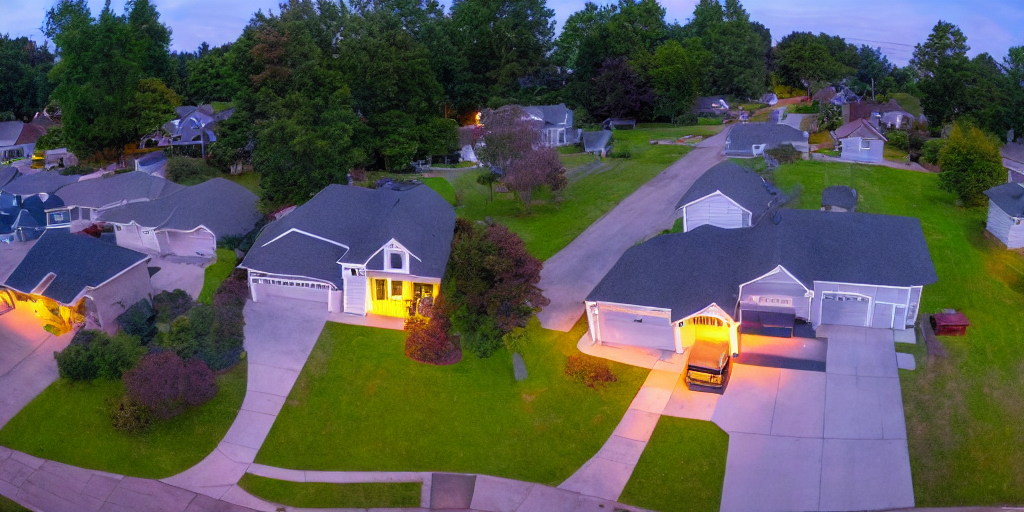
I started with DeepStack, where I was able to run API server for object detection, Frigate has support for it. Later on, with TensorRT on NVIDIA GPU I can run Yolov7x-640 model also for object detection, Frigate works well with it. With Google Coral TPU USB module we can run SSD MobileNet or EfficientDet models with great power efficency for good price. Ollama with moondream is both general purpose and computer vision description if run with moondream model, works great with Frigate for scene outlook. Last thing I tried is OpenVINO which enables Intel devices for object detection, works great with ssdlite_mobilenet_v2 model.

Library/FrameworkTypeRequirementPurpose
DeepStackAI API serverNVIDIA CC 5.0 (3.5/3.7?)Object detection
TensorRTdeep learning inference SDKNVIDIA CC 5.0 (3.0/3.5?)Object detection
Google Coral TPUneural networks acceleratorn/aObject detection
Ollama/moondream:1.8bvision language modelNVIDIA CC 7.0 (5.0?)Computer vision
Exo/Llamapipeline parallel inferenceNVIDIA CC 7.0 (5.0?)General purpose
OpenVINO Intel iGPU + CPUdeep learning toolkitIntel iGPU, CPU 6th genGeneral purpose

ResortRT: requirements validation

It is not entirely true that TensorRT is supported by CC 3.5 as I have tested on Tesla K20xm and it gives me error. So I would rather say, that is may be supported given some special constraints and not exactly with Yolov7x-640 model generated on Frigate startup.
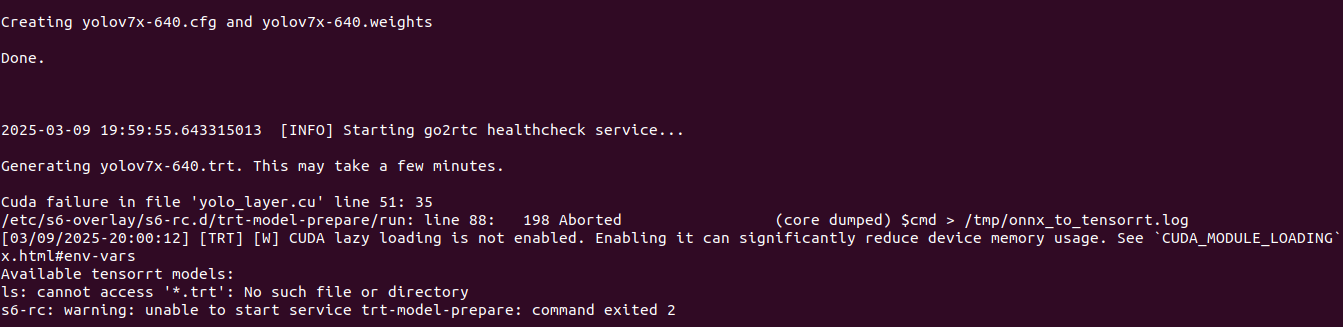
Exo: Linux/NVIDIA does not work at all

With Exo I have issues, no idea why it does not work on Linux/NVIDIA and gives gibberish results and being totally unstable with loads of smaller/bigger bugs. Llama running on the same OS and hardware on Ollama server works just fine. I will give it a try later, maybe on different release, hardware and some tips from Exo Labs, of how to actually run it.

My recommendation

For commodity, consumer hardware usage I recommend using OpenVINO, TensorRT which enables already present hardware. Buy Coral TPU if you lack of computational power. I do not see reason to run DeepStack as previously mentioned are available out-of-the-box.
Google Coral TPU and TensorRT (Frigate + NVIDIA GPU/TensorRT)

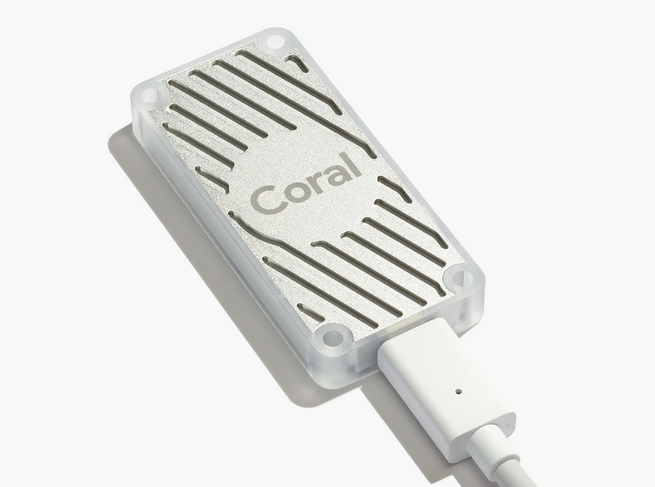
These are two majors which allow to run object detection models. Google Coral TPU is a physical module which can be in a form of USB stick. TensorRT is a feature of GPU runtime. Both allows to run detection models on them.

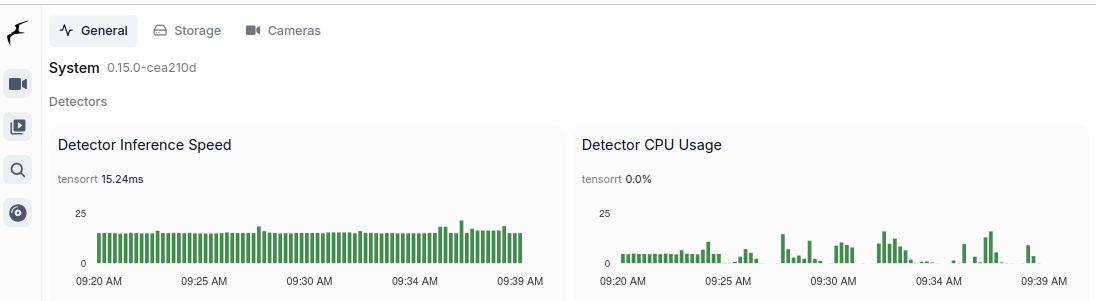
Coral TPU:

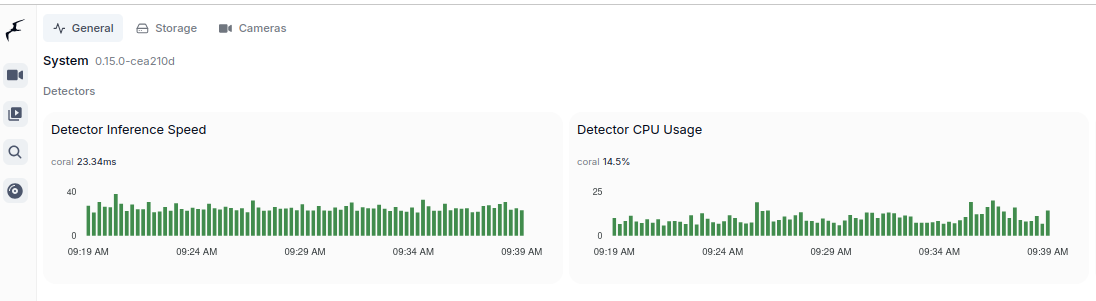
And TensorRT:

Compute Capabilities requirements

CC 5.0 is required to run DeepStack and TensorRT, but 7.0 to run Ollama moondream:1.8b. Even having GPU with CC 5.0 which is minimum required to run for instance TensorRT might be not enough due to some minor differences in implementation. It is better to run on GPU with higher CC. Moreover running on CC 5.0 means that GPU is older one which leads to performance degradation even as low as having 2 or 3 camera feeds for analysis.

Running TensorRT detection models (popular ones) requires little VRAM memory, 300 – 500 MB but it requires plenty of GPU cores and supplemental physical components to be present in such GPU, with high working clocks. In other words, you can fit those models in older GPUs but it will not perform well.

Other side of the story is to run Ollama which is GenAI requiring CC 7.0 and higher. Ollama with moondream:1.8b which is the smallest available detection model still requires little more than 3GB of VRAM.

TensorRT on Geforce MX940

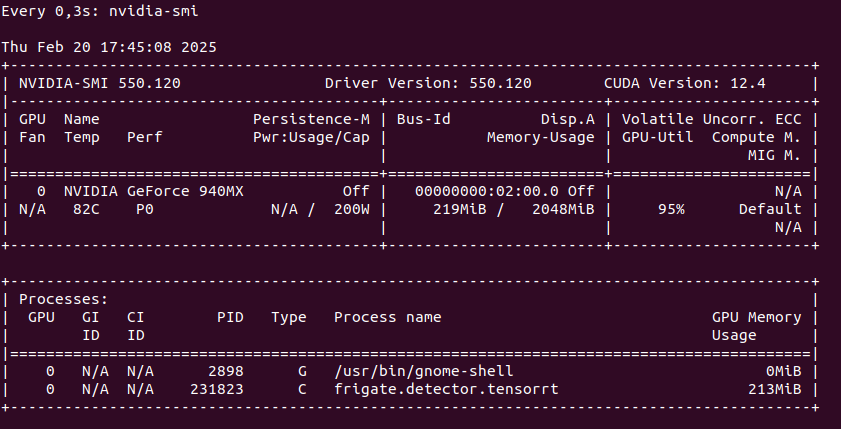
You can run TensorRT object detector from Frigate on NVIDIA Geforce 940MX with CC 5.0, but it will get hot at the same time you launch it. It run on driver 550 with CUDA 12.4 as follows on only one camera RTSP feed:

So this is not an option as we may burn this laptop GPU quickly. Configuration for TensorRT:

detectors:
  tensorrt:
    type: tensorrt
    device: 0

model:
  path: /config/model_cache/tensorrt/yolov7-320.trt
  input_tensor: nchw
  input_pixel_format: rgb
  width: 320
  height: 320

To start Docker container you need to pass YOLO_MODELS environment variable:

docker run -d \
  --name frigate \
  --restart=unless-stopped \
  --stop-timeout 30 \
  --mount type=tmpfs,target=/tmp/cache,tmpfs-size=1000000000 \
  --shm-size=1024m \
  --device /dev/bus/usb:/dev/bus/usb \
  --device /dev/dri/renderD128 \
  -v ./frigate-media:/media/frigate \
  -v ./frigate-config:/config \
  -v /etc/localtime:/etc/localtime:ro \
  -e FRIGATE_RTSP_PASSWORD='password' \
  -e YOLO_MODELS=yolov7x-640 \
  -p 8971:8971 \
  -p 8554:8554 \
  -p 8555:8555/tcp \
  -p 8555:8555/udp \
  --gpus all \
  ghcr.io/blakeblackshear/frigate:stable-tensorrt

Pleas notice that Docker image is different if you want to run use GPU with TensorRT than without it. It is also not possible to run hardware accelerated decoder using FFMPEG with 940MX so disable it by passing empty array:

cameras:
  myname:
    enabled: true
    ffmpeg:
      inputs:
        - path: rtsp://user:pass@addr:port/main
          roles:
            - detect
            - record
      hwaccel_args: []

However if you would like to try hardware decoder with different GPU or CPU the play with this values:

preset-vaapi
present-nvidia

TensorRT on “modern” GPU

It is the best to run TensorRT on modern GPU with highest possible CC feature set. It will run detection fast, it will not get hot as quickly. Moreover it will have hardware support for video decoding. And even more you could run GenAI on the same machine.

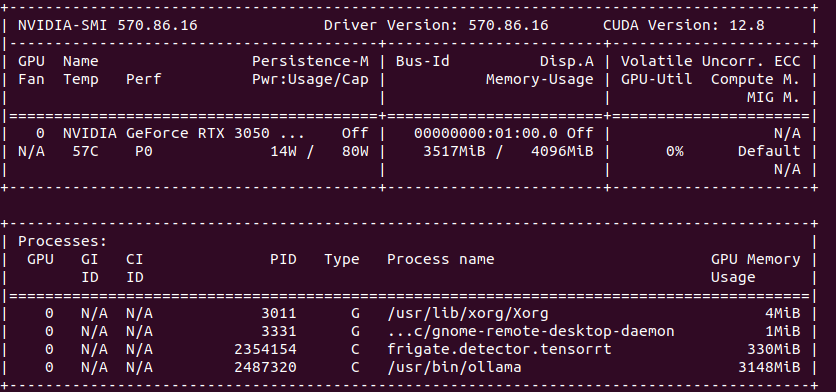
So the minimum for object detection with GenAI descriptions is to have 4 GB VRAM. In my case it is NVIDIA RTX 3050 Ti Mobile which runs 25% at most with 4 – 5 camera feeds.

Google Coral TPU USB module

To run Coral detector:

detectors:
  coral:
    type: edgetpu
    device: usb

But first you need to install and configure it:

sudo apt install python3-pip python3-dev python3-venv libusb-1.0-0
echo "deb https://packages.cloud.google.com/apt coral-edgetpu-stable main" | sudo tee /etc/apt/sources.list.d/coral-edgetpu.list
curl https://packages.cloud.google.com/apt/doc/apt-key.gpg | sudo apt-key add -
sudo apt update
sudo apt install libedgetpu1-std

You can also run TPU in high power mode:

sudo apt install libedgetpu1-max

And finally configure USB:

echo 'SUBSYSTEM=="usb", ATTR{idVendor}=="1a6e", GROUP="plugdev", MODE="0666"' | sudo tee /etc/udev/rules.d/99-edgetpu-accelerator.rules
sudo udevadm control --reload-rules && sudo udevadm trigger

Remember to run Coral via USB 3.0 as running it via USB 2.0 will cause performance drop by a factor of 2 or even 3 times. Second thing, to run Coral, first plug it in. Wait until it is recognized by the system:

lsusb

At first you will see not Google, but 1a6e Global Unichip. After TPU is initialized you will see 1da1 Google Inc:

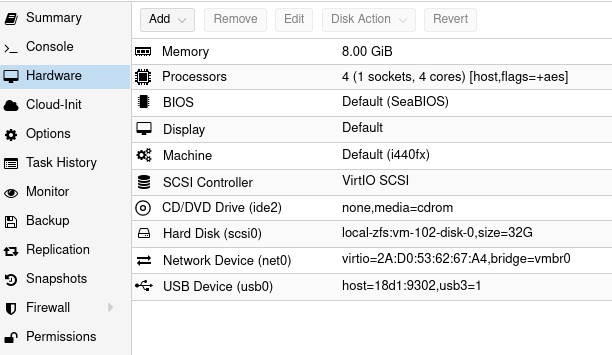
You can pass Coral TPU via Proxmox USB device, but after each Proxmox restart you need to take care of TPU initialization: