Microsoft Azure AI Services: computer vision

Use Microsoft Azure AI Services to analyze images, voice, documents. No AI/ML or coding skills required. Responsible AI applies by EU AI act. Formerly Cognitive Services.

Course of Action

  • Create AI Services multi-account in Azure
  • Run computer vision OCR on image

What is Microsoft Azure?

It is Microsoft’s public cloud platform offering broad range of products and services, including virtual machines, managed containers, databases, analytics platforms as well as AI Services. Major competitors of Azure are Amazon AWS and Google’s GCP.

What are AI Services (formerly Cognitive Services)?

It is a set of various services concerning recognition and analysis procedures based on already trained ML models (or even traditional programming techniques). You can use it to describe documents, run OCR tasks, face recognition etc. Actually, those services tend to be categorized under Cognitive Services section, which concerns recognition which is a synonym of cognitive. Name change process which happend in July 2023 was more-or-less rebranding and provided non breaking changes only as a part of marketing. It is obvious that AI services would sell better than Cognitive Services.
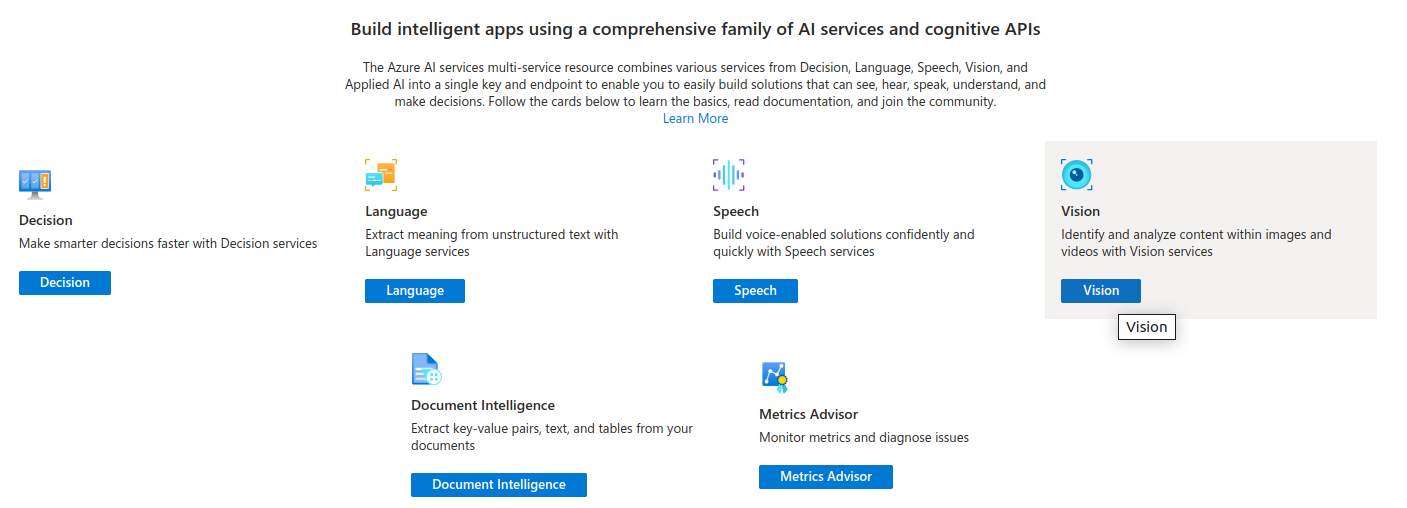
Create AI multi-service account in Azure portal

In order to create Microsoft Azure AI Services multi-service account you need to have valid Azure subscription, either Free Trial or regular account. Type “AI” in search field in portal.azure.com and you will find this service thru service catalog.

It is worth menitioning that you get “Responsible AI Notice” which relates to AI Act which includes European Union, USA and UK. It defines what AI/ML models can do and what should not allow. Accoring to KPMG source it covers among others: social scoring, recruitment and deep-fake disclosure as the most crucial areas which require regulations. What about the rest of the world? Well, it might be same as with CO2 emissions or plastic garbage recycling. situation.

Deployment process in Azure is especially meaningful when speaking about configurable assets with data. However in terms of deploying services it is a matter of linking them to our account, so the deployment process of AI Services finishes within seconds.
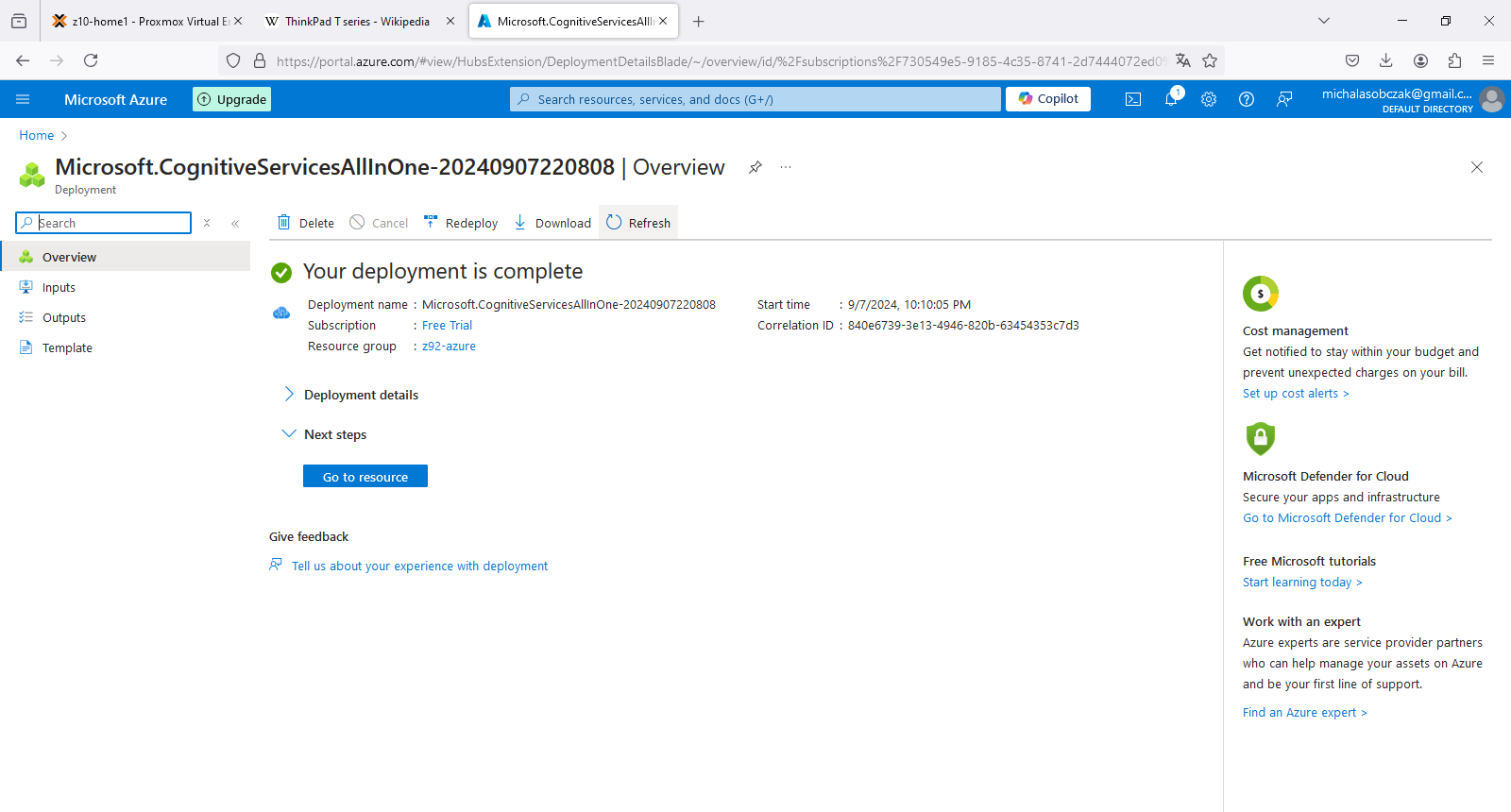
AI Services account overview

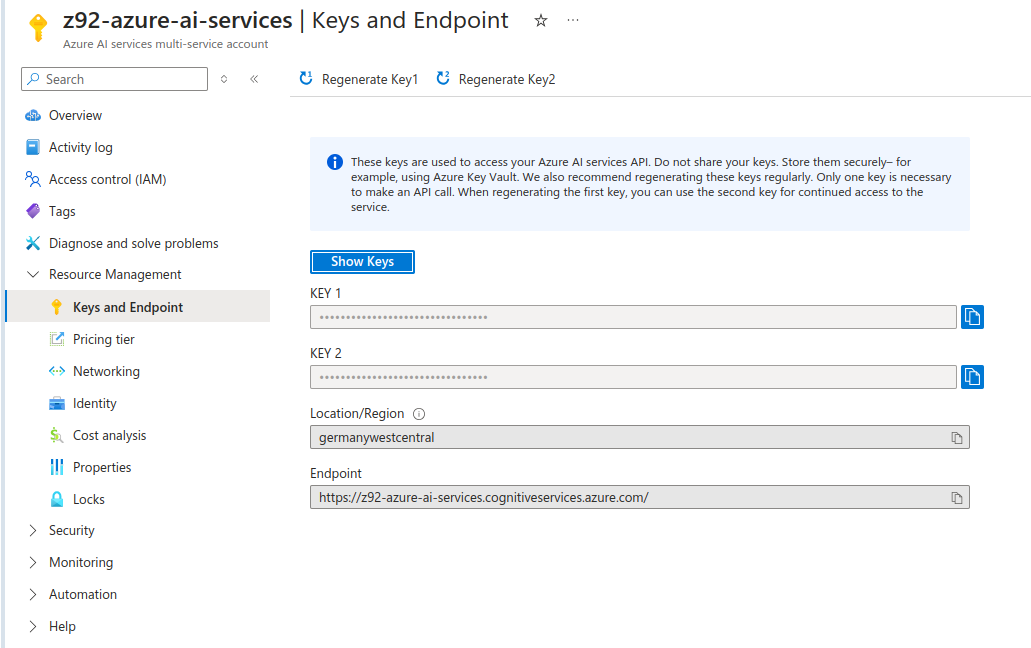
To use Azure AI services you need to go to Resource Management, Keys and Endpoint. You will know to which Endpoint you should send your API calls/requests and what is the access key. This key is then mapped to “Ocp-Apim-Subscription-Key” header which should be passed during HTTP call.
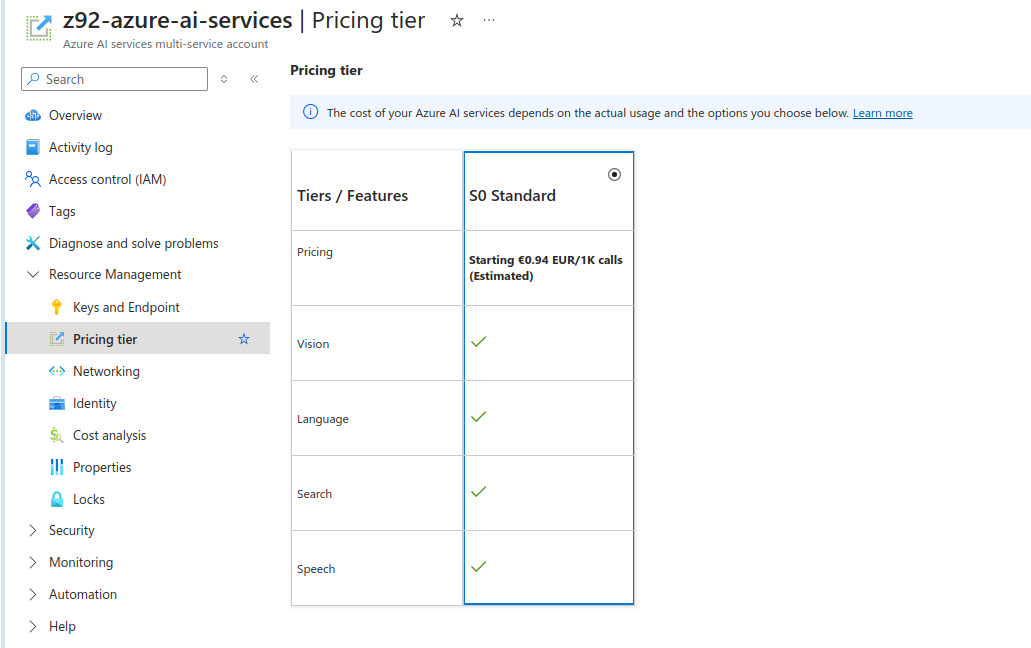
As for S0 standad pricing tier on Free Tier subscription, estimate 1 000 calls to API (requests made) would cost less than 1 Euro. It might be “cheap” however it is starting point of pricing and I suspect that it might be actually a different value in real production use case scenario especially when speaking about decision making (still could be ML based only) services and not only those services which could be replaced by traditional programming techniques, which is notabene OCR processes which are present on the market for few decades already.
Run example recognition task

Instead of programming (aka coding) in various SDKs for AI Services (Python, JavaScript etc) you can also invoke such services within HTTP request using curl utility. As far as I know every Windows 10 and 11 should have curl present. As for Linux distributions you most probably have curl already installed.

So, in order to invoke recognition task, pass subscription key (here replaced by xxx), point at specific Endpoint URL and pass url parameter which should be some publicly available image on which recognition service will run over. I found out that not every feature is available in every Endpoint. In that case, you would need to modify “features” parameter:

curl -H "Ocp-Apim-Subscription-Key: xxx" -H "Content-Type: application/json" "https://z92-azure-ai-services.cognitiveservices.azure.com//computervision/imageanalysis:analyze?features=read&model-version=latest&language=en&api-version=2024-02-01" -d "{'url':'https://michalasobczak.pl/wp-content/uploads/2024/08/image-6.png'}"

I passed this image for analysis, which contains dozen of rectangular boxes with text inside. It should should be straighforward to get proper results as text is not rotated, it is written in machine font and color contrast at proper value.
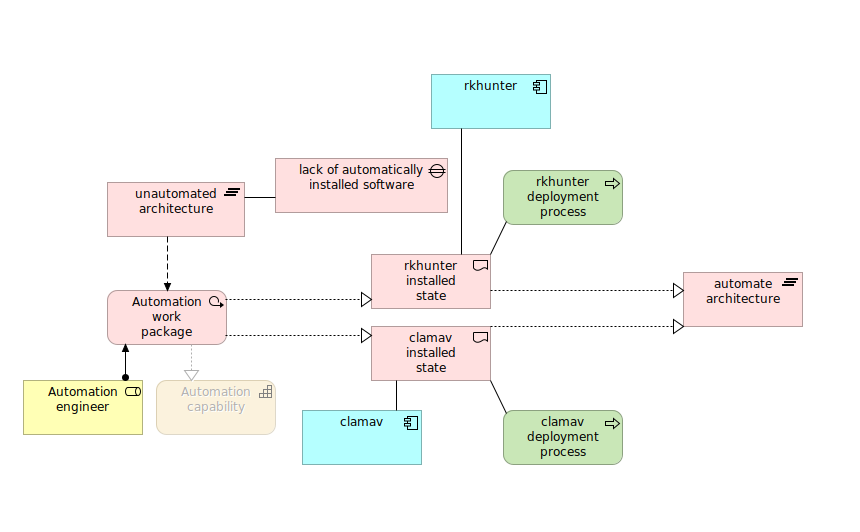
In return we receive the following JSON formatted output. We can see that it properly detected word “rkhunter” as well as “process”. However we need to provide additional layer of processing in order to merge those adjacent words in separate lines to make them phrases instead of just separate words.

{
   "modelVersion":"2023-10-01",
   "metadata":{
      "width":860,
      "height":532
   },
   "readResult":{
      "blocks":[
         {
            "lines":[
               {
                  "text":"rkhunter",
                  "boundingPolygon":[
                     {
                        "x":462,
                        "y":78
                     },
                     {
                        "x":519,
                        "y":79
                     },
                     {
                        "x":519,
                        "y":92
                     },
                     {
                        "x":462,
                        "y":91
                     }
                  ],

                  ...

                  "words":[
                     {
                        "text":"process",
                        "boundingPolygon":[
                           {
                              "x":539,
                              "y":447
                           },
                           {
                              "x":586,
                              "y":447
                           },
                           {
                              "x":586,
                              "y":459
                           },
                           {
                              "x":539,
                              "y":459
                           }
                        ],
                        "confidence":0.993
                     }
                  ]
               }
            ]
         }
      ]
   }
}

Conclusion

I think that price-wise this AI Service, formerly known as Cognitive Services, it is reasonable way of running recognition tasks in online environment. We could include such recognition into our applications for further automation, in, for instance ERP FI invoice processing.
GPU passthru in Proxmox for OpenCL, ufff

You can put your #GPU in #Proxmox server box and pass thru computational power to virtual machines… just in case you would like to run your AI/ML things alongside your virtualized NAS 😀

Finally I got it working. I think so. This Proxmox installation is simple one, just single node for experiments which is half part. The other part is VM configuration. You may ask, what exactly for do I need GPU in VM? I may need because the hardware is capable of running several additional GPUs and I can use all of them at once in different configurations and even in different operation systems. Just like people do in cloud environments and this setup mimics such thing running server-like computer with datacenter-like GPUs on board. During this test I used NVIDIA GTX 650 Ti which is consumer grade card, but now I confirm to have it working so I will put there my other cards, like NVIDIA Tesla K20xm or FX 5800 with lot more shaders/cores which can be used in OpenCL applications for AI/ML. And you will see how easy is to cross the temperature maximum of a GPU.

Table of Contents

Proxmox configuration

GRUB

First thing to modify is GRUB options. So:

GRUB_CMDLINE_LINUX_DEFAULT="quiet intel_iommu=on initcall_blacklist=sysfb_init video=efifb:off video=vesa:off video=simplefb:off kvm.ignore_msrs=1 vfio_iommu_type1.allow_unsafe_interrupts=1 modprobe.blacklist=radeon,nouveau,nvidia,nvidiafb,nvidia-gpu vfio-pci.ids=10de:11c6,10de:0e0b"

I have Intel Xeon E5645 so in my options I put intel_iommu. In case you have AMD or something else, then it should be adjusted. Blacklisting modules, I prefer to keep all of these as you may want to put different cards in your setup. Without this, Debian (on which Proxmox is run atop) will try to load modules/drivers and put your black console screen in higher resolution. If you blacklist these modules, then you will get low resolution output. That is want you should see here at this moment. Totally variable part is vfio-pci.ids (which can be obtained using lspci command). First one is for video adapter and the second one is for audio device. I put both however I will for sure use only the first one.

Other configurations

Second thing to modify:

root@lab:~# cat /etc/modprobe.d/blacklist.conf
blacklist nouveau
blacklist nvidia

Third one:

root@lab:~# cat /etc/modprobe.d/iommu_unsafe_interrupts.conf 
options vfio_iommu_type1 allow_unsafe_interrupts=1

It seems that this one is redundant as it also appears in GRUB options.

Fourth change:

root@lab:~# cat /etc/modprobe.d/vfio.conf 
options vfio-pci ids=10de:11c6,10de:0e0b disable_vga=1

Same here, I think that you can have it either here or in GRUB section.

Then, the modules list which should be enabled:

root@lab:~# cat /etc/modules
# /etc/modules: kernel modules to load at boot time.
#
# This file contains the names of kernel modules that should be loaded
# at boot time, one per line. Lines beginning with "#" are ignored.
vfio
vfio_iommu_type1
vfio_pci
vfio_virqfd

Next thing is to apply GRUB options with either of those commands:

update-grub
proxmox-boot-tool refresh

I am little confused as the official documentation (found here) states that you should do the first one, but actually running this command tells us that we should run the second one intead.

To verify it all of above changed anything at all, reboot your system and then:

dmesg | grep -e DMAR -e IOMMU

If you see message saying “IOMMU enabled” then you are good to go further, otherwise some different configuration should be applied. In my case I got some issue saying that my Intel chipset is unstable with IOMMU remapping so the thing is going to be disabled. So there is need to have this “allow_unsafe_interrupts” option I guess. To verify if you have working IOMMU groups:

find /sys/kernel/iommu_groups/ -type l

You should see some entries here.

Virtual Machine

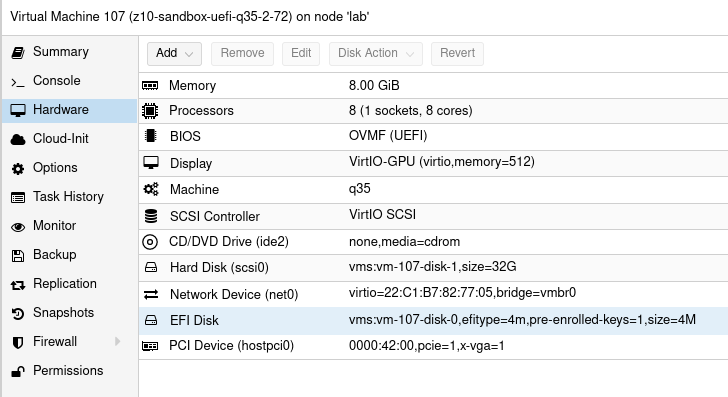
This time I tried 3 VM configurations which is Ubuntu 20 LTS Desktop. There are two main factors you should consider. Different variations may work but it is not fully predictable as you take multiple factors into consideration.

Q35 & UEFI

First one is to use Q35 instead of i440fx. This way you should be able to use PCI-E. I tried it on i440fx and it shows GPU but it is not accessible. Verification process involves the following:

  • clinfo showing positive number of platforms
  • nvidia-smi showing process list using dedicated GPU
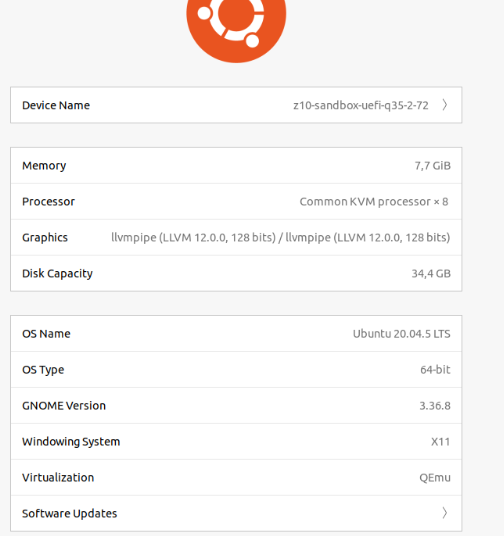
  • Ubuntu about page saying that we use particular NVIDIA driver (however it is debatable…)

Second thing is using UEFI instead of default BIOS setup, but it requires you to check if your GPU actually supports UEFI. So I tried Q35 and UEFI and this combination allows us to have all of these somehow working. Regarding UEFI I disabled secure boot in VM UEFI/BIOS.

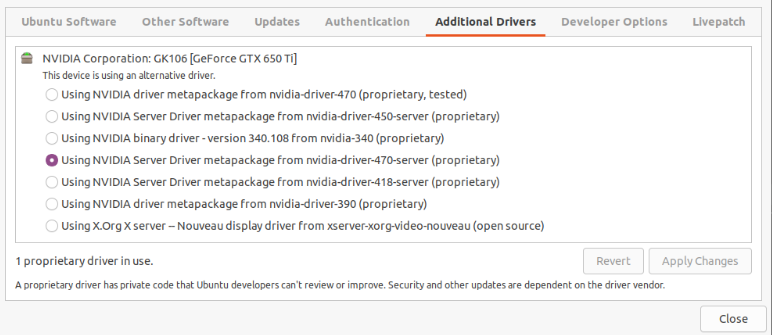
Concerning the driver (NVIDIA in my case) I use nvidia-driver-470-server but other also seems to work. It is weird that Ubuntu about page shows llvmpipe instead of this driver, but the drivers page says that the system uses NVIDIA driver. Not sure who is right here.

The drivers list:

Device resetting

The last thing which prevents this setup from working is to “remove” the devices at boot time (/root/fix_gpu_pass.sh):

 #!/bin/bash
echo 1 > /sys/bus/pci/devices/ID/remove
echo 1 > /sys/bus/pci/rescan

Where ID is PCI-E device ID at VM level which can be checked using lspci -n command. Add it to crontab at reboot time (crontab -e):

@reboot  /root/fix_gpu_pass.sh

OpenCL verification

So, if you can see VNC console in Proxmox, your VM is booting and you are able to login, you can install driver, lspci/nvidia-smi/clinfo show proper values then it is now time for a grand last check which is to clone Git repository with my code and try to run it.

cd ~/Documents
git clone https://github.com/michalasobczak/simple_hpc

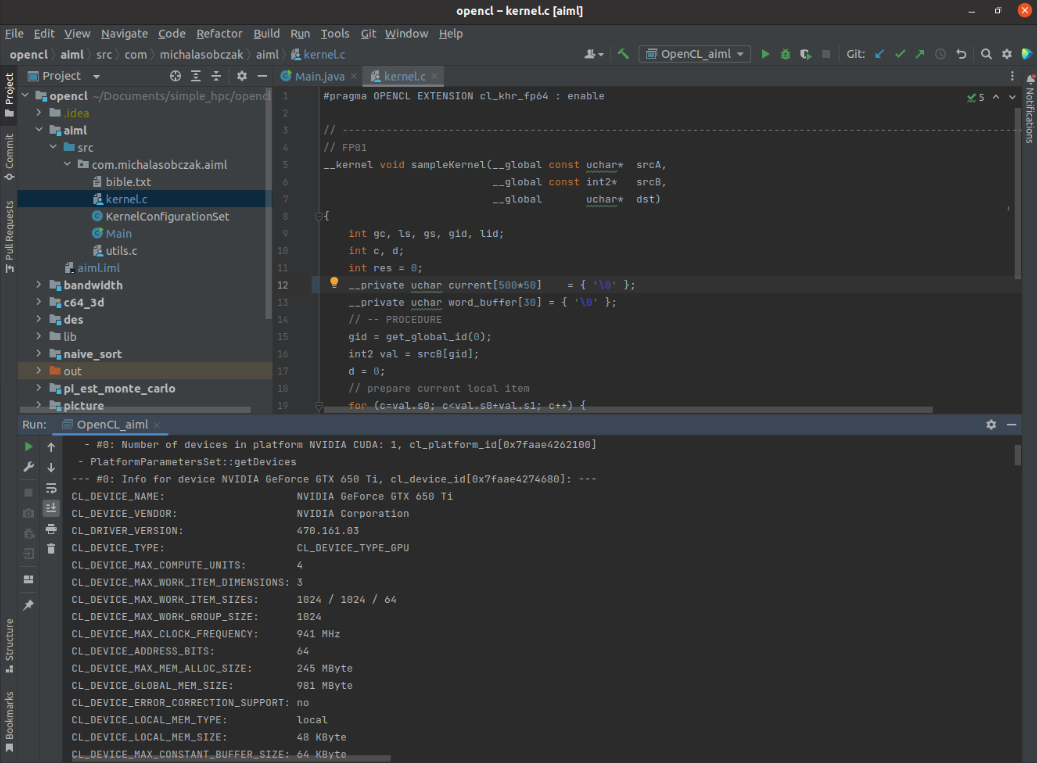
Then install openjdk-19 and create Application configuration for aiml module having opencl module in your classpath. You may require to rebuild opencl module also. Finally if you are able to see platforms here then you are in the correct place.

I have NVIDIA GeForce GTX 650 Ti placed in my HP z800 as a secondary GPU and the system recognizesit properly and the code runs well. Performance wise I should say that it seems to be fine. I quickly compared NVS 4200M with this card:

  • NVS 4200M (CL2.0 configuration profile): 30 – 40 ms
  • GTX 650 Ti (CL3.0 configuration profile): 4 – 5 ms

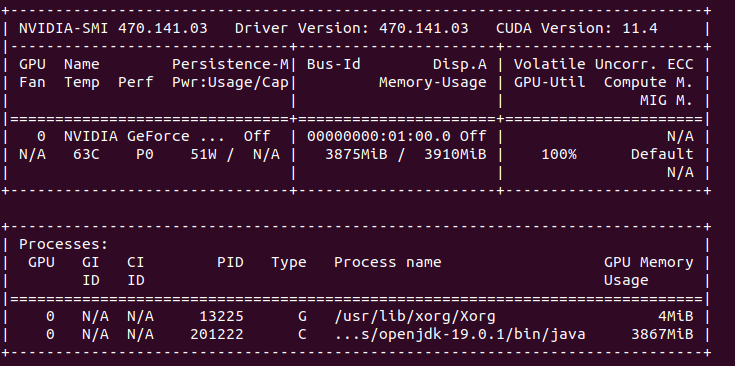
There is one culprit regarding diagnostics as nvidia-smi does not show GPU utilization and process list, but it shows memory consumption. Increasing local variables size (arrays) has direct relation on memory utilization increase that is why I assume it still works somehow! Maybe even not that bad.

Burning Tesla K20xm

As mentioned earlier after successful setup with consumer GPU it is now time to try a datacenter one. I have this Tesla K20xm which is quite powerful even in today standard. It has plenty of memory (6GB) and tons of cores (2688), even more than my RTX 3050 Ti (2560). Of cource being a previous generation hardware it will be less efficient and will drain more power. And there it is the problem. This GPU can draw up to 235W. I have over 1000W power supply but there is certain limitation on PCI-E gen 2 power output. So the maximum I’ve seen on this GPU during passtru tests was 135W. After few minutes temperature rises from 70 up to 100 degrees Celcius cauing system to switch it off… running nvidia-smi gives me such a error message, asking me nicely to reboot:

So there it is, I forgot totally that this GPU belongs to proper server case with extremely loud fans which I lack actually in PCI-e area in HP z800. This computer has plenty of various fans, even on memory modules, but this area is not covered at all. After computer reboot GPU comes back to life. Besides the problem with the temperature itself, there is efficiency drop after cross somewhere near 90 degrees, it slows down few times and near 100 degress is switches off completely.

Further reading & troubleshooting

  • https://pve.proxmox.com/wiki/Pci_passthrough
  • https://forum.proxmox.com/threads/gpu-passthrough-to-vm-everything-seems-working-but-it-doesnt.107881/
  • https://theorangeone.net/posts/lxc-nvidia-gpu-passthrough/
  • https://forum.proxmox.com/threads/problem-with-gpu-passthrough.55918/
  • https://forum.proxmox.com/threads/vga-passthrough-error-device-does-not-support-requested-feature-x-vga.35727/

Text processing in OpenCL

OpenCL is excellent in the field of numbers, but not that much into text processing. It lacks even basic functions available in regular C99. So the question is if it is worth trying to process some text in it.

In my OpenCL base project (which can be found here) I’ve added “aiml” module. It loads over 31k lines of text with over 4 mln characters. The text itself is in the first buffer of uchar array. Second buffer holds pointers and lenghts of consecutive lines being work-items, so there are over 31k of such work-items. Third buffer is a result array when I can store a outcome of kernel processing.

Java base code

First read text file and generate pointers and lenghts:

    public void readFile() {
        System.out.println(" - Read file");
        File file = new File("aiml/src/com/michalasobczak/aiml/bible.txt");
        try {
            BufferedReader br = new BufferedReader(new FileReader(file));
            String st = null;
            while ((st = br.readLine()) != null) {
                allstring.append(st);
                vector.add(st);
                line_sizes.add(pointer);
                pointer = pointer + st.length();
                counter++;
            }
        } catch (IOException e) {
            throw new RuntimeException(e);
        }
        System.out.println("Read no of lines: " + counter);
        System.out.println("sample line: " + vector.get(100));
        System.out.println("sample line size in chars: " + line_sizes.get(5));
        n = counter;
    }

And then copy source text, pointers and lenghts to thebuffers:

    public void generateSampleRandomData() {
        System.out.println(" - Started sampling data");
        for (int i=0; i<allstring.length(); i++) {
            srcArrayA[i] = (byte)allstring.charAt(i);
        }
        System.out.println("allstring size: " + allstring.length());
        for (int i=0; i<n; i++) {
            srcArrayB[i*2]  = line_sizes.get(i);
            srcArrayB[(i*2)+1] = vector.get(i).length();
        }
        System.out.println(" - Finished sampling data");
    }

Buffers are as follows:

    public void createBuffers() {
        // Allocate the memory objects for the input- and output data
        this.memObjects[0] = clCreateBuffer(this.context, CL_MEM_READ_ONLY | CL_MEM_COPY_HOST_PTR, (long) Sizeof.cl_uchar * this.allstring.length(), KernelConfigurationSet.srcA, null);
        this.memObjects[1] = clCreateBuffer(this.context, CL_MEM_READ_ONLY | CL_MEM_COPY_HOST_PTR, (long) Sizeof.cl_int * this.n * 2, KernelConfigurationSet.srcB, null);
        this.memObjects[2] = clCreateBuffer(this.context, CL_MEM_READ_WRITE, (long) Sizeof.cl_uchar * this.n, null, null);
    }

Kernel code is divided into two parts:

    public void readKernelFile() {
        this.content = new String("");
        try {
            this.content = Files.readString(Path.of("aiml/src/com/michalasobczak/aiml/utils.c"));
            this.content += "\n";
            this.content += Files.readString(Path.of("aiml/src/com/michalasobczak/aiml/kernel.c"));

        } catch (IOException e) {
            e.printStackTrace();
        }
    }

In terms of Java base code that is all.

C99 kernel code

As I have already mentioned, OpenCL C99 lacks of several basic text processing features. I think that is because it is not meant to be used with texts and secondly because you cannot do recursion and I suspect that some of those functions might use it. So I decided to prepare some basic functions as follows:

#define MAX_STRING_SIZE 256

int get_string_size(uchar string[]) {
    int size;
    int c;
    int counter = 0;
    for (c=0; c<MAX_STRING_SIZE; c++) {
        if (string[c] == NULL) {
            break;
        }
        counter++;
    }
    return counter;
}


void print_string(uchar stringa[]) {
    int size = get_string_size(stringa);
    int c;
    for (c=0; c<size; c++) {
        printf("%c", stringa[c]);
    }
    printf("\n");
}


void set_string(uchar wb[], uchar tmp[]) {
    int c;
    int size = get_string_size(tmp);
    for (c=0; c<size; c++) {
        wb[c] = tmp[c];
    }
}

void set_string_and_print(uchar wb[], uchar tmp[]) {
    set_string(wb, tmp);
    print_string(wb);
}

int find_string_in_string(uchar source[], uchar looking_for[]) {
    int s_size = get_string_size(source);
    int lf_size = get_string_size(looking_for);
    int c, d;
    for (c=0; c<s_size; c++) {
        for (d=0; d<lf_size; d++) {
            if (source[c+d] == looking_for[d]) {
                ;
            }
            else {
                break;
            }
            if (d == lf_size-1) {
                return 1;
            }
        } 
    } 
    return 0;
}

Few words of explanation. String size function relies on NULL terminated characters array. String setter function does not puts that NULL in the end, so you need to do it yourself if needed. Finding string in string returns only first hit.

Now, the kernel:

__kernel void sampleKernel(__global const uchar* srcA,
                           __global const int2*   srcB,
                           __global       uchar*  dst)
{
    int gc, ls, gs, gid, lid;
    int c, d;
    int res = 0;
    __private uchar current[131*1000]    = { '\0' };
    __private uchar word_buffer[30] = { '\0' };
    // -- PROCEDURE
    gid = get_global_id(0);
    int2 val = srcB[gid];
    d = 0;
    // prepare current local item
    for (c=val.s0; c<val.s0+val.s1; c++) {
        current[d] = srcA[c];
        d++;
    } // for
    uchar tmp[10] = "LORD\0";
    set_string(word_buffer, tmp);
    res = find_string_in_string(current, word_buffer);
    dst[gid] = res;
} // kernel

As shown before in Java base code, there are 3 buffers. First one is for plain uchar array of source text. Second one is for int2 vectors holding pointers and lenghts of consecutive, adjacent lines/verses. Third is for output data, for instance in case of successful search it holds 1, otherwise 0.

I’ve tested this on my NVIDIA GeForce RTX 3050 Ti Mobile with 4 GB of VRAM. Having around 32k elements (work-items) means that we can allocate as much as 131kB of data per single work-item. This way we can fully load all available VRAM memory. Of source not all of given work-items will be run at the same time because there is only 2560 cores in this GPU. So obiously it is the maximum parallel items working at the “same time”. Estimated 13 rounds is required to process all the data, however we need to keep in mind that local-size is set to 32 and there are some specific constraints put on the GPU itself by CC (compute capabilities) specifications.

For CC 8.6 we have maximum of 16 thread blocks per SM (streaming multiprocessor) times 32 work-items of local-work-size it gives us 512 max. RTX 3050 Ti has 20 SM, so the maximum simultaneous (in theory) working items would be 10240, but having only 2560 cores I think that of course it will not reach that far having 100% utilization at much lower values. Still for the latest GPUs, they can have up to 16k cores, so that kind of hardware could better utilize CC 8.6 of higher specification on full load.

I would like to point out one more things regarding private/register memory and a global memory. In case of Ampere GPU architecture:

  • The register file size is 64K 32-bit registers per SM.
  • The maximum number of registers per thread is 255.

So, we are limited per work-item to 255 registers and there is also a 64k limit per SM. We can thus estimate or even calculate the maximum data size which will fit locally and beyond that value it will go outside to global memory providing much higher latency. It can be seen on times calculation increasing while we increase uchar current array.

Conclusion

Text processing in OpenCL works just fine with 0 – 1 ms per single search thru over 4 mln characters (31-32k lines). We are constrained by lack of string or memory functions so all string function I’ve made use constant array buffers. I’ve practically tested full VRAM allocation (4GB). Power draw is 51W.

What next? I think that may take step forward and try to do come classification and few other things toward ML or even AI. That can be quite interesting to see…