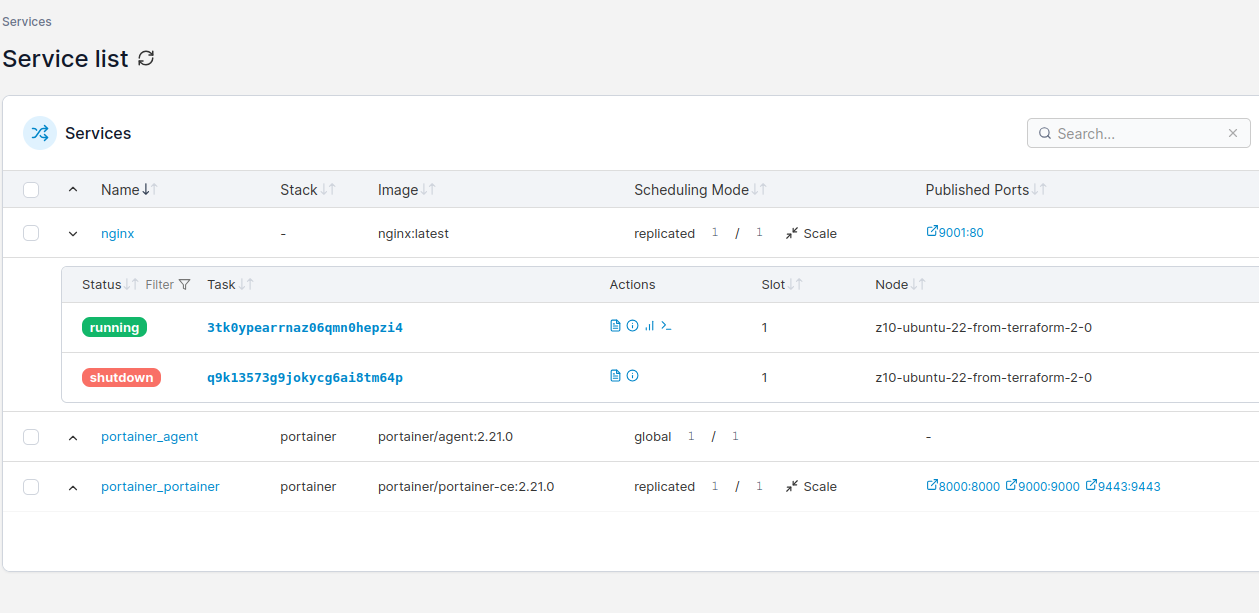
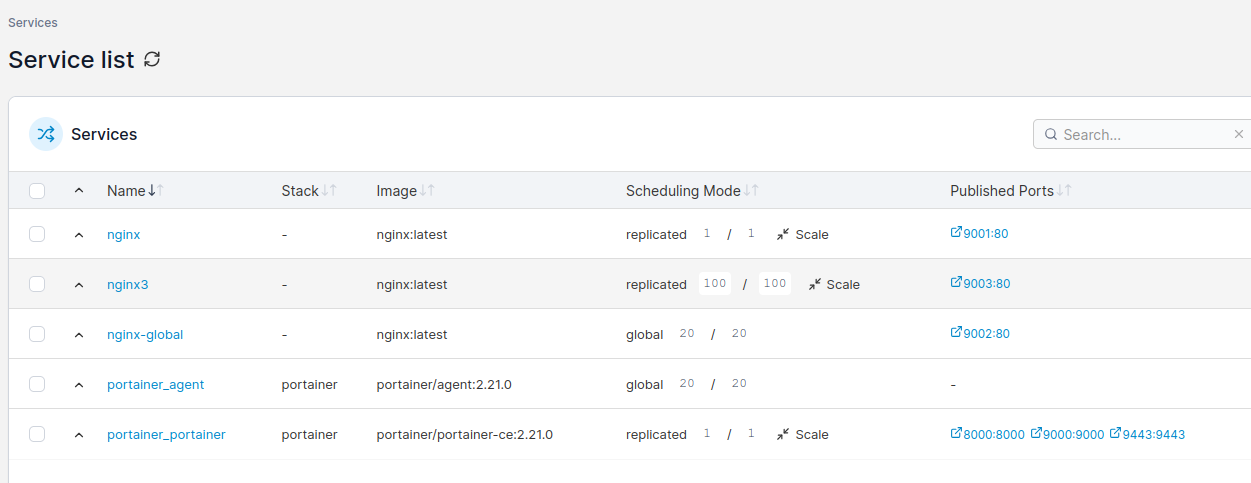
If you wonder how to automatically deploy 20 nodes of Docker Swarm and run 100 Docker containers in it, then continue reading. I will show how to achieve this by using Terraform, Ansible and Portainer.
Course of action
Terraform 20 x Ubuntu virtual machines
Install Docker Swarm using Ansible
Install Portainer
Deploy 100 containers across Swarm cluster
What is Docker Swarm and why I need to have 20 of these?
Docker is containers toolkit utilizing cgroups, namespaces which allows to control and share resources of the CPU and operating system. Docker Swarm its a special kind of runtime mode, which allows to run multiple clustered nodes which can be separate physical computers or virtual machines. It gives us scalability and resource separation yet keeping it all within same management utitlities. You can make work much easier by installing Portainer CE, which is management UI for containers orchestration (de facto operations management).
So back to the question, why 20 of these? You can have single Docker Swarm node being both manager and worker and put loads of resources that you have, like CPU and RAM. But for sake of better maintanane, equal resources utilization and securing resources, you use clustered mode such as Docker Swarm with more than one node.
What is Terraform and Ansible and the whole automation thing?
Terraform is automation tool for automating construction of systems, for instance provisioning virtual machines. You can do it also with Ansible, but its role here is more like to manage already provisioned systems instead of provisioning themself. So both tool could be used possible for all the tasks, however Terraform which Telmate Proxmox plugin do it the easiest way. I use Ansible to automate tasks across resources created with Terraform. This is my way, your might be different.
Why to deploy 100 containers of the same application?
If your application perfectly handles errors and tools outages and it’s capable of running multiple processes with multiple threads and you know that will never be redeployed, then stick with 1 container. But in any of these cases, having muliple containers, instances, of the same application will be beneficial. You increate your fault-tolerance, make software releases easier. You need not bother that much about application server configuration, etc, because all of these is mitigated by deploying in N > 1 instances.
You can have 2 containers for frontend application, 2 containers for backend application, 1 application for background processing and many other composites of your single or multiple repositories. You could have 50 frontends and 50 backends, it depends on a case. You could introduce auto-scaling, which by the way is present in OKD, OpenShift, Kubernetes, but Docker Swarm and Portainer lack of such feature. It is unfortunate, but still you can do it yourself or plan and monitor your resources usage. In case of dedicated hardware it is not so important to have autoscaling, just overallocate for future peaks. In case of public cloud providers, when you pay for what you use it will be important to develop auto-scaling feature.
Terraform 20 Ubuntu VM
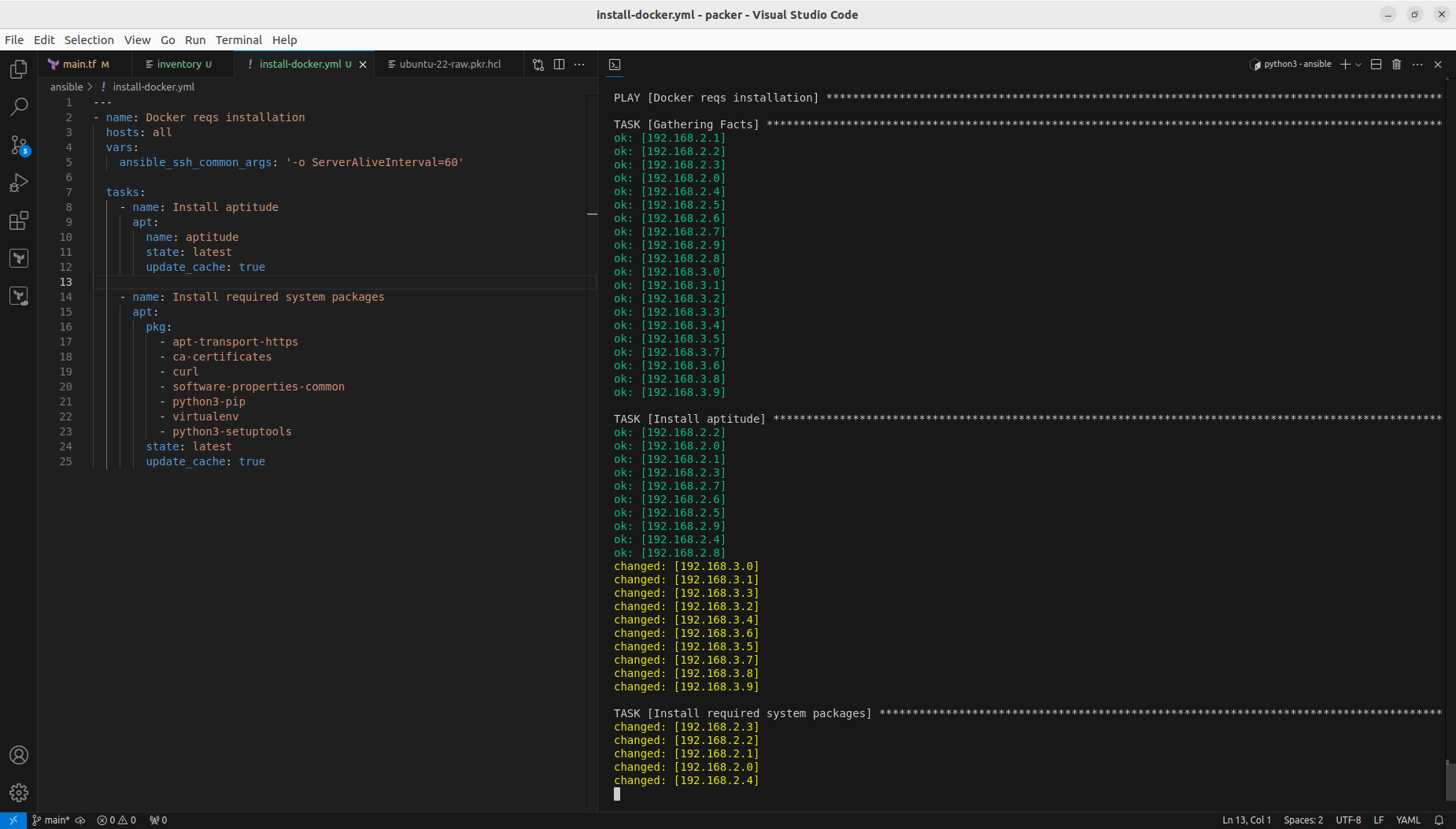
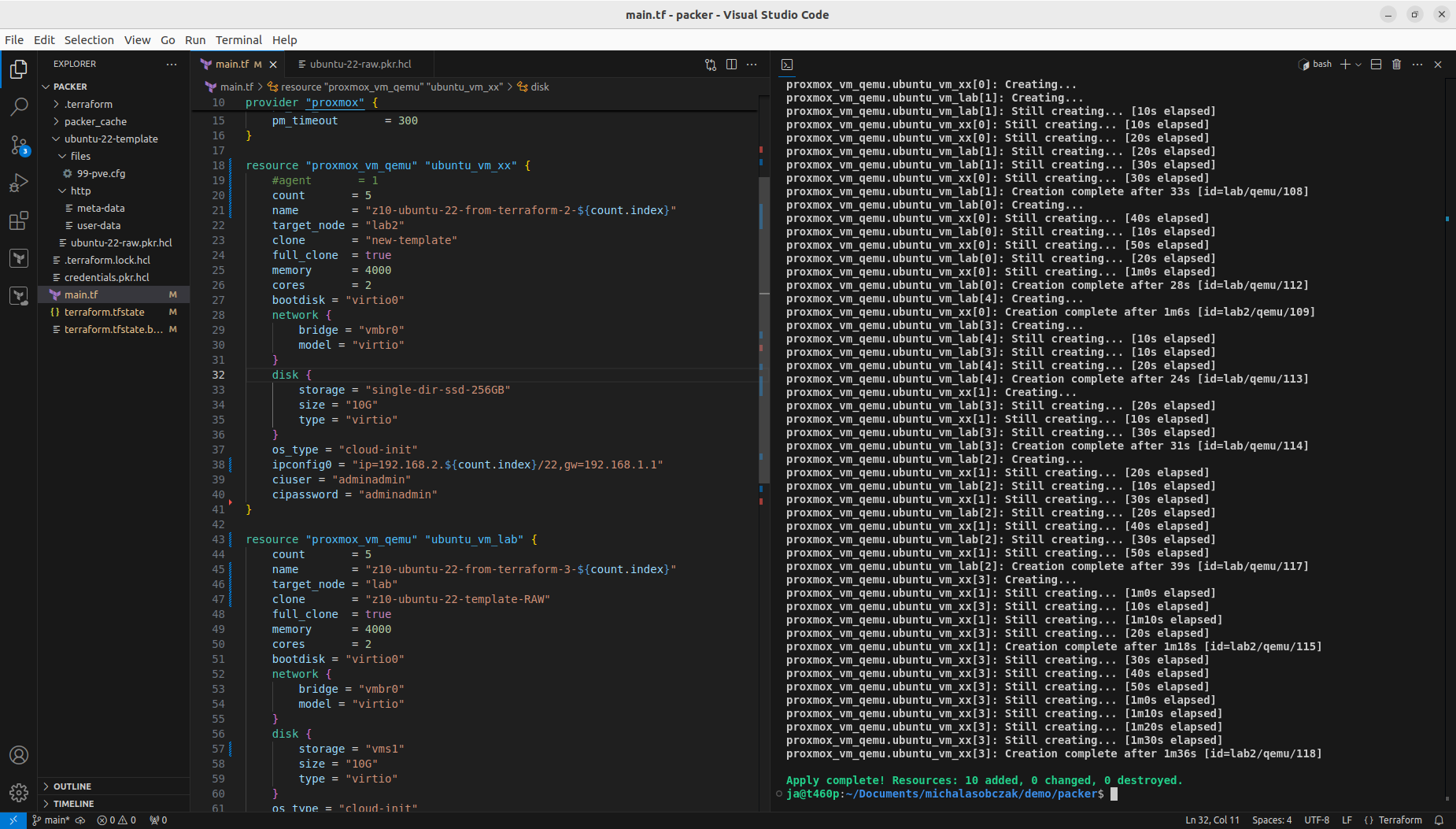
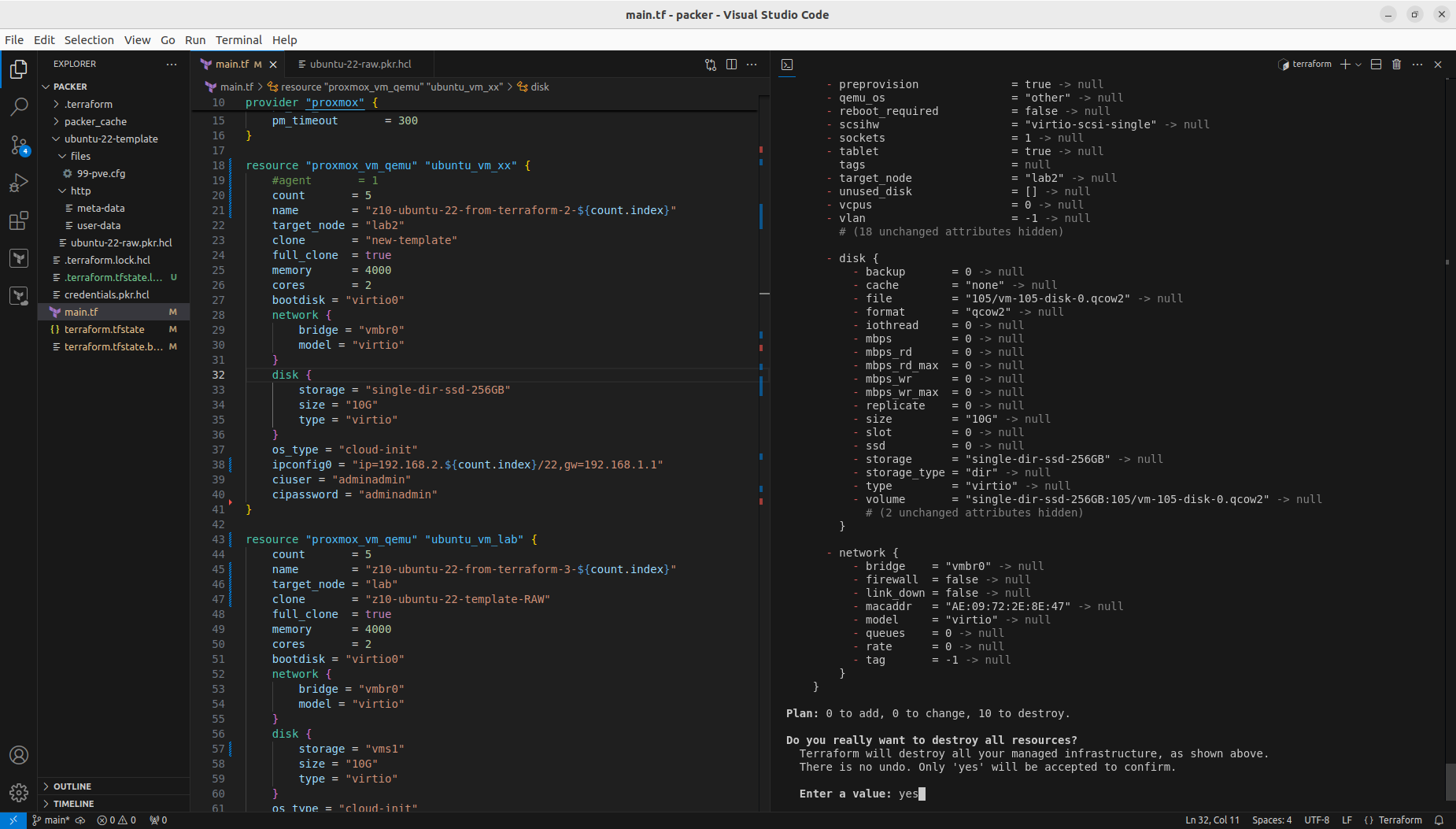
So in order to deploy more than one VM using Terraform and Telmate Proxmox provider plugin you need to either copy resource section multiple times or use count notation. I defined terraform and provider sections as well as two resource sections each for different target Proxmox server. By using count, you get ability to interpolate ${count.index} for each consecutive execution of resource. I used it for name and network IP address. Target server is differentiated using target_node. Be sure to use appropriate clone name and disk storage name at which your VMs will be placed.
With above notation you will create 10+10 Ubuntu VM. You can run it with:
terraform apply -parallelism=1
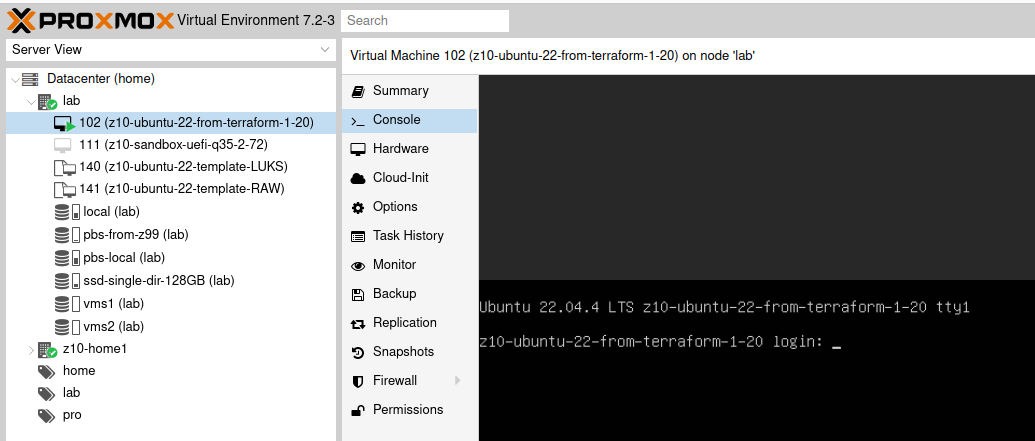
After VM are created you need to wait until cloud-init finshes its job. If you are not sure if its running or then, then reboot this VM so you will not get any stuck processes which could collide with the next step which is installing Docker with Ansible.
We could include those steps into Packer configuration and that way Docker with its requirements would be included by default. However it is good to know not only Packer and Terraform, but also how to run it from Ansible.
Configure Docker Swarm and join cluster
I decided to configure single manager with Portainer, so I picked 192.168.2.0 for this job:
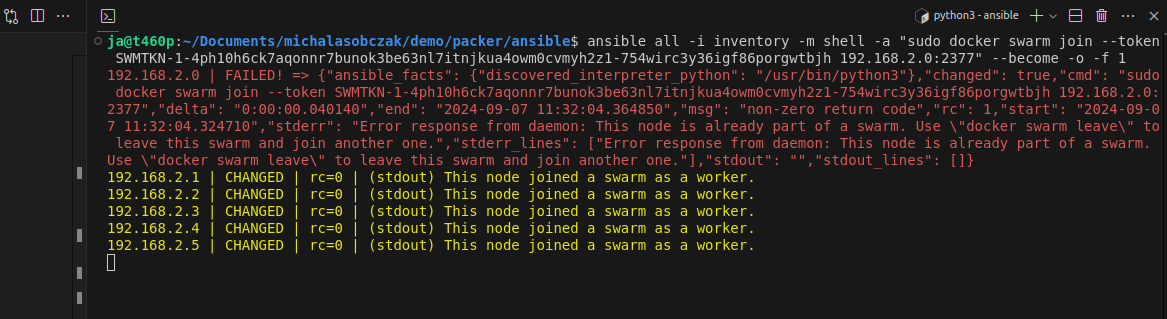
Now we have Docker Swarm initialized, installed Portainer stack. After initializing Swarm mode you get a token for nodes inclusion. You can join more manager nodes, but for simple installation demo you can stick with single one and join additional 19 worker nodes, by using Ansible command:
ansible all -i inventory -m shell -a "sudo docker swarm join --token SWMTKN-1-4ph10h6ck7aqonnr7bunok3be63nl7itnjkua4owm0cvmyh2z1-754wirc3y36igf86porgwtbjh 192.168.2.0:2377" --become -o -f 1
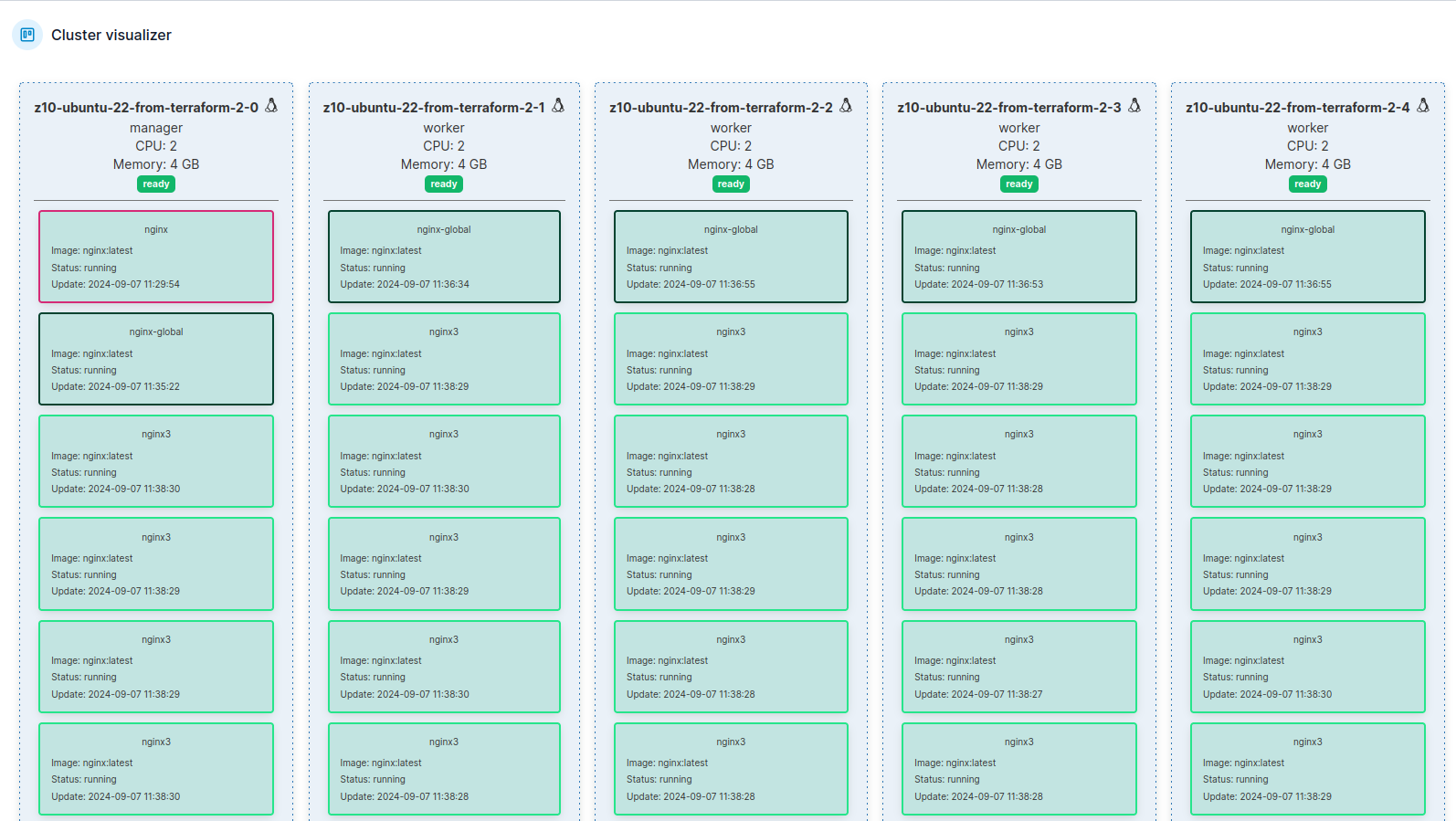
In portainer there is cluster visualizer, where you see all nodes and what is inside of them:
Running containers workloads
Using Portainer CE you can scale service instances, ie containers by just entering number of Docker container ro run. You can either run replicated mode, where you explicitly define how many container you would like to start, or you can use global mode, where number of containers will automatically equal number of nodes in your Docker Swarm cluster.
Docker Swarm scheduler will try to place containers equally according to service definiotion and hardware capabilities. You can try gradually increase number of instances and monitor hardware resources usage. There is whole separate topic regarding deployment webhooks, deployment strategies etc.
Performance comparison scenario
Installation is initialized by terraform init -parallel=1 command. On older hardware I suggest go for one-by-one strategy, instead of high parallel leve which could lead to some unexpected behavior like disk clone timeout or other issues.
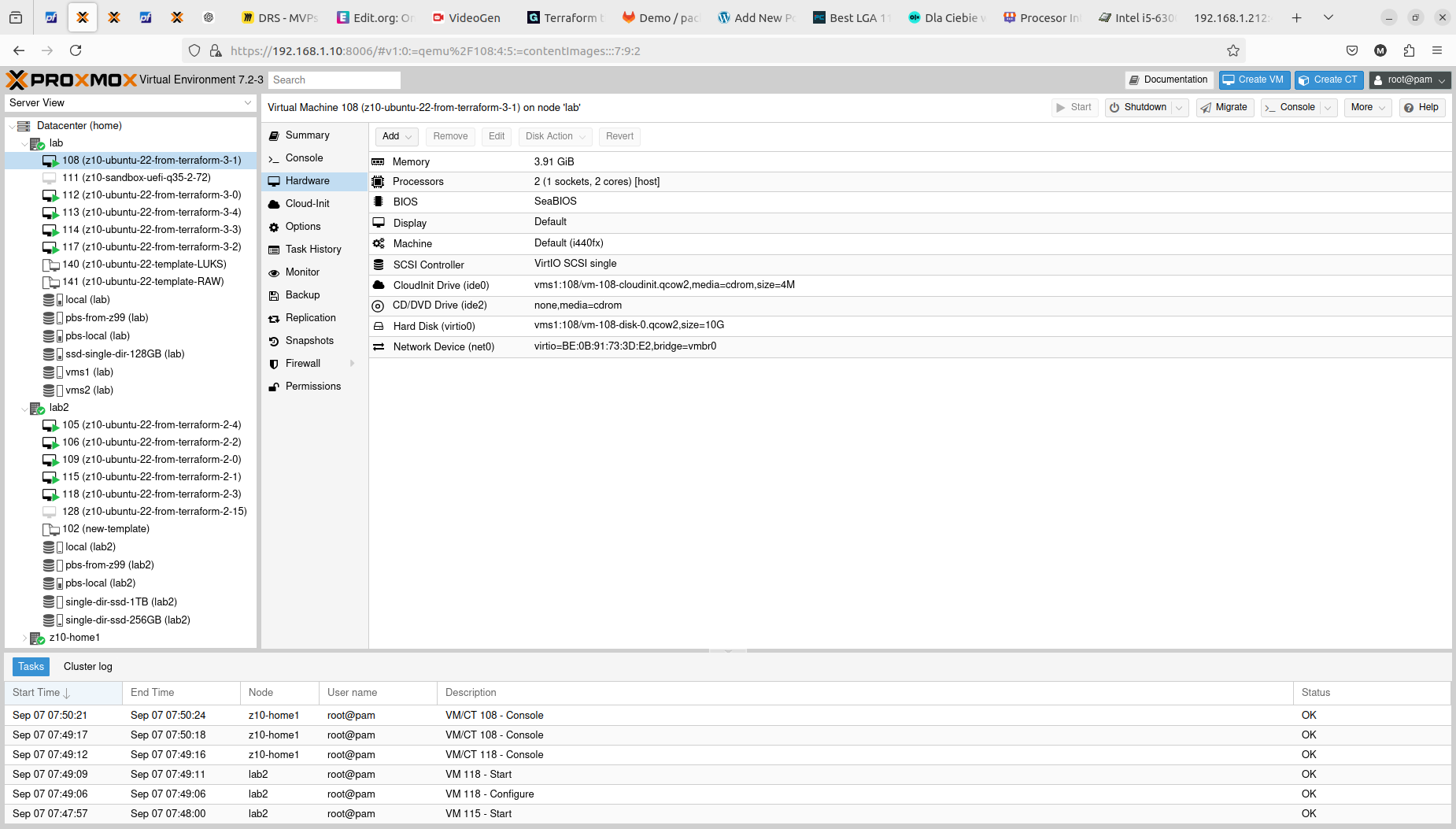
With that step done we can see how those two Terraform resource sections transformed into 5+5 virtual machines on two Proxmox nodes. Terraform keeps track of the baseline/state of your deloyment, however, it is not 100% safe to rely on it only. It is good to double check the results. In my tests I experienced situation when Terraform said that it destroyed all the content, but it did not actually. Same with resources creation, even if you are told here that everything is done be sure check it out. The problem may lay within at least 4 places, which are Terraform itself, Telmate Proxmox provider, Proxmox golang APIa and finally Proxmox itself with its hardware and software.
Both with apply and destroy you will be shown the proposed changes based on your configuration, you can then review what is going to happen and if this fits your needs:
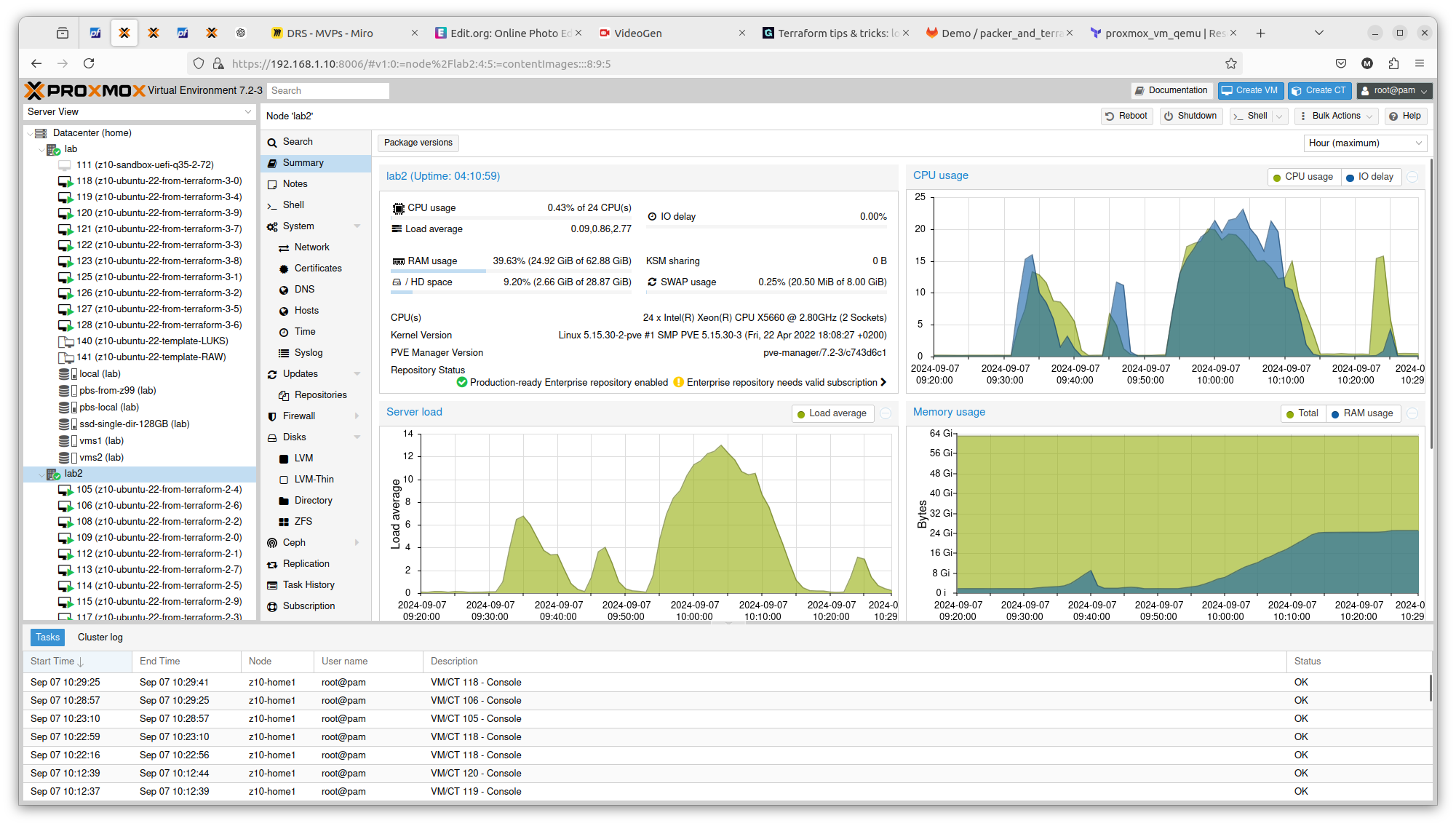
It is crucial to know on what hardware you are working on. At least from performance perspective. In case of Proxmox VE and bare-metal hardware what you see is what you get. But this strategy can be also applied on many other platform providers, yo can what brings the specific AWS or Azure virtual machines. So to illustrate it, I compared Server load between 2 Proxmox nodes within the same cluster. Here is one with 2 x Intel Xeon X5560:
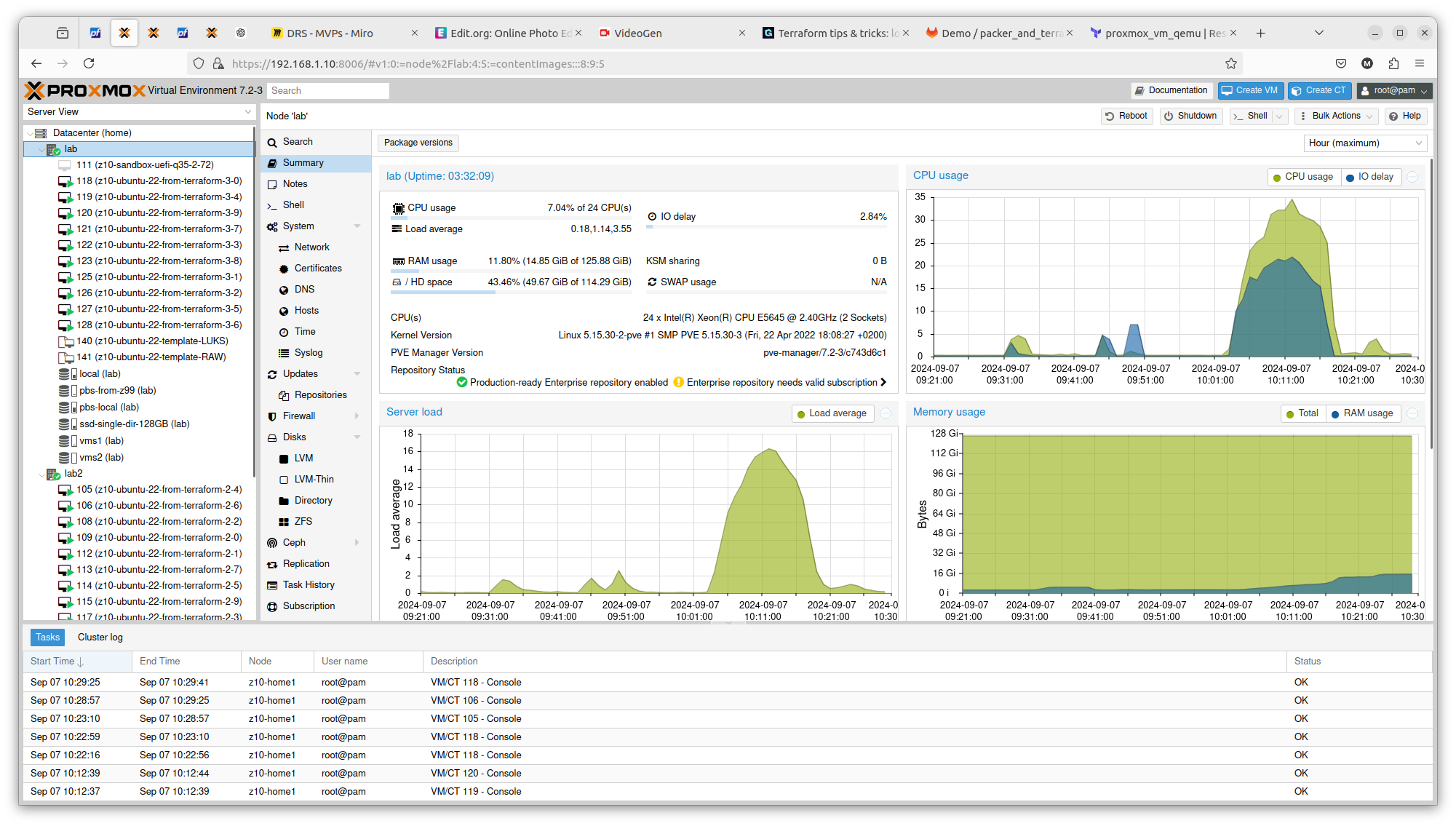
And here you have 2 x Intel Xeon E5645:
You can see exactly that difference in terms on CPU theoretical performance is confirmed in real scenario. The first server gets load up to 14 and the second one up to 16. There is also difference in terms of RAM usage. Same goes with drives performance. All those factors can be important if running plenty of Ansible or Terraform tasks concurrently.
Conclusion
With Terraform, Ansible and even Packer, you easily deploy multiple virtual resources and scale your applications deployment.
If you wonder how to automate Ubuntu virtual machine creation and then deploy it to Proxmox in multple copies, then you are looking for Packer and Terraform.
Side note: going for virtual machines in Proxmox is the proper way. I tried for several days to have LXC containers working, however finally I will say that it is not the best option with lot of things going bad like cgroups, AppArmor, nesting, FUSE, ingress networking etc. There is literally too much to handle with LXC and with VM there is no such problem, so discussion end here in favour of Proxmox Qemu. Keep LXC contrainers for simple things.
Why to automate?
Because we can.
Because it is a better way of using our time.
Because it scales better.
Because it provides some form of self-documentation.
Why to use Proxmox and Ubuntu VM?
Ubuntu is a leading Linux distribution without licensing issues with 34% of Linux market share. It has strong user base. It is my personal preference also. It gives us ability to subscribe to Ubuntu Pro which comes with several compliance utilities.
And Proxmox/Qemu started being an enterprise class virtualization software package few years back and it is also a open source leading solutions in its field. In contains clustering features (including failover) as well as support for various storage types. Depending on a source it has around 1% of virtualization software market share.
Installation of Packer and Terraform
It is important to have both Packer and Terraform at its proper versions coming from official repositories. Moreover it is important that the exact way of building specific version of operating system differs from vesion to version, that is way the title of this article says 22.04-4 and not 22.04-3, because there might be some differences.
Install valid version of Packer. The version which come from Ubuntu packages it invalid and it does not contain ability to manage plugins, so be sure to install Packer with official repository.
Important note regarding Terraform and its plugin for Proxmox. This plugin as well as Proxmox golang API is provided by a single company which Telmate LLC. This plugin has some compability issues and at the moment for Proxmox 7 I recommend using Telmate/proxmox version 2.9.0. The latest version which is 2.9.14 has some difficulties with handling cloud-init which leads to 50% chance of VM that requires manual drives reconfiguration. As for 2024/09/06 there is no stable 3.0.1 release.
If you happen to have the latest one and would like downgrade, then remove .terraform and .terraform.lock.hcl and then initialize once again with the following command:
terraform init
Generate Ubuntu 22.04-4 template for Proxmox with Packer
Starting from few versions back the Ubuntu project changed its way of automating installations. Instead of seeding you now have a autoinstall feature. Packer project structure contains few files, and I will start with ubuntu-22-template/http/user-data containing cloud-config:
In order to turn LUKS on, uncomment storage.layout.password field and set desired password. users.passwd can be generated with mkpasswd using SHA-512. Next is ubuntu-22-template/files/99-pve.cfg:
datasource_list: [ConfigDrive, NoCloud]
Credentials get its own file (./credentials.pkr.hcl). You can of course place it directly into your file, however if you SCM those files it will be permament and shared with others, that is why you should separate this file and even do not include it into your commits:
proxmox_api_url = "https://192.168.2.10:8006/api2/json"
proxmox_api_token_id = "root@pam!root-token"
proxmox_api_token_secret = "your Proxmox token"
my_ssh_password = "your new VM SSH password"
Finally, there is ubuntu-22-template/ubuntu-22-raw.pkr.hcl file, where you define variables, source and build. We source ISO image and define Proxmox VE Qemu VM parameters. The most crucial and cryptic things is to provide valid boot_command. http* sections refers to your machine serving files over HTTP, ssh* section on the other hand refers to configuration relate to the remote machine (newly created VM on Proxmox). Our local machine acts as shell commands provider over HTTP which then being passed to remote machine are executed during system installation.
The installation process is automated and you do not see usual configuration screens. Instead we provide autoinstall configuration and leave few options to be setup later during cloud-init, which is user details and network configuration details. This way we can achieve automation of deployments of such system, which will be show in a moment in Terraform section of this article.
A full overview of project structure is as follows:
After successful Ubuntu installation system will reboot and convert itself into template so it can be later used as a base for further systems, either as linked clone or full clone. If you prefer having great elasticity then opt for full clone, because you will not have any constraints and limitations concerning VM usage and migration.
Deploy multiple Ubuntu VMs with Terraform
To use Proxmox VM template and create new VM upon it you can do it manually from Proxmox UI. However in case of creating 100 VMs it could take a while. So there is this Terraform utility, which with help of some plugins is able to connect to Proxmox and automate this process for you.
Define Terraform file (.tf) with terraform, provider and resource sections. Terraform section tell Terraform which plugins you are going to use. Provider section tells how to access Proxmox virtualization environment. Finally, resource section where you put all the configuration related to your Ubuntu 22.04-4 backed up with cloud-init. So we start with terraform and required provider plugins. It depends on Proxmox version whever it is 7 or 8 you will be need to give different resource configuration:
terraform {
    required_providers {
        proxmox = {
            source  = "telmate/proxmox"
            version = "2.9.0" # this version has the greatest compatibility
        }
    }
}
Next you place Proxmox provider. It is also possible to define all sensitive data as variables:
First you need to initialize Terraform “backend” and install plugins. You can do this with terraform and provider sections only if you would want. You can also do it after you complete your full spec of tf file.
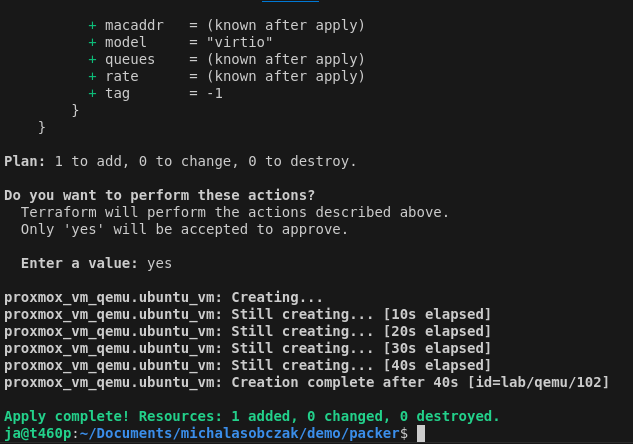
To run this terraform script you first check it with plan command and execute with apply command:
terraform plan
terraform apply
With that, this mechanism is going to fully clone template as new virtual machine with given cloud-init definitions concering user and network configuration.
I prepared two sample templates, one with LUKS disk encryption and the other one without LUKS encryption. For demo purposes it is enough to use unencrypted drive however for production use it should be your default way of installating operating systems.
Checkpoint: we have created Ubuntu template with Packer and use this template to create new VM using Terraform.
On fresh installation of Ubuntu 22, using Opera for video playback can be an issue. So even after installing all things that you may think it could help – it does not work. The solution is to install chromium-ffmpeg and copy its libffmpeg.so library into Opera installation folder.
sudo snap install chromium-ffmpeg
cd /snap/chromium-ffmpeg/xx/chromium-ffmpeg-yyyyyy/chromium-ffmpeg
sudo cp libffmpeg.so /usr/lib/x86_64-linux-gnu/opera/libffmpeg.so
Be aware that snap installation path differs in few places so check your installation. After copying ffmpeg library, just restart Opera and the video, previously not loading in LinkedIn, will work.
If you run digital services platform or critical infrastructure then most probably you are covered by NIS 2 and its requirements including those concerning information security. Even if you are not covered by NIS 2, then still you may benefit from its regulations which seem to be similar with those coming from ISO 27001. In this article I show how to automatically deploy anti-rootkit and anti-virus software for your Linux workstations and servers.
TLDR
By using rkhunter anti-rootkit and ClamAV anti-virus you are closer to NIS 2 and ISO 27001 and farther away from threats like cryptocurrency miners and ransomware. You can automate deployment with Ansible.
Course of action
Prepare Proxmox virtualization host server
Create 200 LXC containers
Start and configure containers
Install rkhunter and scan systems
Install ClamAV and scan systems
What is NIS 2?
The NIS 2 Directive (Directive (EU) 2022/2555) is a legislative act that aims to achieve a high common level of cybersecurity across the European Union. Member States must ensure that essential and important entities take appropriate and proportionate technical, operational and organisational measures to manage the risks posed to the security of network and information systems, and to prevent or minimise the impact of incidents on recipients of their services and on other services. The measures must be based on an all-hazards approach.
Aside from being a EU legislation regulation, NIS 2 can be benefication from security point of view. However, not complying with NIS 2 regulations will cause significant damages to organization budget.
Non-compliance with NIS2 can lead to significant penalties. Essential entities may face fines of up to €10 million or 2% of global turnover, while important entities could incur fines of up to €7 million or 1.4%. There’s also a provision that holds corporate management personally liable for cybersecurity negligence.
To implement NIS 2 you will need to cover various topics concernig technology and its operations, such as:
Conduct risk assesment
Implement security measures
Set up supply chain security
Create incident response plan
Perform regular cybersecurity awareness and training
Perform regular monitoring and reporting
Plan and perform regular audits
Document processes (including DRS, BCP etc)
Maintain compliance by review & improve to achieve completeness
Who should be interested?
As NIS 2 requirements implementation impacts on businesses as whole, the point of interest should be in organizations in various departments, not only IT but technology in general as well as business and operations. From employees perspective they will be required to participate in trainings concerning cybersecurity awareness. In other words, NIS 2 impacts on whole organization.
How to define workstation and server security
We can define workstation as a desktop or laptop computer which is physically available to its user. On the other hand we can define a server as a computing entity which is intended to offload workstation tasks as well as provide multi-user capabilities. So can describe a server also as a virtual machine or system container instance (such as LXC).
The security concepts within both workstations and servers are basically the same as they do share many similarities. They both run some operating system with some kind of kernel inside. They both run system level software along with user level software. They are both vulnerable to malicious traffic, software and incoming data especially in form of websites. There is major difference however impacting workstation users the most. It is the higher level of variability of tasks done on computer. However, even with less variable characteristics of server tasks, a hidden nature of server instances could lead lack of visibility of obvious threats.
So, both workstation and server should run either EDR (Endpoint Detection and Response), or antivirus as well as anti-rootkit software. Computer drives should be encrypted with LUKS (or BitLocker in case of Windows). Users should run on least-privileged accounts not connecting to unknown wireless networks and not inserting unknown devices to computer input ports (like USB devices which could be keyloggers for instance).
Prepare 200 LXC containers on Proxmox box
Find how to install 200 LXC containers for testing purposes and then, using Ansible, how to install and execute anti-rootkit and anti-virus software, rkhunter and ClamAV respecitvely. Why to test on that many containers you may ask? In case of automation it is necessary to verify performance ability on remote hosts as well as how we identify automation results on our side. In our case those 200 containers will be placed on single Proxmox node so it is critically important to check if it is going to handle that many of them.
Ansible software package gives us ability to automate work by defining “playbooks” which are group of tasks using various integration components. Aside from running playbooks you can also run commands without file-based definitions. You can use shell module for instance and send commands to remote hosts. There is wide variety of Ansible extensions available.
System preparation
In order to start using Ansible with Proxmox you need to install “proxmoxer” Python package. To do this Python PIP is required.
Then in /etc/ansible/ansible.cfg set the following setting which skips host key check during SSH connection.
[defaults]
host_key_checking = False
Containers creation
Next define playbook for containers installation. You need to pass Proxmox API details, your network configuration, disk storage and pass the name of OS template of your choice. I have used Ubuntu 22.04 which is placed on storage named “local”. My choice for target container storage is “vms1” with 1GB of storage for each container. I loop thru from 20 to 221.
The inventory for this one should contain only the Proxmox box on which we are going to install 200 LXC containers.
For demo pursposes only: next, you enable root user SSH login as it is our only user so far and it cannot login. In a daily manner you should use unprivileged user. Use shell loop and “pct” command:
for i in `pct list | grep -v "VMID" | cut -d " " -f1 `;
do
  pct exec $i -- sed -i 's/#PermitRootLogin prohibit-password/PermitRootLogin yes/g' /etc/ssh/sshd_config;
  echo $i;
done

for i in `pct list | grep -v "VMID" | cut -d " " -f1 `;
do
  pct exec $i -- service ssh restart;
  echo $i;
done
Checkpoint: So far we have created, started and configured 200 LXC containers to run further software intallation.
rkhunter: anti-rootkit software deployment
You may ask if this anti-rootkit is real world use case? Definitely it is. From my personal experience I can say that even using (or especially, rather) well known brands for you systems layer like public cloud operators you can face with risk of having open vulnerabilites. Cloud operators or any other digital services providers often rely on content from third party providers. So effectively quality and security level is as good as those third parties provided. You can expect to possibly receive outdated and unpatched software or open user accounts etc. This can lead to system breaches which then could lead to data steal, ransomware, spyware or cryptocurrency mining and many more.
There are similarities between anti-rootkit and anti-virus software. rkhunter is much more target at specific use cases so instead of checking hundred thousands of virus signatures it looks for well known hundreds of signs of having rootkits present in your system. You can then say that is a specialized form of anti-virus software.
Installation of anti-rootkit
First install rkhunter with the following playbook:
If you do not have proper procedure, then follow the basic escalation path within your engineering team. Before isolating the possibly infected system, first check if it is not a false-positive alert. There are plenty of situations when tools like rkhunter will detect something unusual. It can be Zabbix Proxy process with some memory alignment or script replacement for some basic system utilities such as wget. However if rkhunter finds well known rootkit then you should start shutting system down or isolate it at least. Or take any other planned action for such situations.
If you found single infection within your environment then there is high chance that other systems might be infected also, and you should be ready to scan all accessible things over there, especially if you have password-less connection between your servers. For more about possible scenarios look for MITRE ATT&CK knowledge base and framework.
ClamAV: anti-virus deployment
What is the purpose of having anti-virus in your systems? Similar to anti-rootkit software, a anti-virus utility keep our system safe and away from common threats like malware, adware, keyloggers etc. However it has got much more signatures and scans everything, so the complete scan takes lot longer than in case of anti-rootkit software.
Installation of anti-virus
First, install ClamAV with the following playbook:
With each host containing ClamAV there is clamav-freshclam service which is tool for updating virus signatures databases locally. There are rate limits. It is suggested to set up a private mirror by using “cvdupdate” tool. If you leave as it is, there might be a problem when all hosts ask at the same time resulting in race condition. You will be blocked for some period of time. If your infrastructure consists of various providers, then you should go for multiple private mirrors.
Scanning systems with anti-virus
You can either scan particular directory or complete filesystem. You could either run scan from playbook, but you can run it promply using ansible command without writing playbook. If seems that ClamAV anti-virus, contrary to rkhunter, returns less warnings and thus it is much easier to manually interpret results without relying on return codes.
ansible all -i hosts.txt -m shell -a "clamscan --infected -r /usr | grep Infected" -v -f 24 -u root -o
You can also run ClamAV skipping /proc and /sys folders which hold virtual filesystem of a hardware/software communication.
There is possiblity to install ClamAV as a system service (daemon), however it will be much harder to accomplish as there might be difficulties with AppArmor (or similar solution) and file permissions. It will randomly put load on your systems, which is not exactly what we would like to experience. You may prefer to put scans in cron schedule instead.
Please note: I will not try to tell you to disable AppArmor as it will be conflicting with NIS 2. Even more, I will encourage you to learn how to deal with AppArmor and SELinux as they are required by various standards like DISA STIG.
To run ClamAV daemon it is requied to have main virus database present in your system. Missing this one prevents this service from startup and it is directly linked with freshclam service.
○ clamav-daemon.service - Clam AntiVirus userspace daemon
     Loaded: loaded (/lib/systemd/system/clamav-daemon.service; enabled; vendor preset: enabled)
    Drop-In: /etc/systemd/system/clamav-daemon.service.d
             └─extend.conf
     Active: inactive (dead)
  Condition: start condition failed at Mon 2024-09-02 15:24:40 CEST; 1s ago
             └─ ConditionPathExistsGlob=/var/lib/clamav/main.{c[vl]d,inc} was not met
       Docs: man:clamd(8)
             man:clamd.conf(5)
             https://docs.clamav.net/
Results interpretation and reaction
Running clamscan will give us this sample results:
As it is a manual scan, it will be straightforward to identify possible threats. In case of automatic scan or integration with Zabbix you will need to learn what clamscan could possibly output, same as with rkhunter output.
Conclusion
Automation in the form of Ansible can greatly help in anti-rootkit and anti-virus software deployment, rkhunter and ClamAV respectively. These tools will for sure increase the level of security in your environment if will cover all the systems up and running. Having automation itself is not required by NIS 2 directly, however in positively impacts for future use.
The article explores the use of ArchiMate, a modeling language, for enterprise architecture, focusing on its application through the Archi tool. ArchiMate offers a structured approach to modeling complex IT systems by providing various layers such as motivation, strategy, business, and technology. The author explains how Archi facilitates the visualization of enterprise architecture, making it easier to manage and understand. Additionally, the article covers practical aspects like setting up a Git repository for team collaboration and managing model changes effectively. A practical example project demonstrates the application of these concepts in a real-world scenario.
In complex world of IT artifacts it is good to introduce a standarized and well built model of how to describe the important things. It will for sure help organizing information and keep track of changes. It is important in professional world to describe things in professional manner. So there is Enterprise Architecture with can be defined as
“conceptual blueprint that defines the structure and operation of organizations. The intent of enterprise architecture is to determine how an organization can effectively achieve its current and future objectives“
You could imagine what would happen if some organization do not practice enterprise architecture, but I would go a little further asking what would happend if organization model something but in unstructured way not enjoying things coming from a formal framework. You could easily end up with a mess and information chaos which will nagatively impact your business, technology and operations.
ArchiMate language
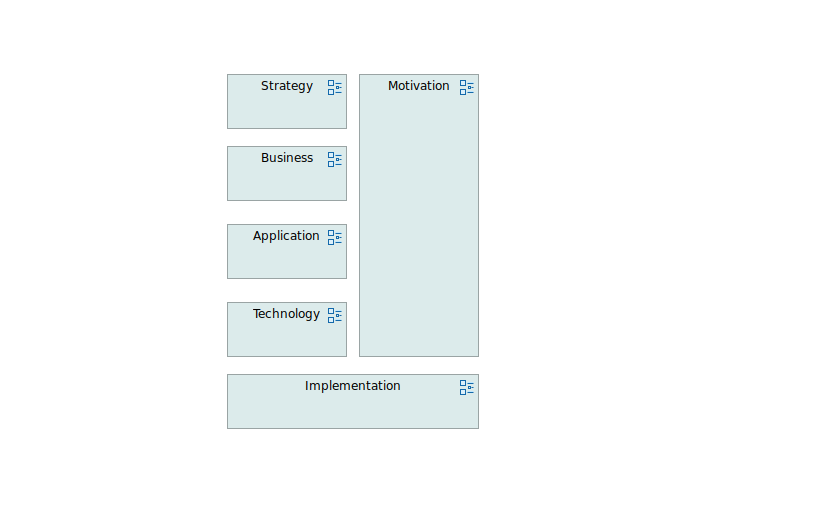
Although it is said that ArchiMate is a language, I say that it is more than a language because it has a characteristics of a framework. It provides us with several layers of modelling such as motivation, strategy, business, application, technology, implementation and migration. Each layer consists of several elements which can be then divedided into 3 groups such as active, behavioral and passive. In a result you get a matrix like structure of grouped elements which can be used in form of diagrams called ArchiMate views.
So, to recap. It is a language with bonuses. Constists of 6-ish concepts (layers) which then divides into 3 groups of various elements. Everything can be put on diagrams and views.
Modelling tools available
There are few tools that I would recommend when speaking about Enterprise Architecture and especially ArchiMate. I would say Sparx Enterprise Architect is the most complete one, but it requires some minor investments. The second one is Archi, which is open source tool. Both tools support collaborative work. Sparx EA by means of Pro Cloud Server, and Archi by using coArchi plugin with Git repository. For bigger projects with lots of people working on model and lots of things happening EA will be better for sure, but for solo projects Archi should do the work.
Repository setup
For those who work from different places and in team environment, having a repository will be huge benefit. It is not as flexible and dynamic as Miro for instance, but Enterprise Architecture is somehow more like a static thing than brainstorming sessions. So start with setting up a Git repository. I prefer using GitLab. Create group if needed and empty project. You are done for now.
Installation of Archi
Go to https://www.archimatetool.com/download/ and download the latest version of Archi. It is available for Linux, Windows and Mac. After download you either install or just unpack archive. Now go to https://www.archimatetool.com/plugins/ and download coArchi plugin as it is needed to enable collaboration feature using Git repository. Plugins can be installed from Archi by going to Help – Manage Plug-ins. Now you are good to go with relaunching Archi to enable collaboration plugin.
Model management
There are two scenarios with models management. You either start your own model locally and then publish it remotely or import someone else’s model into your blank project. I think it covers most of use cases. The first case is to create blank model and then select Collaboration – Add local model to workspace and publish. The second case is to Collaboration – Import remote model to workspace. If you do not create own project then in model-repository/project/.git Archi will create so-called temp file for your project. If you created project locally, then you can just open it by this way.
Changes with Git SCM
Team work requires basic knowledge of Git SCM as when you start you should pull changes from the server (Collaboration – refresh model). Once you’re done with your changes then Commit changes and finally Publish changes. As with any other Git repository you can switch to different branches, merge changes, ammend commits etc.
Sample project
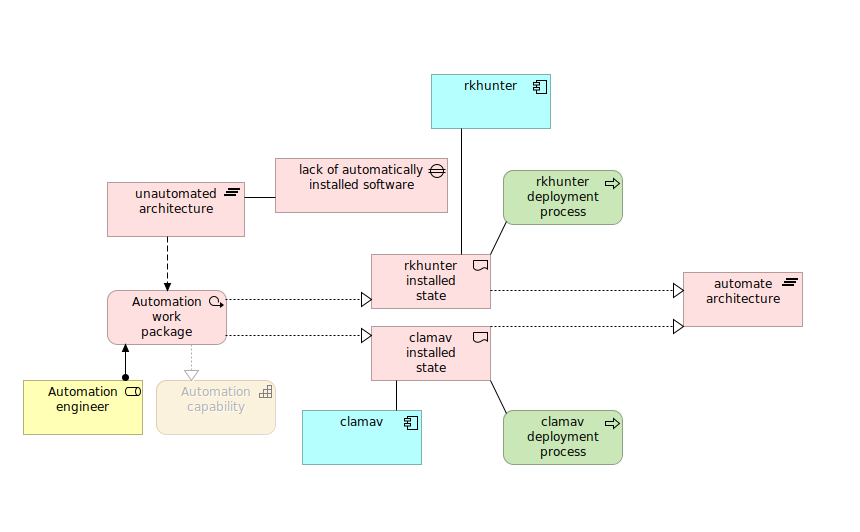
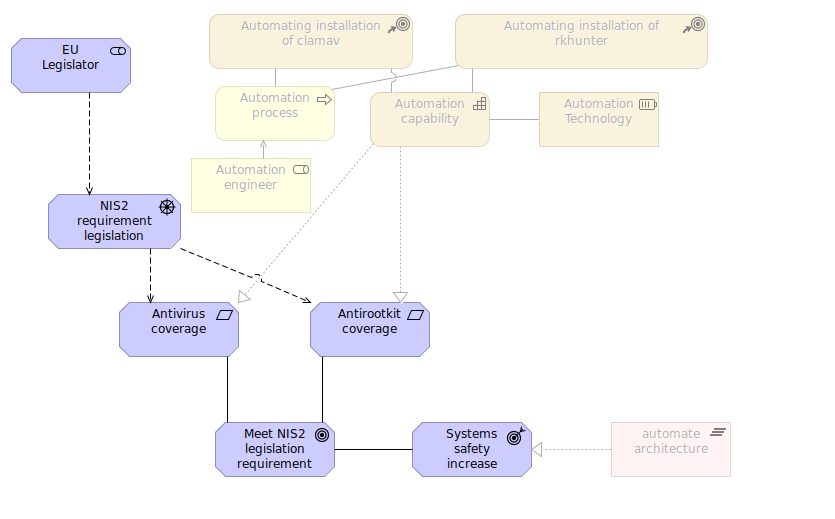
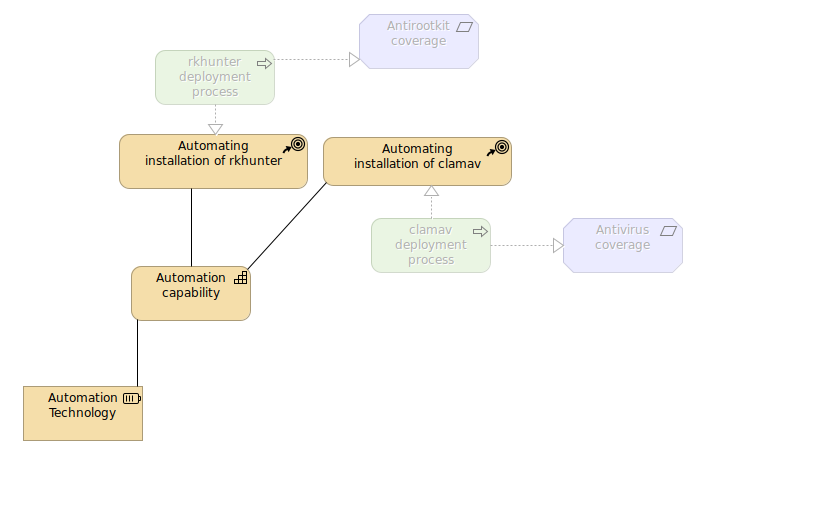
To express ArchiMate visually I decided to select my next technology project/demo as a base for this model. It is NIS2 and its EDR, antivirus, antirootkit etc requirements which I will show on a hundreds of containers in a automated form of Ansible automation. So there are various layers concerning this project motivation as well as strategy and going further down with business, application, technology and finally implementation and motivation.
Please note that colors are important here as they group concepts.
Motivation
Source of the project itself is at EU legislator which places several NIS2 drivers and requirements which implies goals and outcomes. All of those can be easily mapped to strategy elements such as cource of action but also business processes. You can quick path down to the bottom for implementation plateau describing before and after state of architecture.
Strategy
Different viewers require different viewpoints so each view/diagram allows us to select particular interesing viewpoint for this very diagram. This way unrelated (directly) elements are blurred and you can clearly see only these elements coming directly from this concept. So strategy level describes high-level way of describing what we can do and with what means. I help myself with little addition of motivation requirement as well as technology process. Finally there is “coverage” requirement which can be defined as a result of this strategy but it could be also a value of stream if needed.
Business
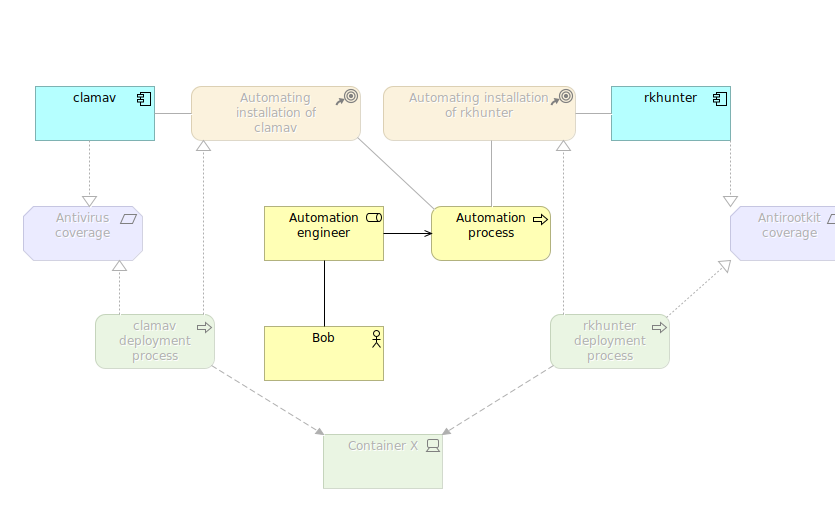
We defined business layer for who does what, so there is Bob which is a automation engineed who creates automation processes. We put here also motivation elements, strategy elements, but also application elements which are not blurred becaues this is “business process cooperation” viewpoint and it contains also application elements such as “clamav” and “rkhunter” which in particular implements and realizes antivirus and antirootkit coverage respectively.
Application
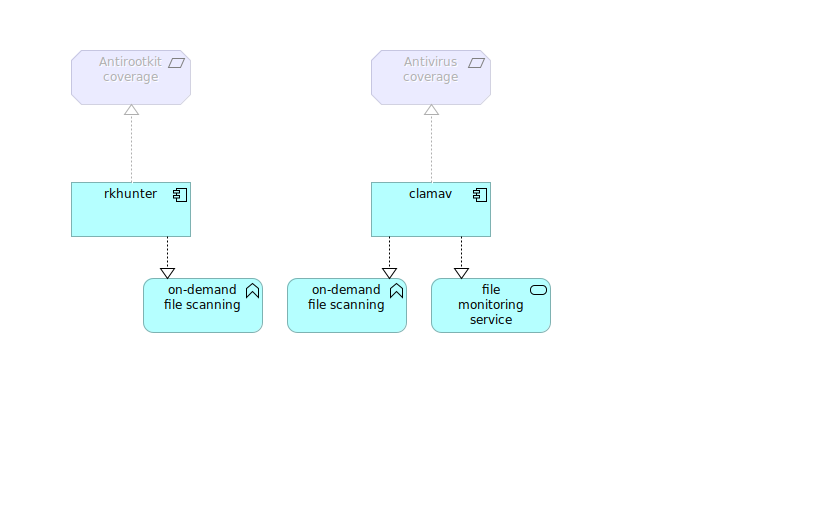
It is really good to be able to apart from obvious application components and its functions to put also why we do this. Often people ask why we do something in technology, so such a convention to mix elements from various level of abstraction gives this answer to them.
Technology
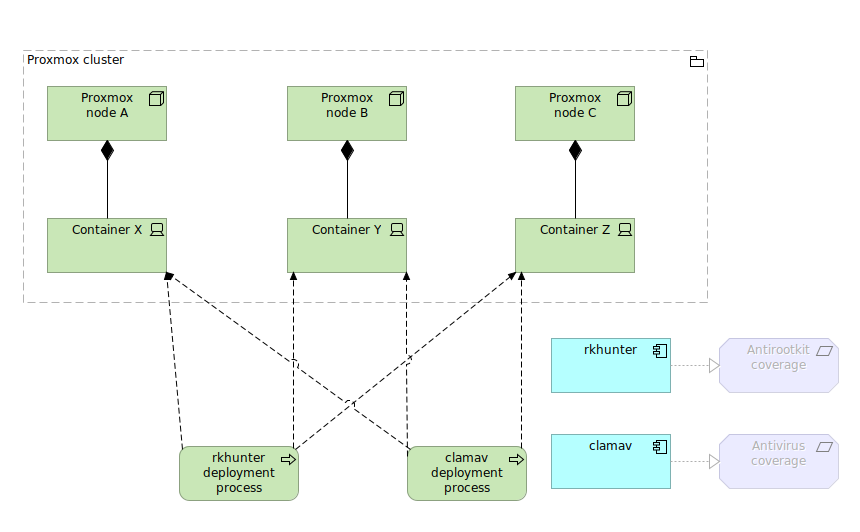
Being a “technology usage” viewpoint I can both pick technology and application elements here as well as add some different elements like motivation ones. One new thing appears here which is grouping but in structure way not only a visual one. By placing things inside a group you will be asked about relation between group and its elements as it decreases amount of possibilites in terms of additional relation mixins. I think that technology layer is the at the bottom of artifacts tree logically, and the lower placed implementation & migration is not actually.
Implementation and migration
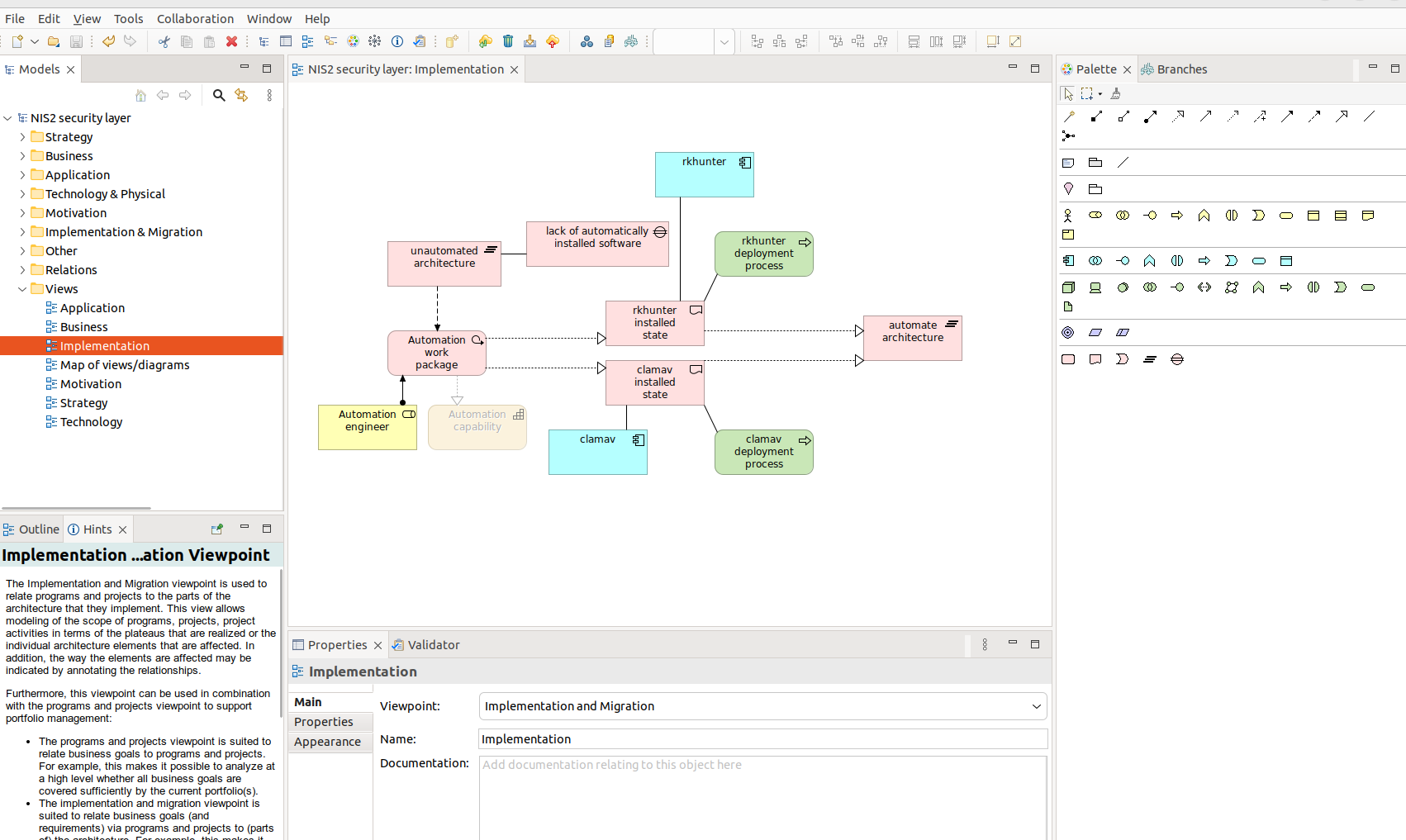
It is the most complete viewpoint as it contains business, application, technology, some of motivation and implementation elements. So here you defined what, in what form, possibly who and what is the final result. It is more like project plan. Feel free to add whatever you need to describe things in order to plan changes and what baseline will it refer to and will it change it to some new baseline.
Archi layout with Hints
Here you have a screen from Archi. Please note that you have “Hints” section so you can learn more about specifics of various viewspoints, concepts and elements as well as relationships between them.
Create secure, high-performance, affordable environment for your container applications using Hetzner dedicated servers. For around 50€ per month.
This setup can also be done using different server providers, both dedicated and shared, even on public cloud. This tutorial has not been sponsored by Hetzner or any other software vendors. If you are interested in similar setup, please drop me a message via Linkedin.
Goal
The goal for this setup is to run Docker container in Swarm mode in secure and reliable environment. For sake of security we enable Proxmox firewall, pfSense firewall and Suricata IDS/IPS. For sake of reliability we configure md RAID and create 3 different combined backups targets. To turn this setup into production one, just add two or more Proxmox nodes and two or more Swarm nodes. You will be good to go with your online business.
Hetzner dedicated servers
00:10: Start with visiting Hetzner portal called Robot. It is for managing dedicated servers. We can either rent brand new server with the latest hardware available or go to server auction for a little bit older hardware but for better prices. For this test I will pick server from auction with at least 3 drives inside and 64 GB or memory. Both for test and production setups I suggest picking up enterprise grade CPU like Xeons which tend to better on long term basis and are much most stable than desktop grade CPUs.
Once ordered you will have to wait for your order completion which should take 15 to 30 minutes for most the times, but in case of custom setup you will have to wait even 5 working days, so be sure to order with enough notice period. Your orders will be shown in Server section where you can inspect the server, send remote reboot or order serial console in case of some troubles. Next you give your server a name and add it to virtual switch called vSwitch. It will enable your server for communication with your other servers binded to the same vSwitch ID. Important thing that the MTU must be 1400. For our test setup I also order additional public IP. You need to write usage explanation as IP4 pool is limited. This additional public IP will be used for pfSense router/firewall which will handle all the operations traffic.
Proxmox virtualization
01:52: After the order is completed you receive root user password over email, so be sure to change it at your earliest convenience. I SSH into the server where you can see brief overview of what is inside, what kind of CPU and drives we have and that type of ethernet adapter is installed. System installation can be run using installimage utility. Few things important here, SWRAID, SWRAIDLEVEL, HOSTNAME and partitions setup. Be sure to install only on 2 same size drives and leave other unconfigured. Software mirror, similar to RAID will be handled by md. Be sure not to install system on spinning drives as there will be significant bottleneck in terms of IO available which will be noticeable.
After Debian installation is completed, reboot the server and wait until it is back again. If server is not coming back, then restart it from Robot panel. SSH once again and start installation of Proxmox using my step-by-step tutorial. It covers system update, adding required repositories and installation or Proxmox packages and services. Speed of this process depends on our hardware specification, especially drives on which the system is installed on. It is worth pointing out that Proxmox uses custom Linux kernel and it is suggested to remove other ones.
Having Proxmox installation completed, it is time for disable RPC bind services enabled by default, running on port 111. It is required to have it off from the network if you are in German internet as it is a government requirement. Since we do not need this in test setup we are good to go further with network configuration. If we use only public network and vSwitch then we need to have a bridge, public IP routing and VLAN section. If we would use additional local LAN or VLAN or use separate physical and dedicated switch then there will be need to add additional sections here. Be sure to double or even triple check you configuration, after network reload it have to work. Otherwise you need to opt for remote serial console which takes sometimes even up to an hour. I personally prefer having a consistent naming scheme for server, VLANs and subnets as you may notice. Remember to include 1400 MTU in VLAN section. After networking service restart check local and external connectivity.
As an interesting pick we try to import Proxmox CA into browser certificates store in order to have SSL padlock clean without any security warnings. As for this, we need to have certificate common name set in /etc/hosts to have running. Later on we are going to configure HAProxy over OpenVPN.
The first configuration we will conduct it is a firewall configuration. I put VLAN, LAN and public IP4 addresses in Datacenter-Firewall section which will be applied on all nodes in Proxmox cluster. Of course if we will add additional nodes. Datacenter configuration is then much easier to manage. Firewall will be enable only after going into Firewall-Options and marking it as enabled. Remember to add yourself’s public IP4 address not to cut out the connection.
pfSense firewall/router
11:54: For handling public traffic I install pfSense router/firewall which can be also extended with additional packages providing wide range of features, like VPN, IDS/IPS appliance etc. We start with uploading pfSense 2.7 CE, which will also require us to do an upgrade. Before continuing I review drives condition using SMART interface. And quickly initialize third drive as a directory, need for future PBS installation. I also upload PBS ISO image as well as Ubuntu ISO image.
Create new VM with basic settings. It is important to have at least one network adapter. The first one will be for WAN interface and second one for VLAN where we set MTU 1400. On WAN we set virtual MAC address created earlier in Robot portal. It is critical to have it on WAN if running VM on the server. Missing this setting will cause MAC bleeding warning from Hetzner and even server lock. pfSense installation is straightforward. We pick all default settings. Since we use md for drive mirroring there is no need to configure this redundancy for pfSense. After reboot, pfSense asks for network configuration, both for LAN and WAN interfaces. Need to adjust it. At first, UI is accessible over WAN as we do not have option to go into LAN/VLAN. You could setup sandbox VM from where you could access local network, but for this test setup we will continue with WAN until OpenVPN will be configured. After any major pfSense configuration change it is good practice to reboot it.
Using WAN without Rules setup means that you have to do pfctl -d to disable firewall. Login using default credentials and go thru UI step-by-step configuration. You can change DHCP WAN settings and put explicitly WAN default gateway as it seems not to be set.
pfSense dashboard, which is main page can be enhanced with few fancy graphs concerning service and network statistics. Main configuration can be done in System – General Setup or Advanced settings. We setup domain, timezone and DNS configuration. For later HAProxy you need to disable auto WebGUI port redirect, even having it on different port than standard one, which is a good practice both for UI and OpenVPN services running on the box.
For OpenVPN use we need to create CA certificate to be ble to sign server certificate. Then create certificate. Next create OpenVPN server port pass rule. Then go to Services-OpenVPN and add new OpenVPN server with SSL/TLS + User Auth configuration on TCP IP4 only. Be sure to point server certificate, it is easy to miss that or select even some user certificate. Set tunnel network addressing for clients endpoints as well as local network which will be routed to the environment. It is good to have consistency for tunnel subnet numbering and also have set concurrent connections to some lower value to quickly identify possible misuse.
To use OpenVPN you will need a user with a user’s certificate. First create user and then create it’s user certificate. Now comes the quirky part, which is installing pfSense additional packages on outdated base system. There is an error message which leads us to System-Update setting. By trial-and-error I know that it is necessary to update system first, but it varies from version to version. This time neither UI upgrade nor console upgrade worked for me. Solution was to rehash certificates. On various previous versions there have been other solutions to similar compatibility issues. No doing it right could brick the system, so be sure to have backup before starting such troubleshooting session.
Finally after rehashing certificates we can proceed with upgrade. Without upgrade packages were not available. This upgrade process takes few minutes.
How to import OpenVPN user configuration into Ubuntu? Either by using GUI or nmcli utility. I find the latter easier and more stable across various previous Ubuntu versions. Even with imported configuration you still need to provide username, password and select Use this connection only for resources on its network. To use connections over OpenVPN interface we need to add appropriate passing rules. If you want to diagnose connectivity with ping then be sure to pass ICMP traffic as well. Check if OpenVPN client is connected, if you already created ICMP rule, and in case it still does not work, then reboot to shorten configuration apply time.
HAProxy
19:10: Proxmox server access can be achieved using HAProxy. First we define backend which is target server at port 8006. As we do not have options to load balance it at the moment it’s better to disable health checks. Secondly we define frontend at some custom port on LAN interface with TCP runtime type and backend set to what we have configured a moment ago. In settings we need to enable HAProxy, define maximum connections, set internal stats ports and lastly set max size of SSL DH parameter.
It’s good to clean up unused firewall rule.
We choose port 9443 for Proxmox UI and from now we need not to use public WAN interface to access it as there is tunneled OpenVPN connection available. Why do we even need to set HAProxy for Proxmox UI? Because Proxmox does not route itself thru pfSense which offers OpenVPN, there is need to access it either WAN, NAT-proxy or what we have just made which is HAProxy configuration.
Now, since we have a secured Proxmox UI connection, it’s time for setting up 2FA with TOTP. Some caveats concerning this one, if you want to create cluster and then add additional server to it (it must be empty, without VM/containers), then you need to disable it, add server to cluster and then enable it once again. Moreover most probably you would need to restart pvestatd service as it gets out of sync most of the time.
Suricata IDS/IPS security appliance
21:03: Interfaces list is empty on start, so need to create one, particularly for WAN interface. What is important here is to enable Block Offenders in Legacy model, blocking source IP. As for sensitivity of detect-engine I prefer setting either as Medium or High. In terms of rules and its categories there are two approaches. The first one tell that you should disable technical rules for flows etc, which will for sure decrease amount of false-positive blocks. However, by doing this we will welcome much more invalid traffic. So, there it is a second approach, where we leave this enabled and take care of false-positive blocks manually. I recommend enabling almost all of EP Open Rules categories. The most important thing here is to enter emerging-scan rules set and enable all nmap scan types as they are disabled by default for some unknown to me reason. This way we will be able to block the most popular scans. Same thing with emerging-icmp rules set.
To be able to comply with various security policies and standards it’s good to know that there is possibility to enlongen logs retention period for lets say 3 months. We can also send logs to remove syslog both configured from Suricata directly or in general pfSense settings also. At this point, we can enable, start Suricata, running on our WAN interface. On alerts tab we can monitor security notifications and also unblock source IP addresses here directly. On blocks tab, there is list of all currently blocked IP addresses, from where we can unblock them or see if this happen already in the past as there is a list of previous incidents.
It did not even take a minute a get some incidents on the list. One is from technical set of rules, like TCP packets validity verification and two others are from scan and spamhouse rules set from ET. This means that we have been both scanned and communicated from entity enlisted in Spamhaus directory, group 9 to be clear. Running Suricata on few dozens boxes for few months will give us millions of numerous alerts and blocks. Sometimes source IP addresses will be repeated between different locations meaning that either someone scans whole IPv4 blocks, target ISP or target exactly you as a person or organization running this boxes. On the alerts tab you can lookup reverse DNS for IP addresses as well as try to geo-locate them. It may or may not be useful information, depending on your needs to forensics analysis in your business case.
When interconnecting systems, either thru public interface or VPN tunnel it is common thing that system will cross-diagnose itself and put blocks. To avoid such a situation there is pass list tab, where you can enlist your systems public IP addresses to prevent from blocking. Once you have created some pass list containing external public IP addresses you can bind it to interface on interface edit page.
Ubuntu VM
24:44: Little overview, we purchased, rented a dedicated server, installed Debian, Proxmox, pfSense, HAProxy and now we face with creating Ubuntu VM which will later on hold a Docker Swarm master/worker node handled by Portainer CE orchestration utility. Creating new VM is straightforward as we go with basics. However concerning a Ubuntu server installation there are few options. First of all we can use HashiCorp Packer or even Terraform, as there is some provider for Proxmox 7. Moreover instead of manually create installable image we could create autoinstall or cloud-init configuration which will do it automatically. For the purpose of this video I will go manually. It’s important that every system drive at any provider including your home, should be secured by an encryption service such as LUKS. On this topic you can find some article on my blog. For the ease of use I prefer to manually enter LUKS password for decrypting drive. There are other options as well but require additional software or hardware.
After base system extraction and installation, there are some additional packages to be installed and updated fetched and apply also. It will take a few moments depending on the hardware of your choice.
Now the system installation is completed and we can eject ISO image and hit reboot an test LUKS decryption for the system drive.
Docker Swarm + Portainer
26:55: This section starts with Docker-CE service and tools installation as it is a vital part of Docker Swarm setup with Portainer used to orchestrate containers. When I look for some verified and well tested setup tutorials I often visit DigitalOcean website, which is great cloud computing provider I use for over a decade once I switched to it from Rackspace. Within that time around 2010s these companies have been starting well but have been overtaken (in the field of public cloud solutions) by Google, Microsoft and Amazon quite quickly and instead of hard-competing they decided to choose different business approaches to stay on the market.
Once we have installed Docker-CE service we can continue with initializing Docker Swarm. But before we can do it, there is need to manually create docker_gwbridge and ingress networks, just before you would run docker swarm init. Why is that you may ask? Well, it’s because Hetzner requires you to run MTU 1400 and Docker actually does not support changing MTU on-the-fly, it does not follow host network settings. With that said you can either leave network as they are, but do not use vSwitch or use host only port mapping which will make binding to host adapter instead of ingress. But in real world case it is good to have possibility to create Docker Swarm with more than one node, at least 3 master modes (uneven number required) and also 3 worker nodes. Such a setup can be spread across few different physical boxes, connected thru vSwitch in Hetzner which runs at 1 Gpbs at its maximum. Even if you do not plan to use similar setup it’s good to have MTU set to proper value because you would be struggling with services migrations after Docker Swarm it’s initialized and in production use.
Now regarding Portainer CE which is a UI for managing Docker containers, Swarm setups and many many. There is business edition with even more features available. Highly recommend it, especially if you look for smart and simple solutions for your containers and struggle with OpenShift/OKD/Kubernetes. I have commercial experience with all of them so I can tell you that there are some things that the duo Docker Swarm and Portainer lack, but those lacking things can be easily replaced with some other solutions. In case of the installation, you just download YML file with configuration of containers and so. As those things which are UI and agent will run within custom network, there is also a need to adjust MTU in this configuration file, before deploying.
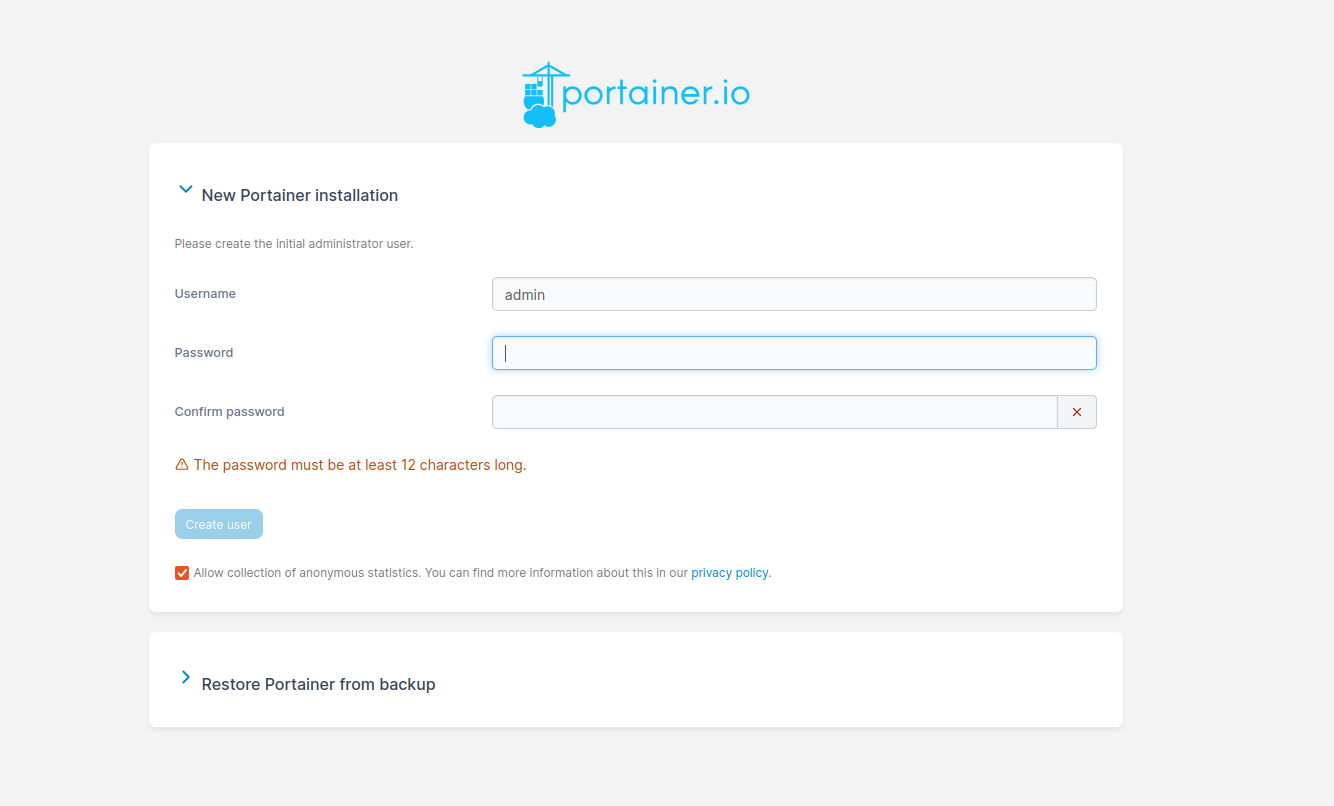
It takes about a minute to download images and run them in Docker. UI is available on port 9443. Initially you create user with password and you are in. The primary environment is the local one and as Portainer runs with local volume it should stay on this particular node. Agent however is deployed with global parameter, which means that it will be deployed on every node in the Docker Swarm cluster which is available.
Now it is time for hello world container on our newly installed virtualization and containers environment. There are two types of testing images. First one is to check if anythings works at all and its called hello-world. It checks if Docker can pull images from the internet or other network and if container spawning works. As it does not have any hanging task, it will cycle after each and every run. So it is good to test with something more useful, as nginx for instance.
Nginx is a HTTP server, so it’s now worth setting up a port mapping which will utilize a internal Docker Swarm network called ingress. It take few seconds to download image and run it. We can check already in browser at the port of our choice if the service is actually running. And it is. However it is a local network connection accessible only over OpenVPN tunnel. To make this Nginx server accessible from the public internet we can use HAProxy. For low to mid traffic which is up to 20 thousand concurrent user will be fine to use single pfSense HAProxy instance as it’s enough in terms of performance, configuration etc. For bigger deployments I would recommend dynamic DNS such as one available on scaleway.com, multiple pfSense boxes with seperate public IP addresses and separate HAProxy either on pfSense or also separately.
This time, instead of TCP processing type as in case of Proxmox UI, we gonna use http / https (offloading) which would encrypt the traffic which is reverse proxied to backend server with no encryption as we do not provide encryption on nginx side at the moment. What is the benefit of having TLS offloaded onto pfSene box? First of all there is less configuration to manage as we either enter certificate in certificates store or use ACME with LetsEncrypt for instance. Second of all it just separates environment entrypoint from the system internals in the local network.
As we run HAProxy on WAN iterface now, there is need to create firewall rule for all the ports used in our setup. This test setup covers only unencrypted traffic. Encrypted traffic will also require HTTPS pass rule as well as redirect scheme on HAProxy frontends. It is as good practice in pfSense to have rules organized using separators, it makes just everything here much more clear. Be sure to either provide proper health check and have multiple backends or just disable this feature as you have only one backend.
Proxmox Backup Server
33:44: The last topic in our test setup is a backup, which is very important thing aside from functional features of this environment. We start with creating PBS VM with some basic settings. System is a Debian and it requires not so big root partition, but it requires quite a lot a memory which will be even more important if we have slow drives. Remember that encryption of backups happens on client side in Proxmox. PBS installations is straightforward without any quirks. For now we have only one drive which is for system use.
Once installation is done we add additional drive which will be used as a backup storage. Remember to uncheck backup checkbox. We can add drive live while the system is running. The easiest options is to create a directory which will be mounted with either ext4 of xfs filesystem. Depending on the drive size the initialization process will take from a minute up to 15 minutes or so.
In order to add PBS into Proxmox VE you need to go to Datacenter level – Storage and create new entry with PBS integration. Username requires adding @pam. You need to provide also a datastore name which we just created. Finally to authorize our integration you need to grab fingerprint from PBS UI. Once added, PBS integration with datastore will be present in storage section on choosen selected nodes.
To create backup job, go to Datacenter-Backup. You can choose between local backup and PBS backup. First we define what to backup and with what kind of schedule. Very important is to configure client side encryption which can be done editing PBS integration, on Encryption tab. Auto-generate key and secure it buy keeping it safe in at least 2 locations also being encrypted.
First we test backup job running backup directly on local drive which will be a local copy. It should run significantly faster than running thru PBS, so in some cases this could be a way to run backup, when you cannot lag memory or network. Moreover it is one of methods to have separated backups on different mediums. In case of course when you have PBS on separate drive which is the case here. Now we take cross-out first requirement from standard backup and data protection policy – to have separate physical copies.
Going a little bit further with the backup and the standards and policies thing is to create second backup server with also PBS. For sake of test of course we keep in the same location, but in real world case, it will be different physical location, even different Proxmox cluster. The purpose of having it is to do a backup in main PBS and synchronize it to the second PBS server. This way we can achieve various level of backup and data protection. We can differentiate backup retention on master and sync, deciding where to put more is where we have more space to dedicate for backups.
With the second PBS we create everything the same way. First new thing is to add Remote which is our source server from which we will pull backup chunks. Now with remote configured, we go to Sync Jobs tab where we define how often to synchronize and for how long we should keep those synchronized backups. Both for main and secondary backup server it is recommended to configure prune on servers side. Same applied for garbage collection tasks. Remember that GC keeps chunks for further 24 hours even then prune got rid of the backup itself. That’s the way it works, so with this in mind we need to consider proper capacity planning in terms of the number of copies kept.
Now we have backed-up locally, remotely and synchronized those backups to 3 medium. We should be safe for now, of course if sync server would be located outside the server.
Same as for Proxmox, here in PBS we can also configure 2FA TOTP.
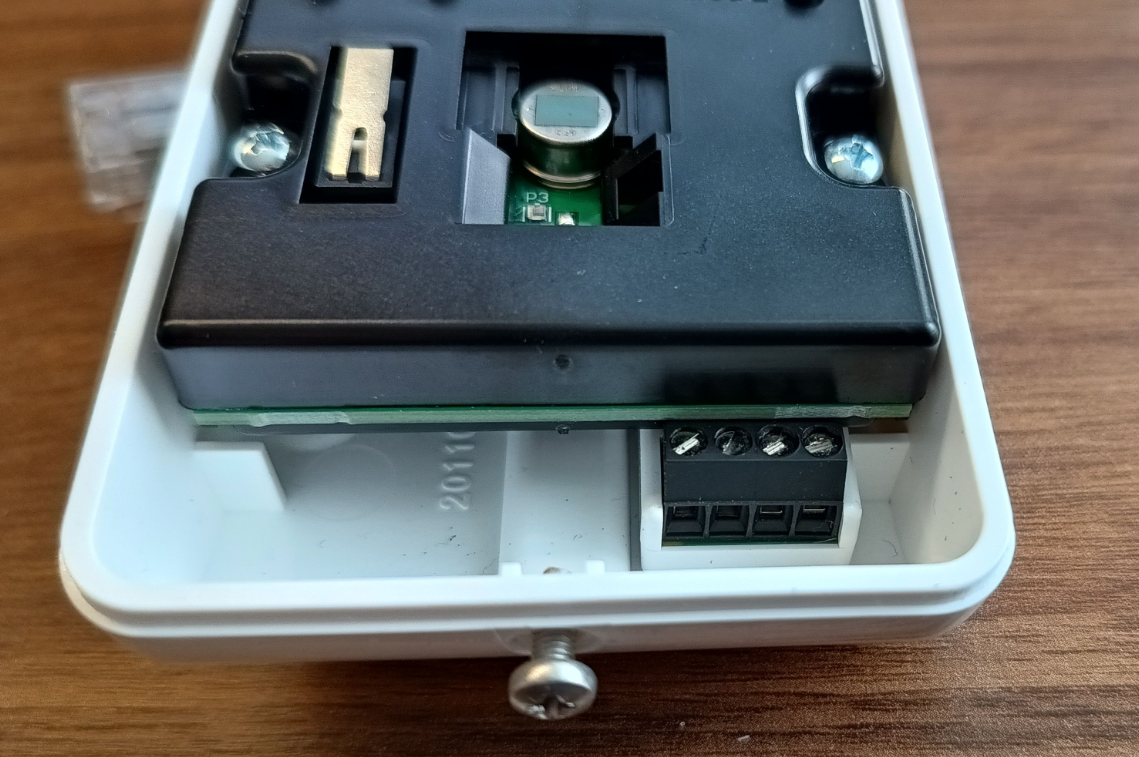
It is possible to make wire based motion sensor from Satel, wireles using Zwave network. Satel Opal, Opal Plus and Opal Pro have similar case which can hold additional module of Fibaro Smart Implant. On the picture below is on the bottom right side on the case, just below the sensor module. It fits quite well here.
Both sensor and implant are powered by 12V DC, so you need to have only 2 wires coming to the sensor intead of 3 or more. It is especially important if you already made in-soil wiring and would not like to change it that much.
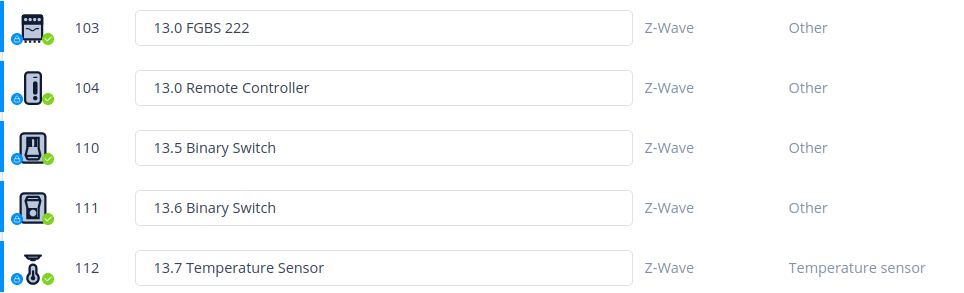
So, Fibaro Smart Implant has 2 binary switch-like inputs as well as 2 resistive outputs which can be disconnected if not needed. On the picture above you see these outputs unused. Import FSI into your system of a choice. Mine is Fibaro HC3. But be aware that there is one quirk going on here. After adding it you will not see binary inputs as separate devices and moreover you need to manually put an association from those inputs into controller. It is counter-intuitive.
There is binary switch on the list, but no binary input:
Then, once you have this configured at this time you will not be able to use it as a security device because it is not such a device. It is just a binary input and switch as name states. So Fibaro HC3 will not include it in alarm zone. You can change this by using QuickApp with motion sensor type set. As binary input changes binary switch then you can use this parameter and rewrite state from one device into another. As simple as it is:
function QuickApp:onInit()
    self:debug("onInit")
    self:loop()
end

function QuickApp:loop()
    fibaro.setTimeout(500, function()
        self:debug(hub.getValue(111, "state"))
        self:updateProperty("value", hub.getValue(111, "state"))
        if hub.getValue(111, "state") == true then
          fibaro.setTimeout(500, function()
            hub.sleep(5000)
          end)
        end
        self:loop(text)
    end)
end
Beaware that this granularity is enough which has been tested. Satel Opal motion sensors are powerful so no need to increase frequency. By default this motion sensor gives alarm for 2 seconds and here I have extended it to 5 seconds just for testing sake. In case of alarm zone it does not matter how long it reports as when it reports is done.
Recently we’ve ordered Fibaro’s HC3 as a replacement for OpenHAB. First because it has integration with Satel alarm system and second that it has native Zigbee support next to default Zwave. OpenHAB also has support for Satel and by using external adapter you can connect Zigbee devices too. So why change OpenHAB to HC3 you can ask. Because it is a commercial product with a support and it feels like a product even if OH has similar or greater capabilites in few areas.
Any cons? Sure thery are.
Although it supports Nice devices like gates and garage doors, it works only with selection of devices, not all of them, not in every possible combination. Although it supports Zigbee devices, it is still in beta state. So do not expect that every cheap chinese module will work and from my experience like 50% will not work. HC3 sees them, adds them but they stay in unconfigured mode with no use. So it is better to order online to have a chance to send it back once it does not work. Overall integrations count is greater in OH than in HC3, especially when talking about official integrations and not third party ones.
So what about pros?
I better like to write Lua code in HC3 instead of writing DSL code in OpenHAB. Not a big difference, but QuickApp concept in HC3 seems to be more like getting things standarized. Generally speaking HC3 whole concept is more standarized with things set already by deafult, like alarm zones or garden watering. No such thing in OH by default. Lastly, HC3 in my private opinion has fewer UI quirks than OH.
Grand limitations and missing integrations
HC3 is not intended to be a video surveillance recording thing. I still have to use OpenHAB to get all variaty of IP cameras to offer still picture snapshots and MJPEG “streams”. RTSP streamig is said that will work only in Yubii (HC3 native mobile application) and only in local network. Well… it does not work for me that way neither.
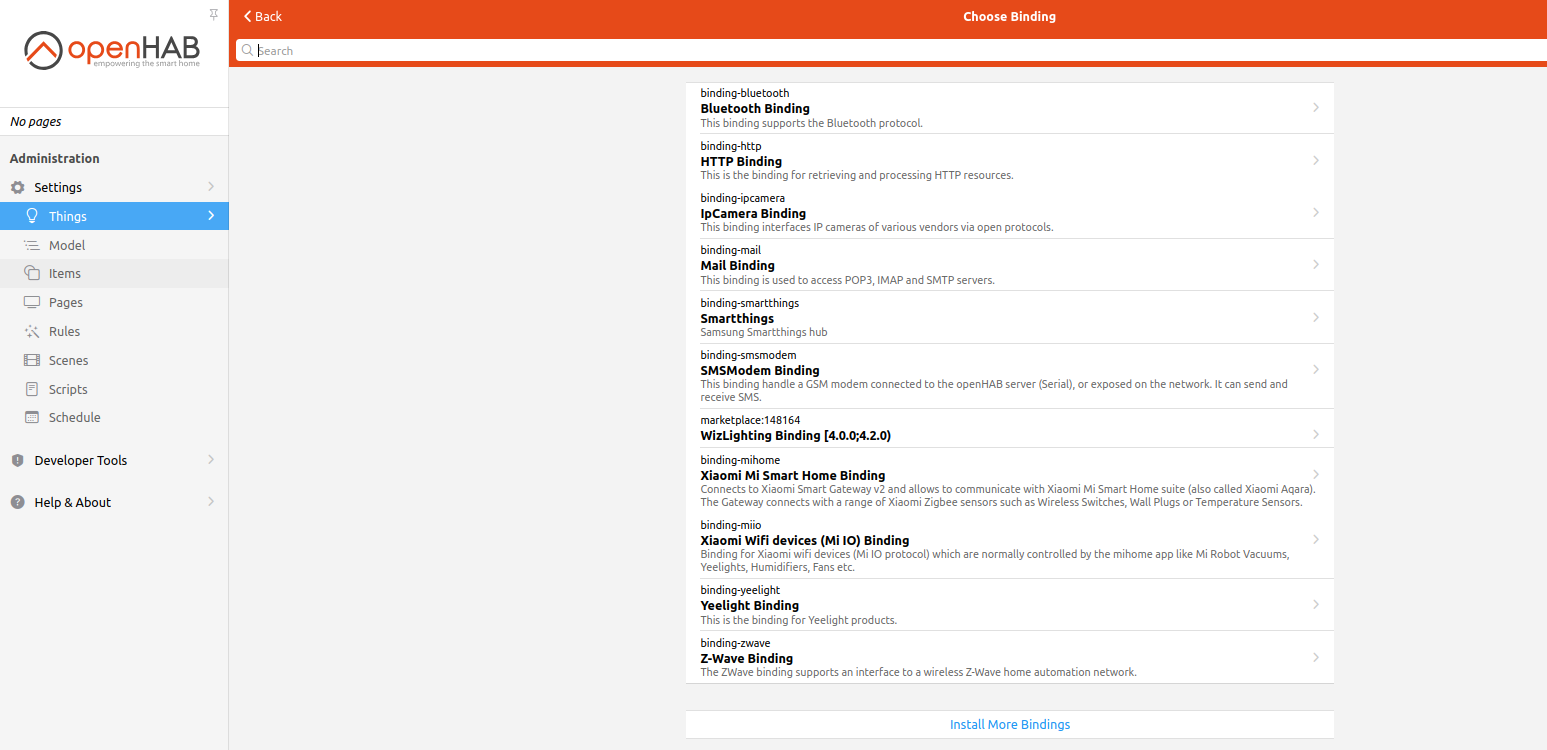
There is no Huawei solar panel integration that will just work. There is no SmartThings integration. And finally there is no WiZ lights integration. Fortunately I managed to overcome these two limitations but integrating it by myself:
I tried to record video on my Dell G15 laptop using built-in camera. Unfortunately, by default it does not work. I tried Cheese and Webcamoid using several different settings. Cheese did not work with both built-in and external camera. Webcamoid worked with external camera only. Finally I decided to try OBS-STUDIO and still built-in camera was crashing this piece of software also.
To fix this problem you could try to disable AppArmor:
If it is the case, then you can try to find which AppArmor profile is responsible for blocking camera recording. For me, it was the case. Now I can record using built-in camera.